🔑 Quick link: drop.realsnap.ai/canvas Create Reels-quality fashion content without shooting video. Upload a single image and AI will automatically generate a fashion video with the model in motion; add a reference video and it will be reborn as a new video with the same vibe.
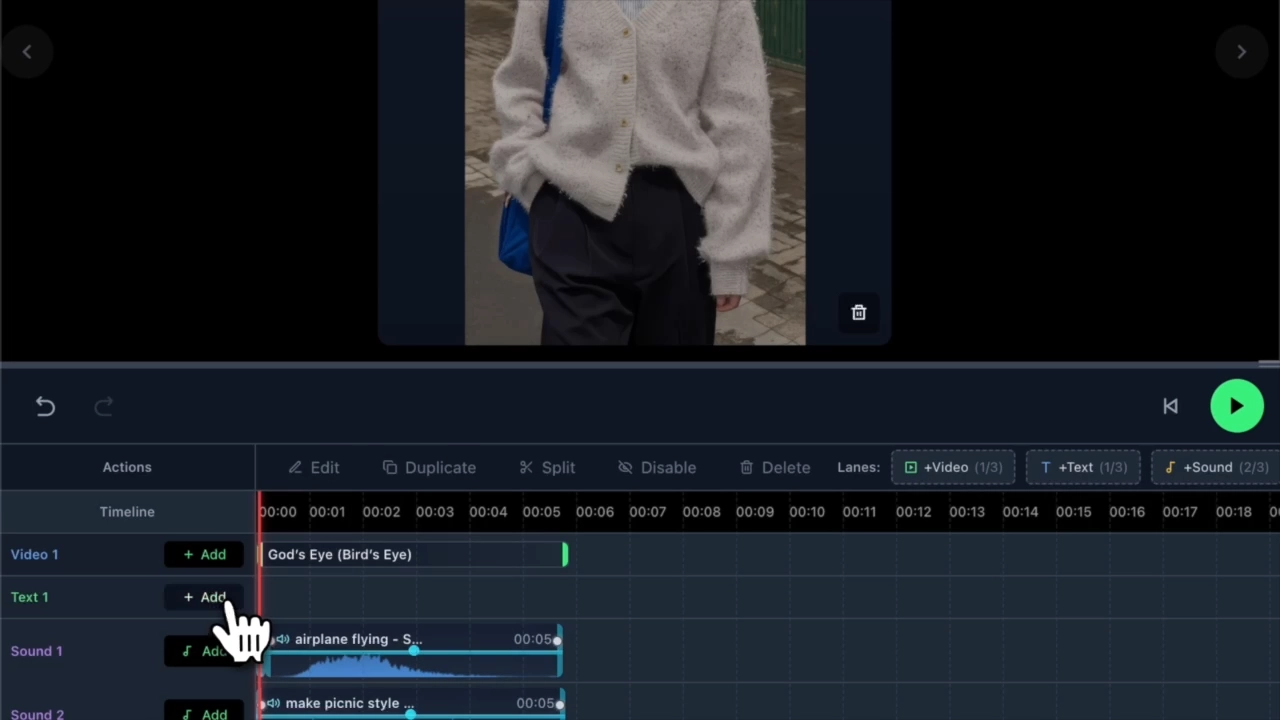
From music, text, and upscaling video quality, complete everything on one screen right up to the pre-upload stage.
🎬 Tutorial Videos (6)
Check out the tutorials at realsnap.ai → Tutorials.
01. Creating Fashion Videos with AI
- Creating Fashion Videos with AI
02. Using the Video Editing Tool
- Using the Video Editing Tool
03. Replacing Items with the Image Brush
- Replacing Items with the Image Brush
04. Adding Background Music to a Video
- Adding Background Music to a Video
05. Adding Text to a Video
- Adding Text to a Video
06. Upscaling Video Quality
- Upscaling Video Quality
Menu Description
- Menu | Description
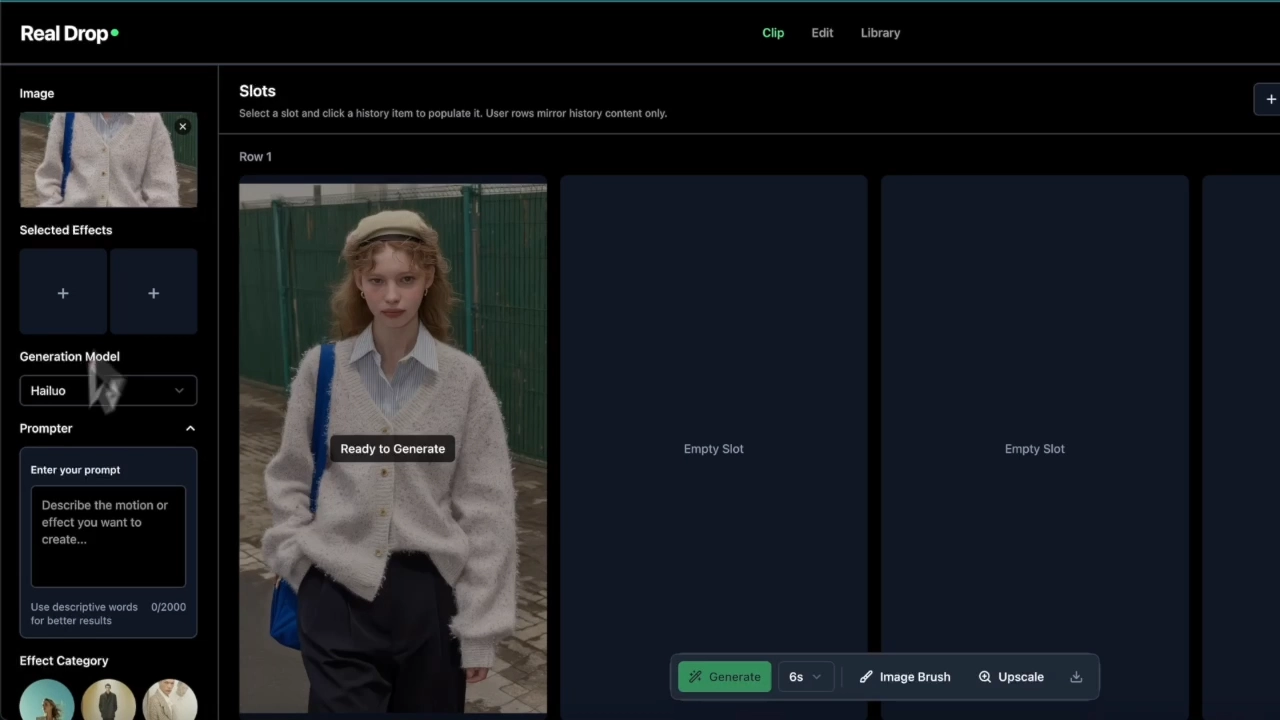
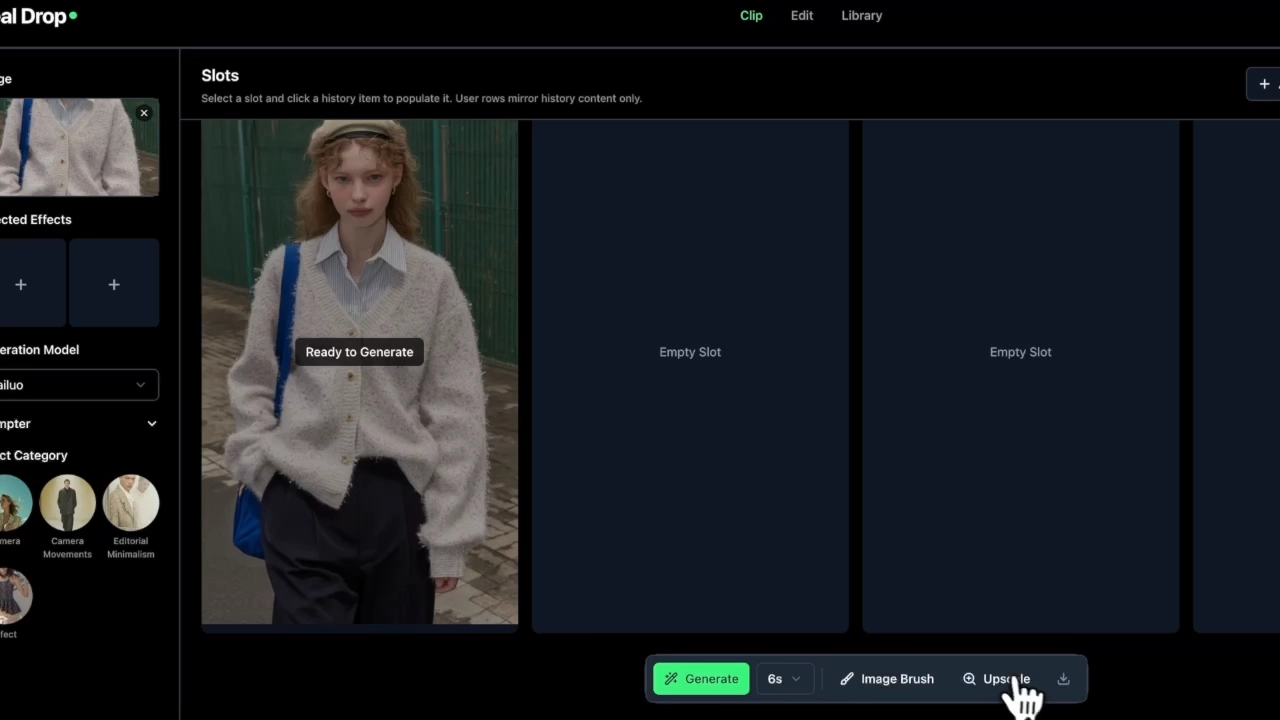
- Clip | The main space where you upload images, select effects, and generate AI videos
- Agent | Upload an existing video or Instagram URL, and AI automatically analyzes the scenes and recreates it with a new concept
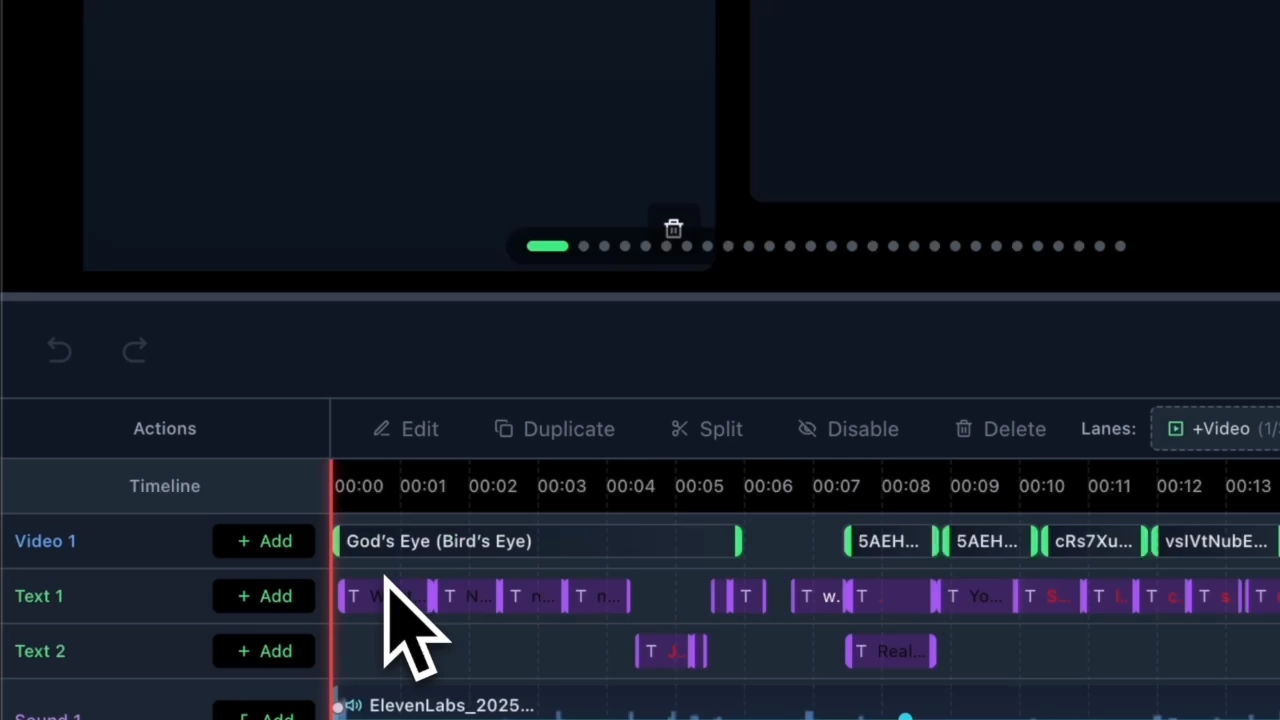
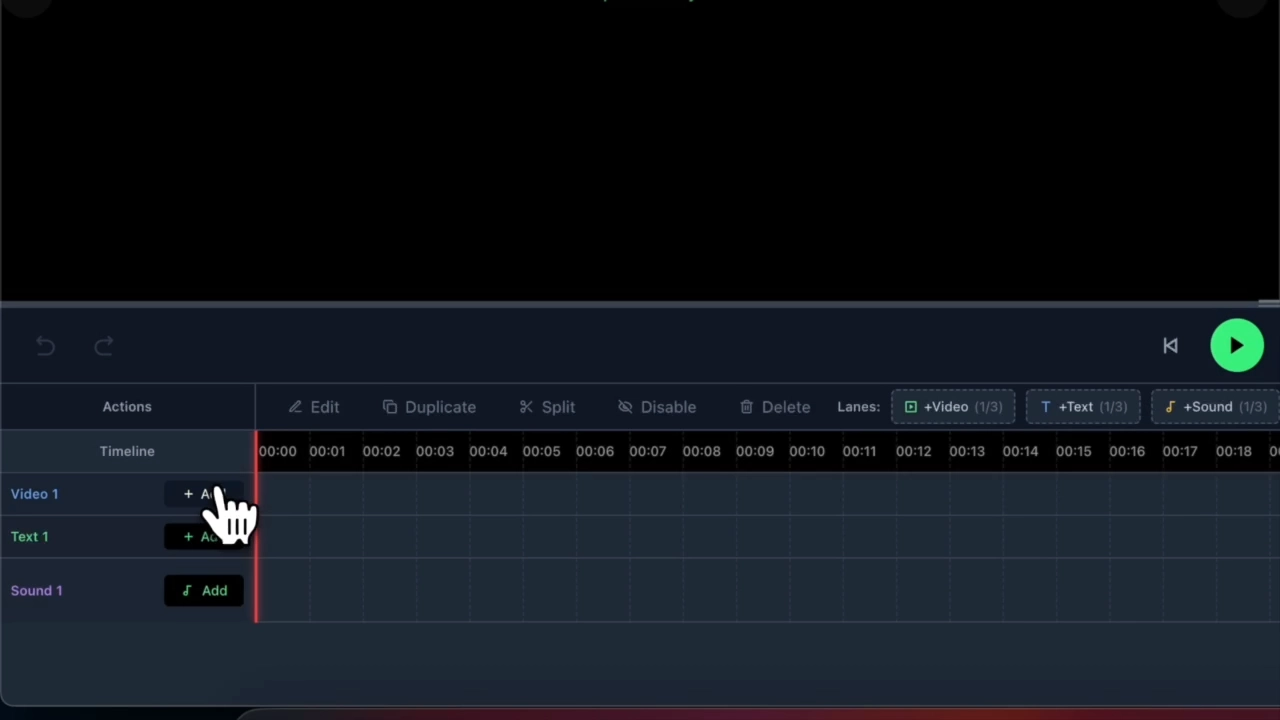
- Edit | Edit generated videos (Brush, erase, text, sound, etc.)
- Library | A space to view and manage all videos you have generated so far at a glance
CLIP — Generate AI Videos
1. Upload an Image
In the left panel, click Image area, click Upload image.
- AI analyzes the image and generates a video featuring the main subject.
- Lookbook photos, product photos, model photos, and more can all be used.
2. Select an Effect Category
In the left panel, select the desired effect under Effect Category.
- Camera : Camera examples: zoom in/out, pan, rotate
- Camera Movements : Camera movements such as shake, zoom in/out, and rotation
- Effect : Environmental effects such as light, dripping moisture, and wind
- Effect samples are shown in the preview circle icon.
- Selected Effects (+) You can apply several at once or layer them.
3. Set the Generation Model & Options
- Generation Model : Hailuo (default) — model can be changed in the dropdown menu
- Prompter : Enter the desired scene directly as text
- Video Analysis Engine button to link image analysis
- Use the Add Slot Row button at the bottom to add a slot row for themes.
4. Generate
Use the Generate button at the bottom to generate the video.
- Auto : Automatically select export mode
- 6s : Video length (4s / 6s selectable)
- PRO MODE : Enable advanced options
IMAGE BRUSH — Specify a Specific Area
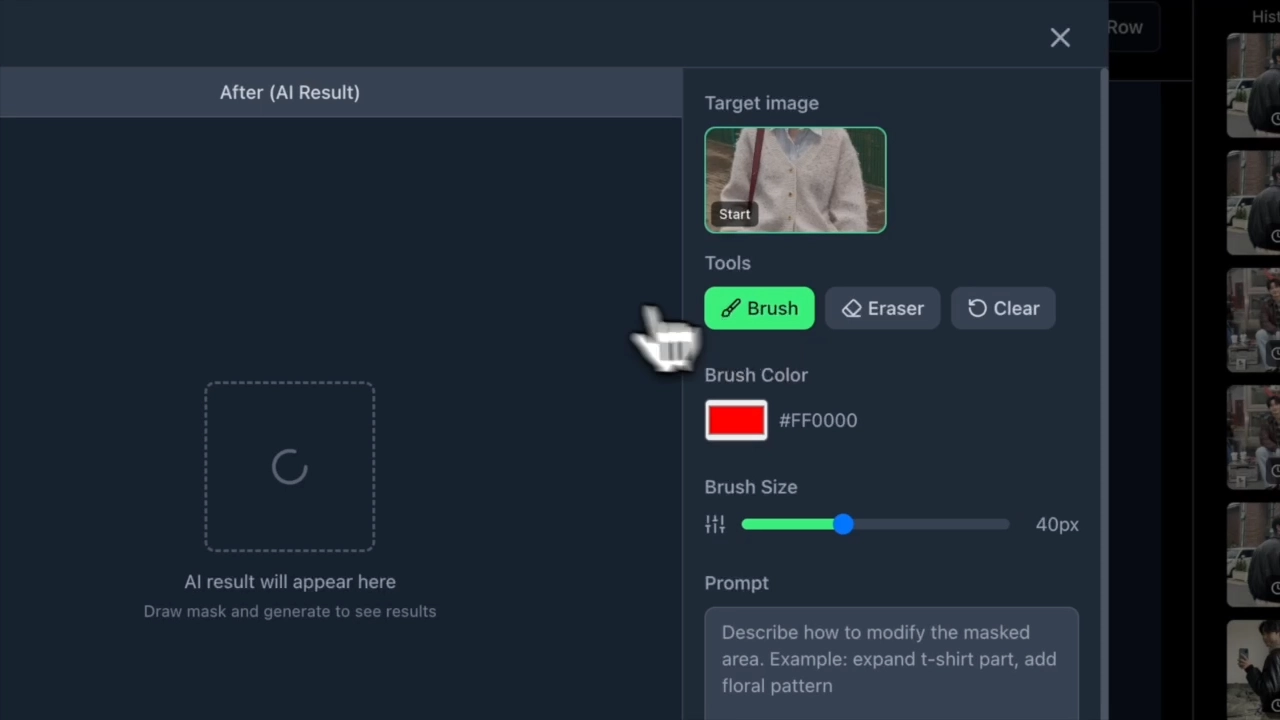
Before Generate, you can use the brush to specify the character or background in the desired area.
- Paint the area where you want to apply the effect with the brush.
- This is enabled only after you upload an image.
UPSCALE — Improve Video Quality
With the generated video selected, press the Upscale button and AI will automatically enhance the video quality.
- We recommend applying this after editing is complete, before final export.
- Consumes 1 credit.
AGENT — Automatically Recreate Videos
📌 AI analyzes an existing video or Instagram Reel URL and creates a new video with a similar concept.
3-step flow:
- Source — Upload a video (MP4 / WebM / MOV, 19 MB or less) or enter an Instagram URL, then Analyze Video click
- Customize — Review the scene-by-scene elements extracted by AI and modify effects / camera / model
- Generate — Review the settings and generate the video
- Generate Image button can also be used to extract a specific frame from the source video as an image.
HISTORY — View Generation History
In the right History panel, you can view all videos you have generated so far at a glance and apply them directly to a slot.
- If you click a History item after selecting a slot first, it will be applied automatically.