Key Updates
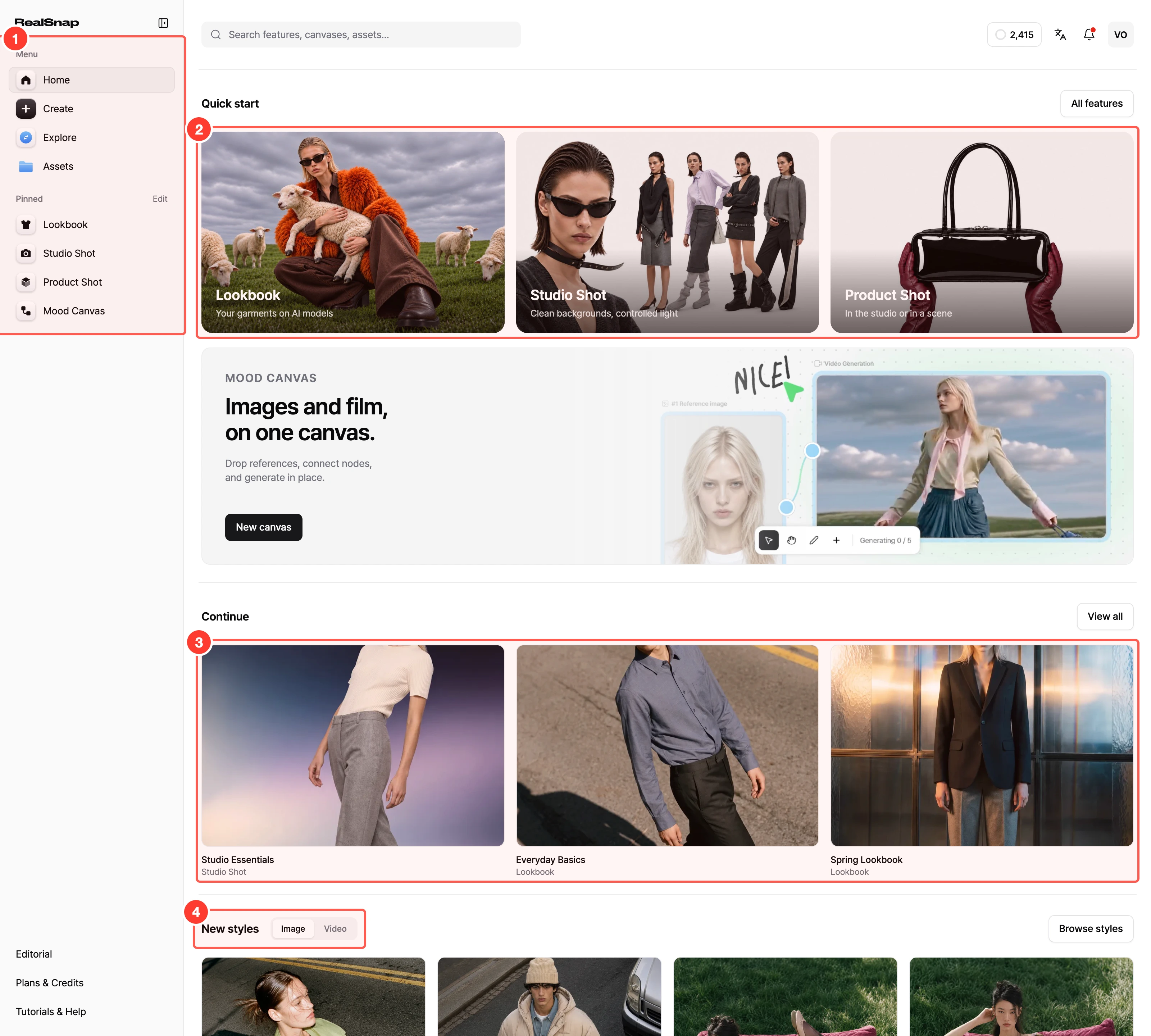
- RealSnap on desktop has a new design. Every page now opens inside the left sidebar and top bar, and you can start right from 'Quick start' on Home.
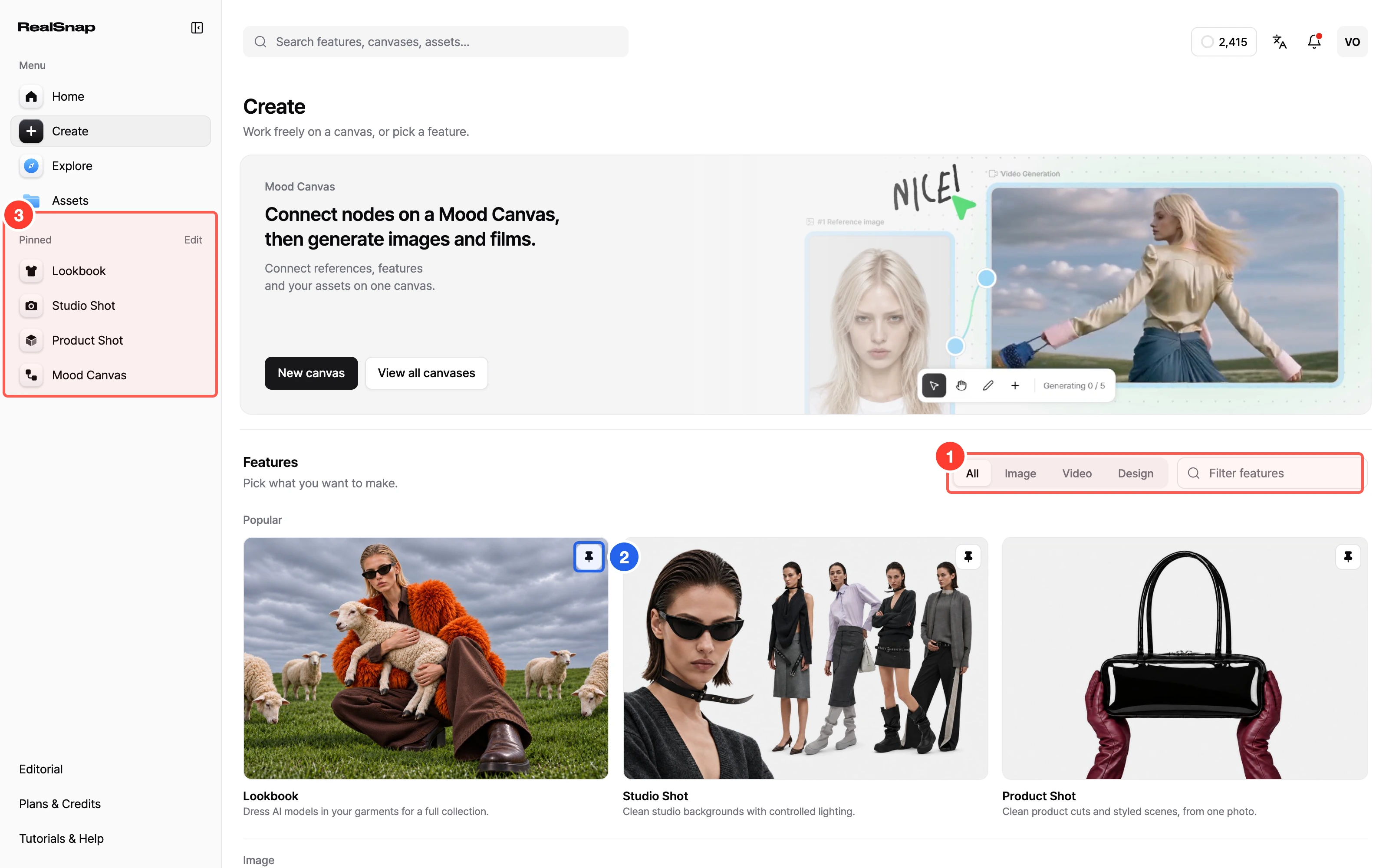
- Pick any feature from one place in 'Create'. Find it with the tabs and 'Filter features', and click the pin to keep it under 'Pinned' in the sidebar.
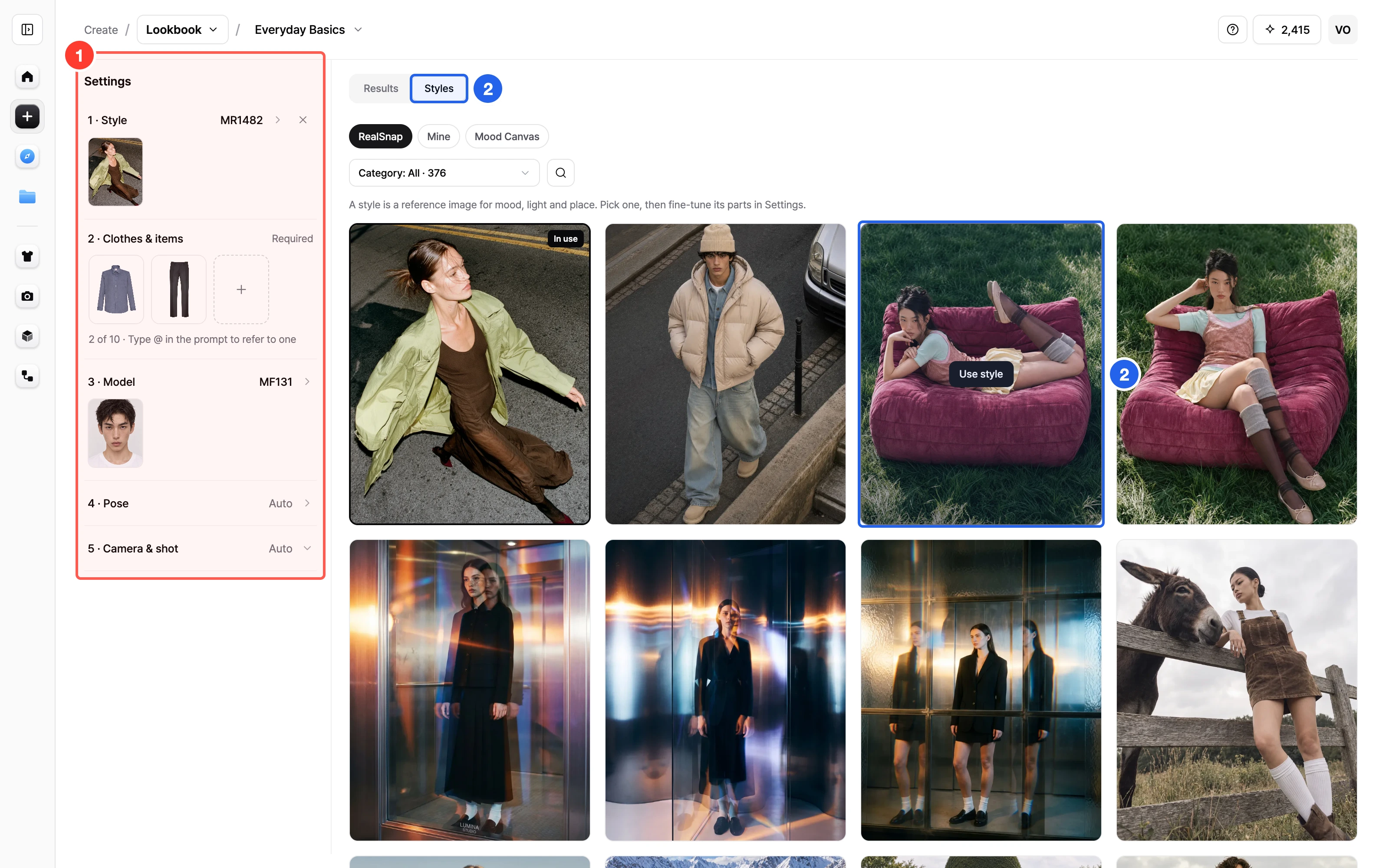
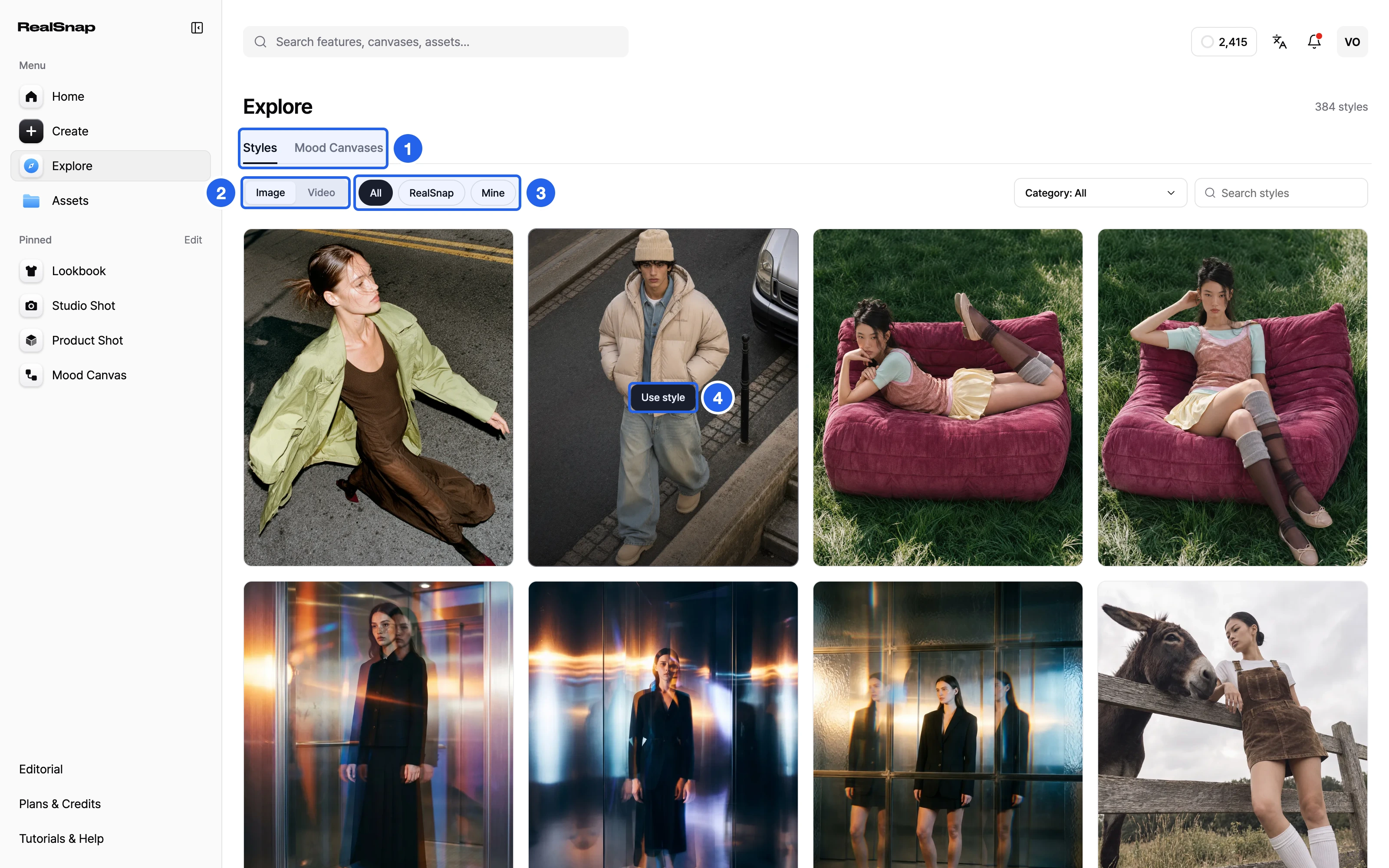
- Fill in 'Settings' on the left from top to bottom. Pressing 'Generate' opens any required step you missed, and you pick a style with 'Use style' in the 'Styles' tab.
- Product Shot, Location and Multi Shot follow the new design too. Product Shot has 'Studio' · 'Concept' tabs, and in Location you choose a background place with 'Pick a place'.
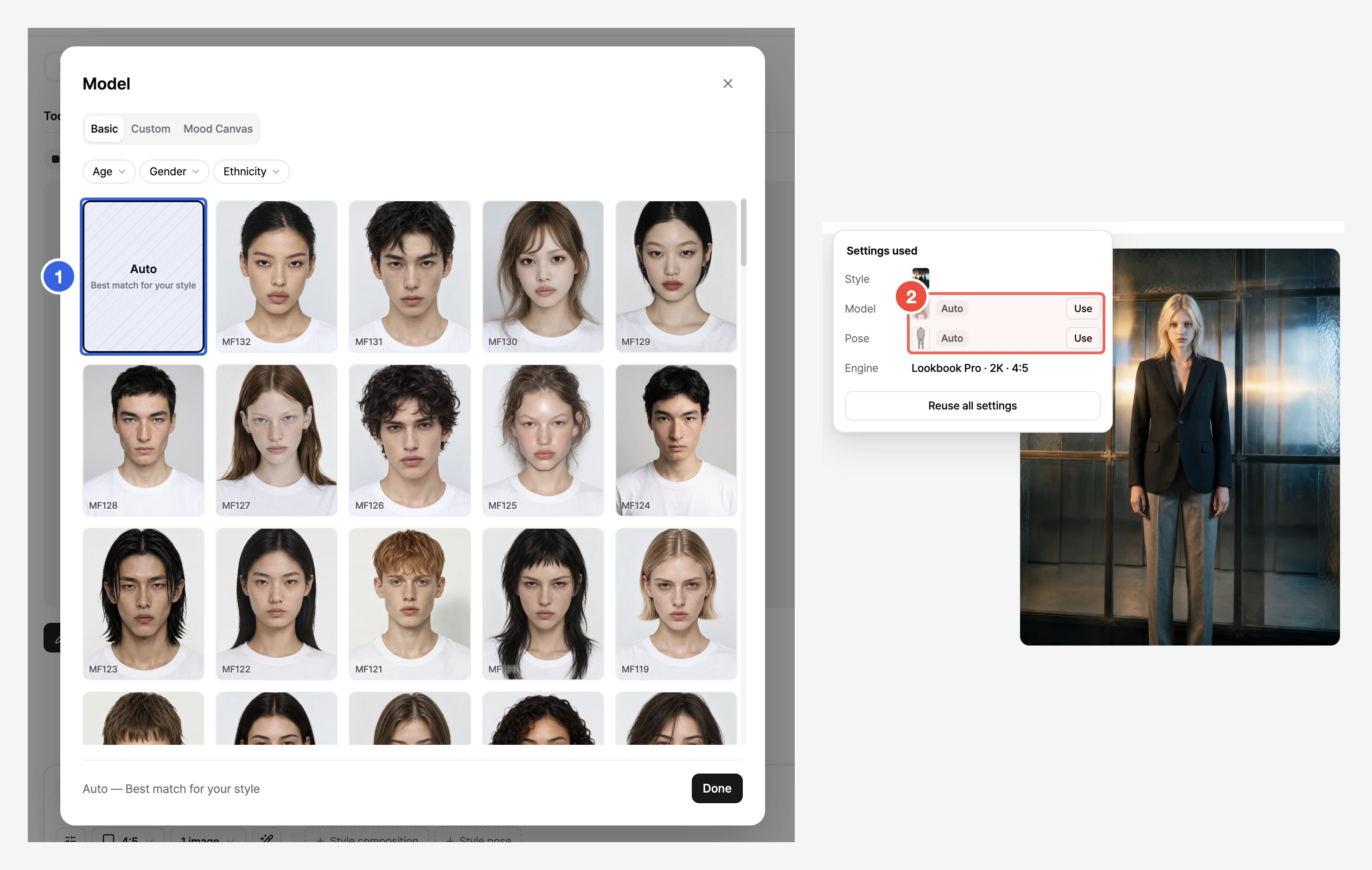
- You can leave the model and pose to Auto. Leave them empty and press 'Generate' to let AI pick to fit your style and garment at no extra cost; the picks show in 'Settings used' as Auto with 'Use'.
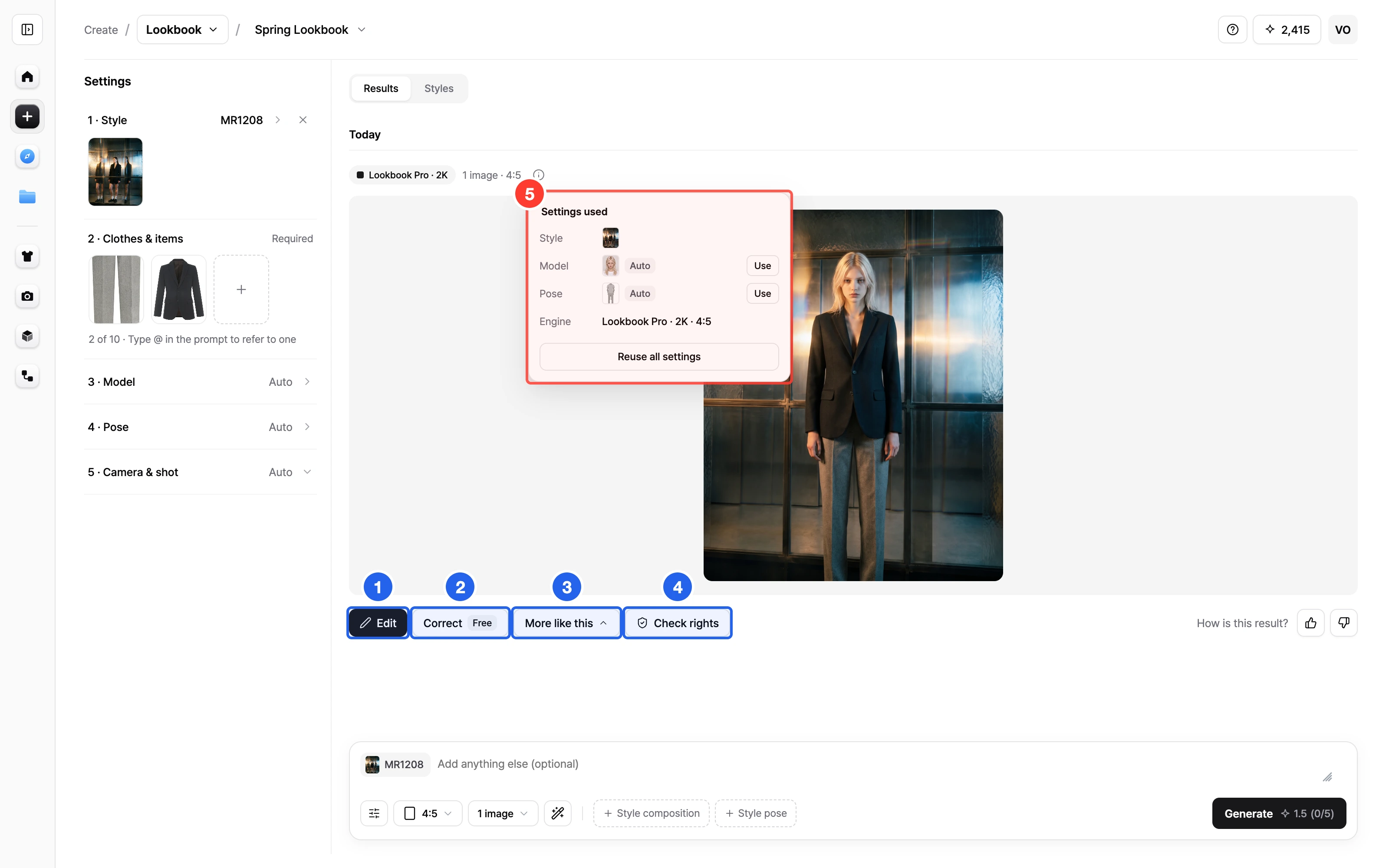
- Refine, make more and check rights right under each result. Open 'Settings used' to see what made a result and reuse it all at once.
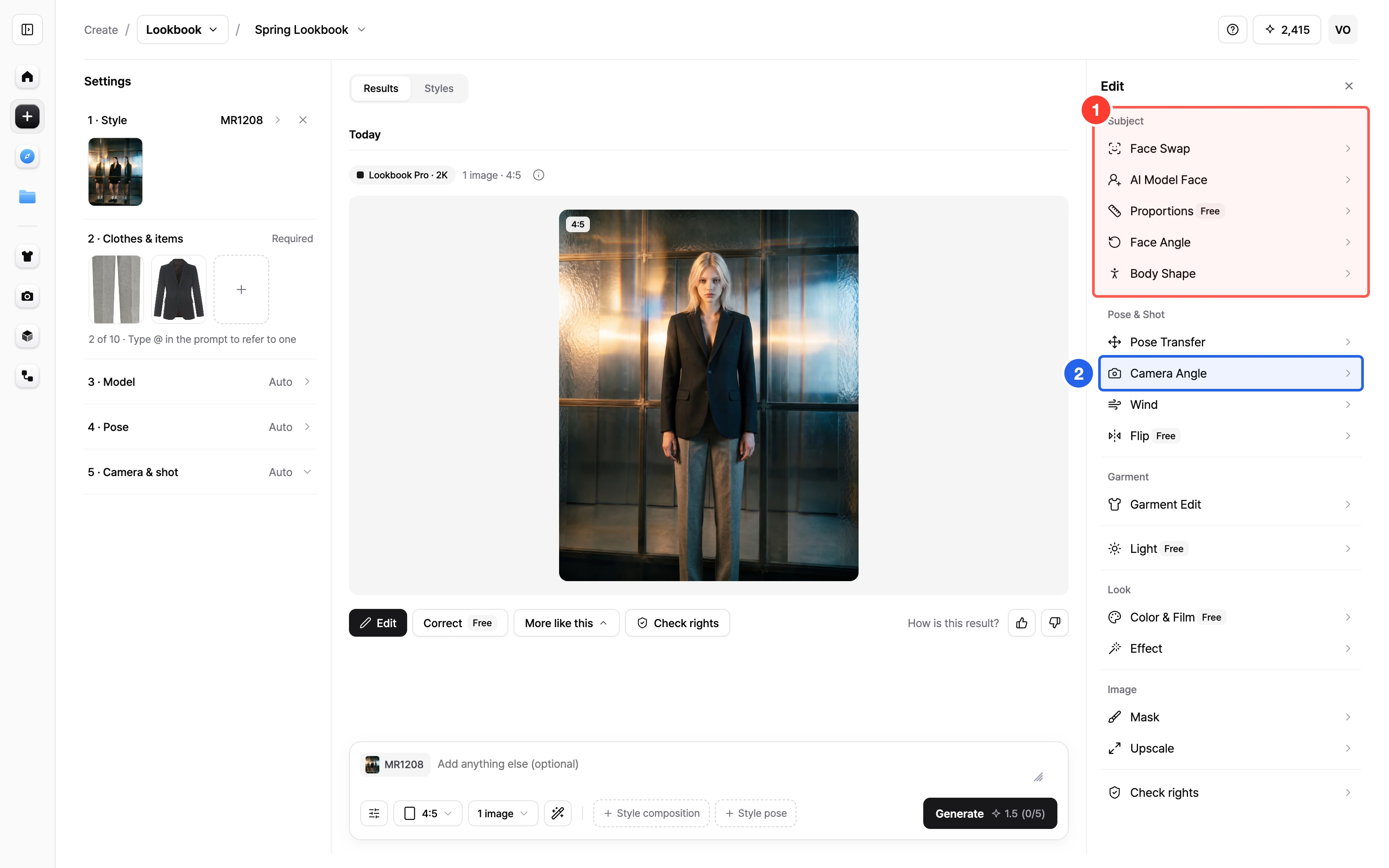
- Find edit tools by group in the 'Edit' panel. Click 'Edit' on a result to open the groups on the right; every tool you used before is still inside.
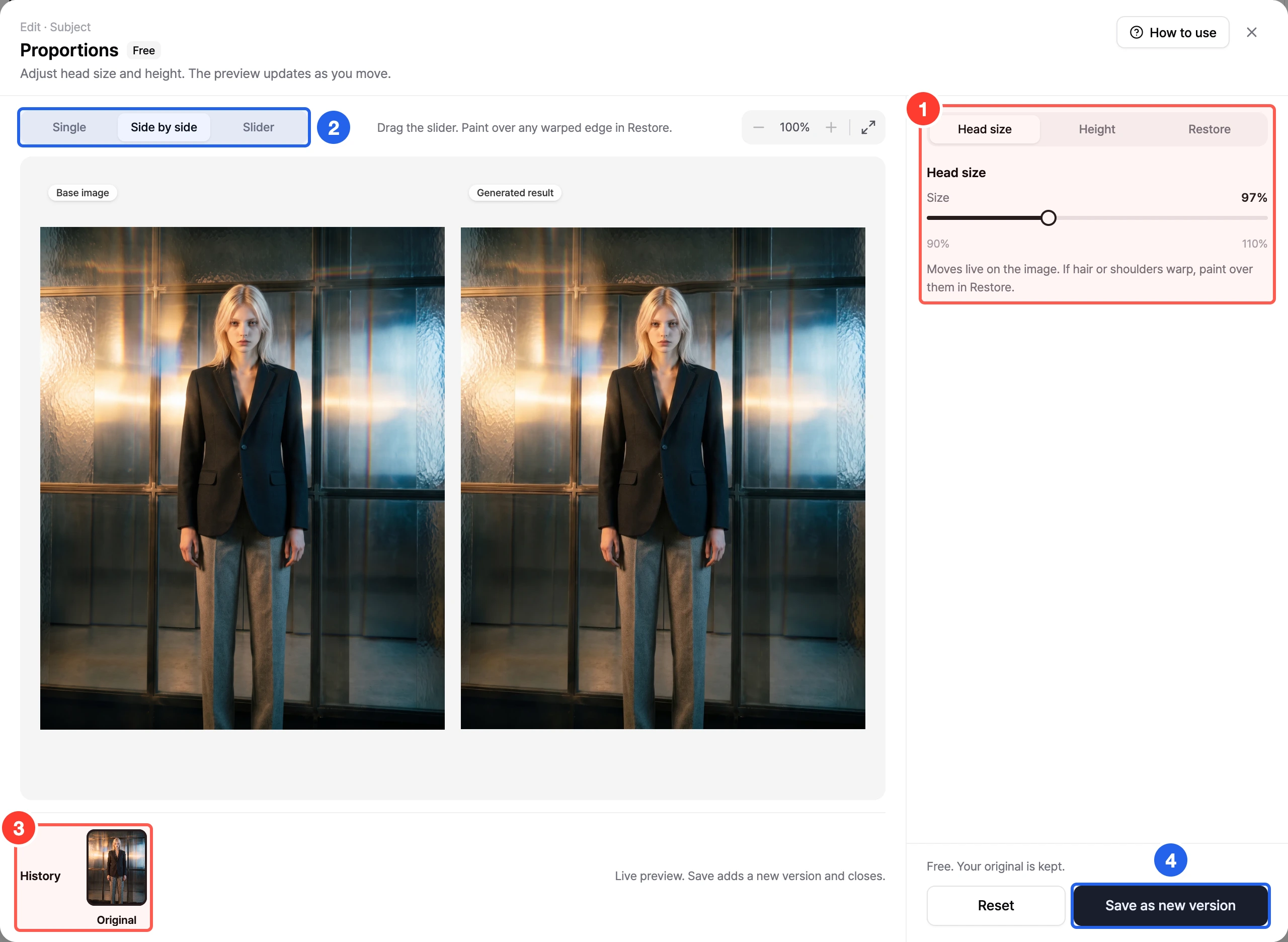
- Tools open in a large window so you can see the image up close. Compare results in 'History' and apply one with 'Apply to image'; it becomes a new version and your original is kept.
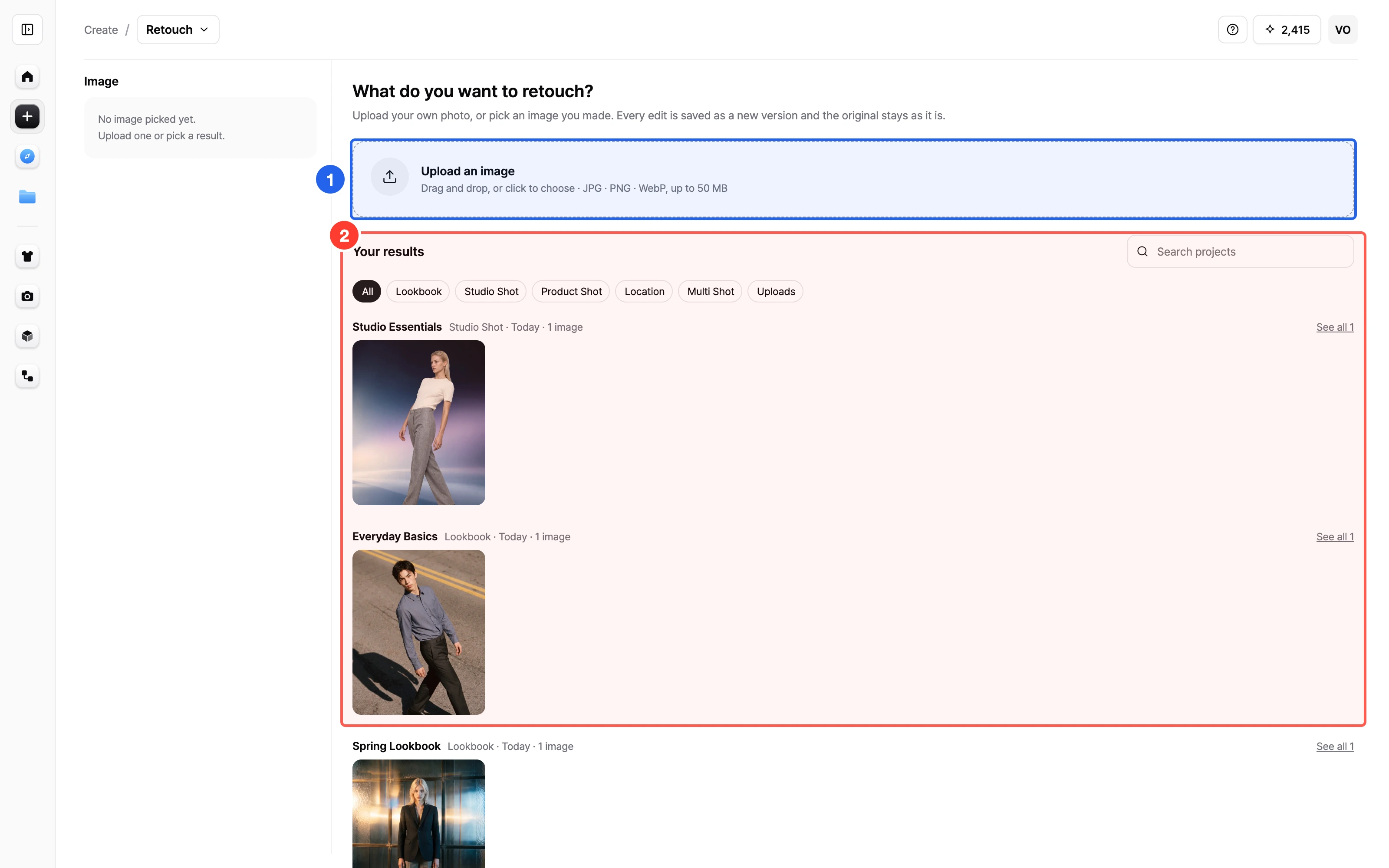
- Edit an uploaded photo or one of your results in 'Retouch'. Use the same Edit tools; each edit is saved as a new version and the original is kept. Choose a version when you download.
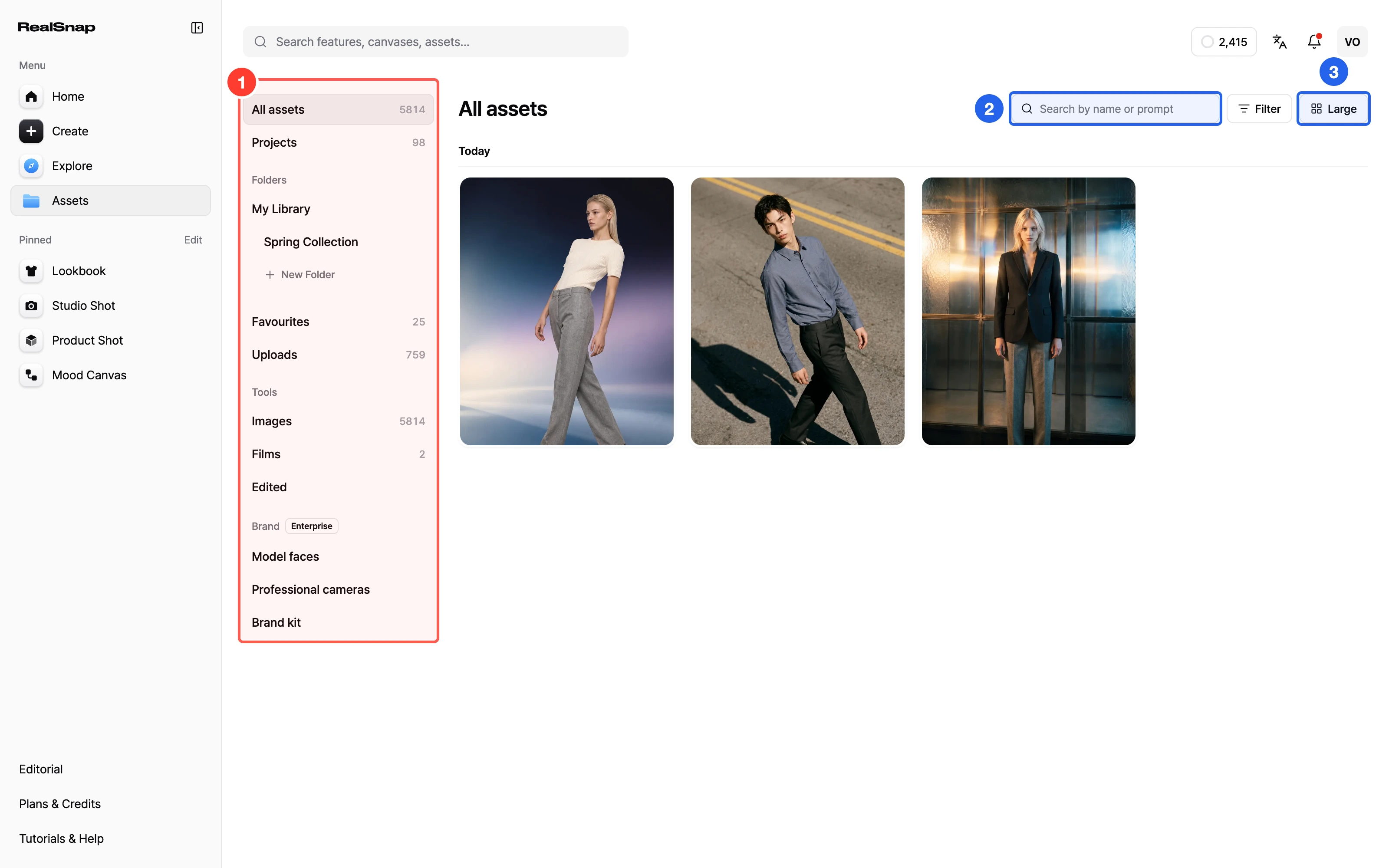
- See your results and files together in 'Assets'. Everything is sorted by category and searchable by name or prompt. Images you have edited gather in 'Edited'.
- Browse styles and Mood Canvases in 'Explore'. Start right away with 'Use style' for a style you like, or 'Use canvas' for a canvas.
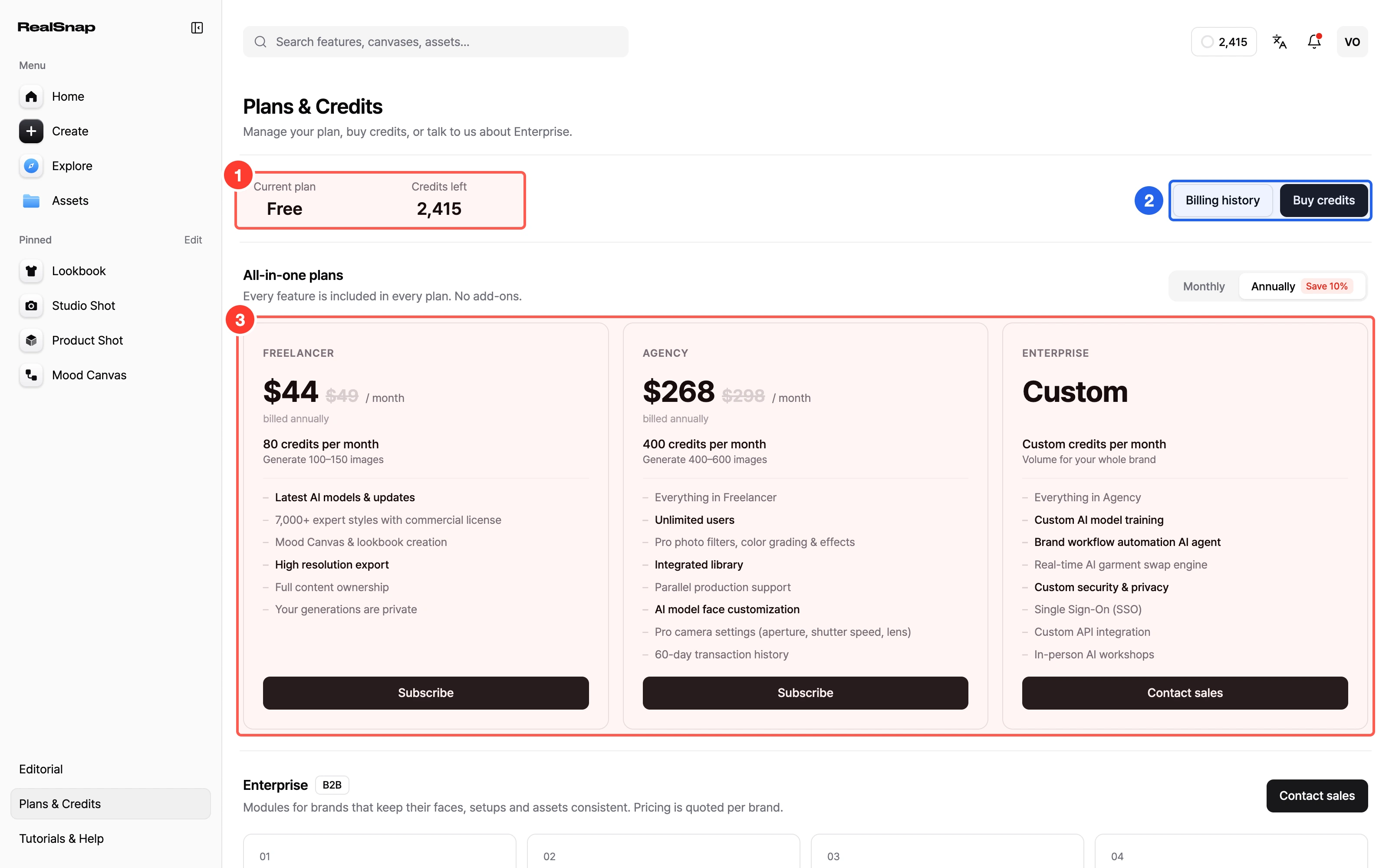
- Manage your plan and credits on one screen in 'Plans & Credits'. See your plan, credits left and renewal date, then compare plans or top up with 'Buy credits'.
- When you run short, you see how many credits you need. The 'Out of credits' window shows what you need and what you have, with plans and credit top-ups one click away.
Usability Improvements
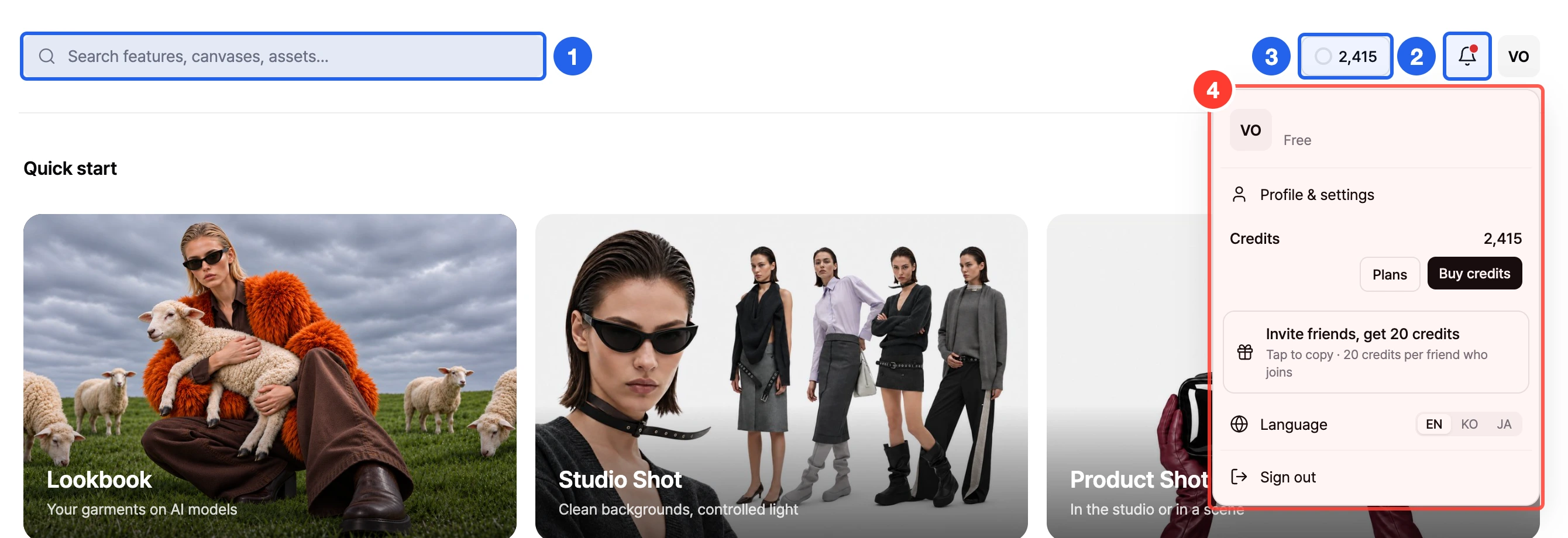
- Find features, canvases and folders from the search box at the top. Type a name to see matches grouped by type, and click one to go straight there.
- The notification bell, credit display and account menu are tidier. The bell tells you about finished generations, low credits and new updates, and the credit display opens 'Plans & Credits'.
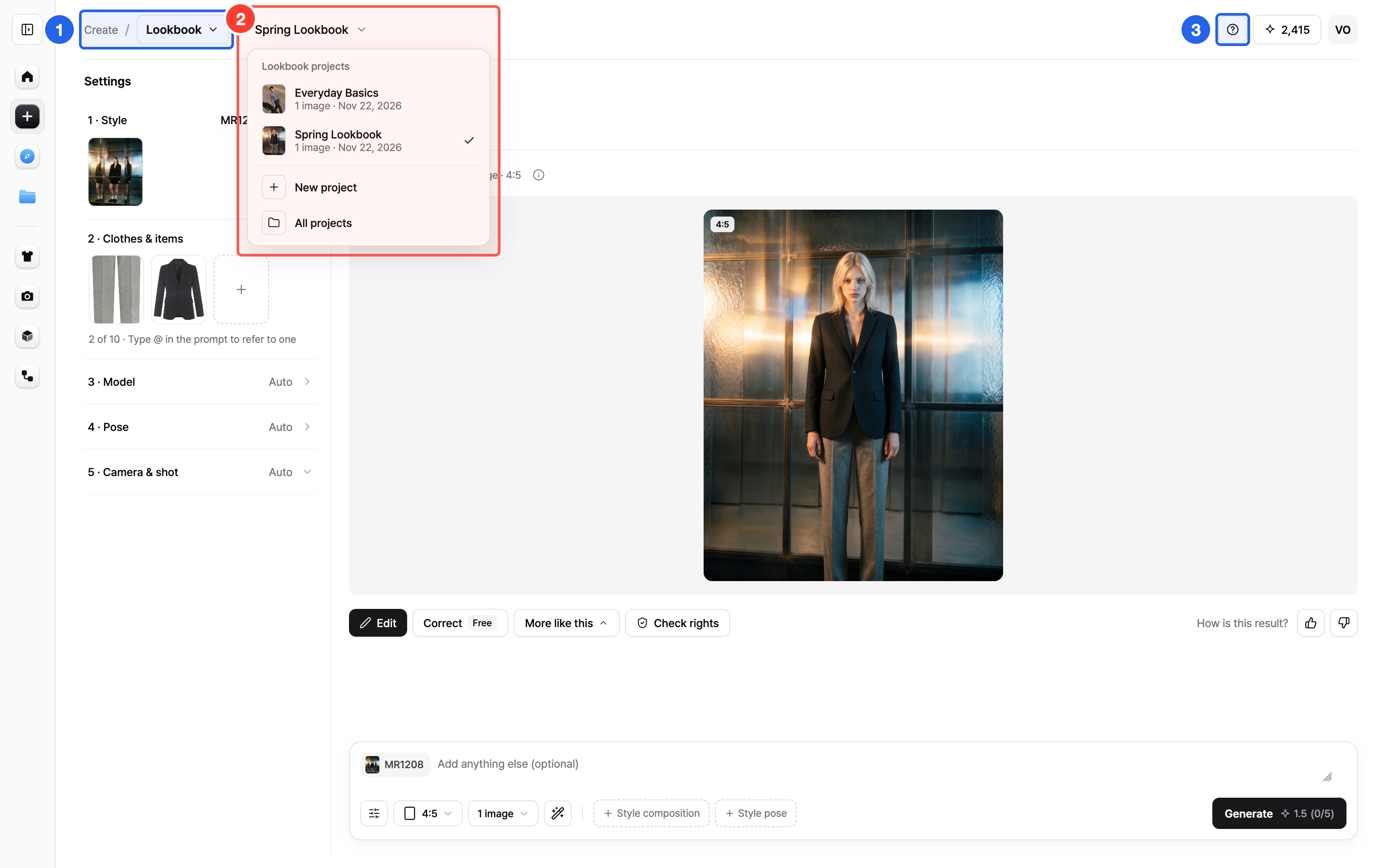
- Switch features and projects from the top of the workspace. Click the project name to switch or start fresh with 'New project'; each project keeps its own settings and results.
- Open guides and support from the '?' menu. It has 'How to use' for each feature, 'Retouch guidebook' and 'Chat with support'.