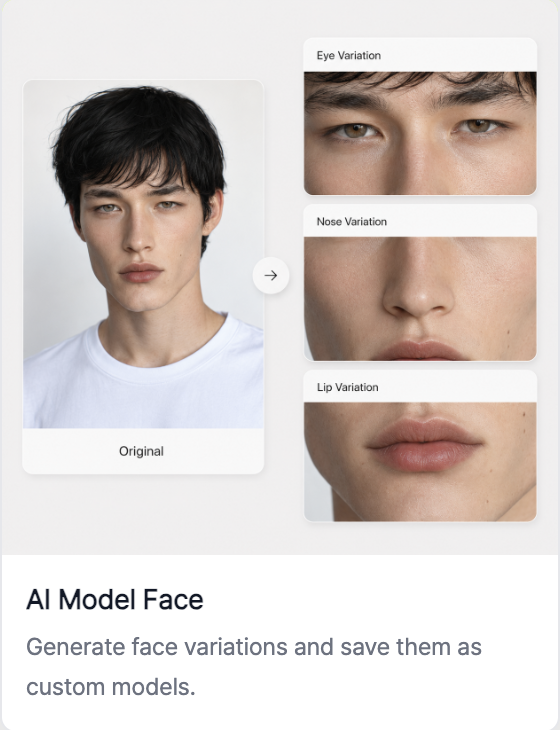
RealSnap AI Model Face is a feature that lets you add a face photo, adjust how closely the result resembles the original photo, and create your own AI model face.
After generating multiple face options, you can refine details such as the eyes, nose, and mouth, then save the face you like as your model.
It’s hard to find the model face you want from scratch every time
When creating AI model shots, sometimes the outfit and mood look right, but the model’s face doesn’t match your brand image.The model’s face may look too strong, or it may feel different from the age range, mood, or impression your brand wants.
In these cases, finding or generating a new face every time can take a long time to align the image direction.RealSnap AI Model Face helps you create and save your own model face based on a reference face photo, so you can reuse it in future model shot projects.
1. Add a face photo and adjust the resemblance level
In the AI Model Face feature, you first add a reference face photo.Then you can adjust how closely the result should resemble the uploaded photo.
If you increase the resemblance level, more of the original photo’s impression will be reflected. If you lower it, the result will reference the original mood while creating a face closer to a new model.By adjusting the resemblance level to match the model impression your brand wants, you can create more natural face options.
2. Generate and compare multiple face options
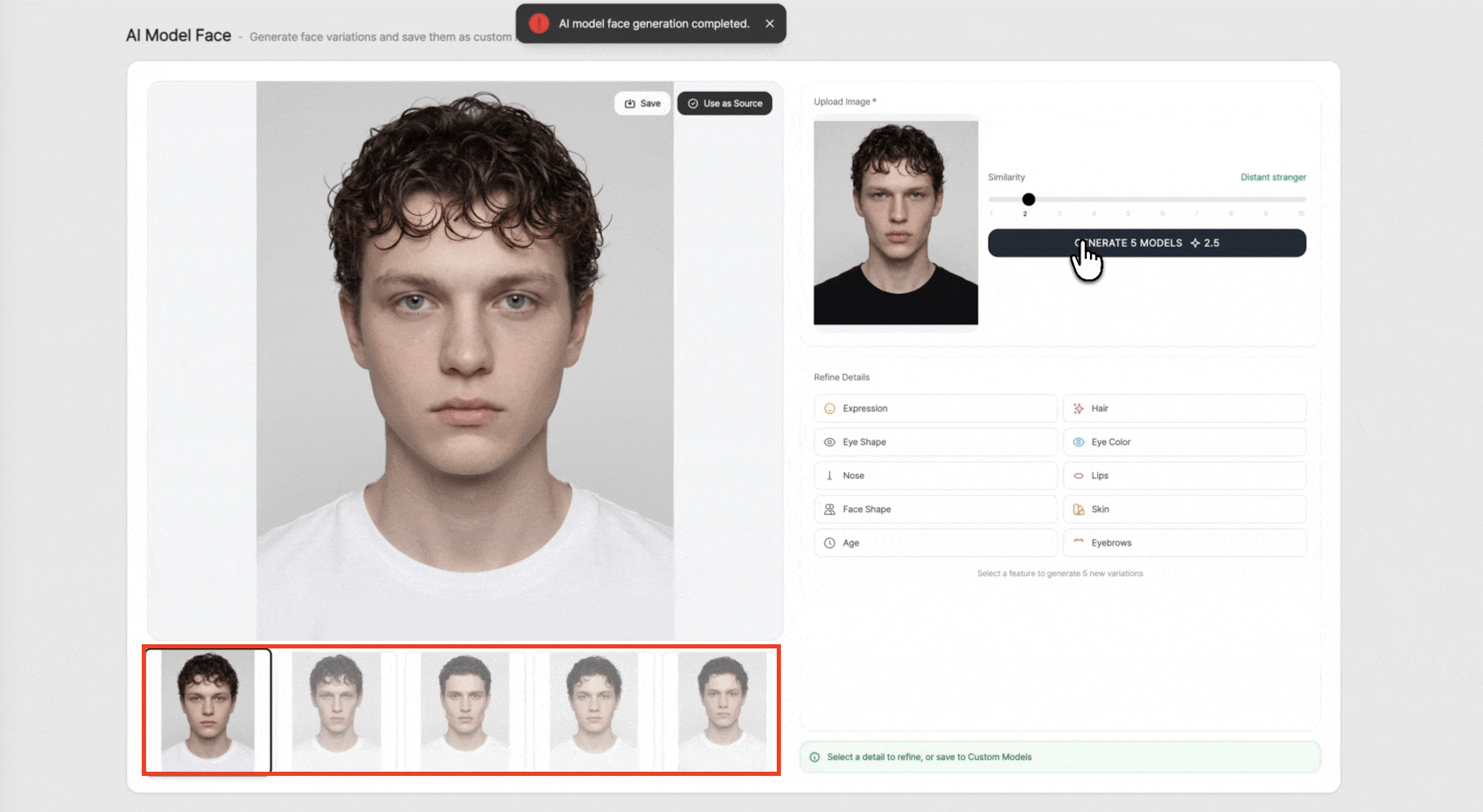
After completing the settings, click Create to generate multiple face options.For example, you can create 5 face options and choose the one that best matches your brand image.
By comparing multiple options, you can see slightly different impressions, moods, and face shapes from the same reference photo.This is useful when choosing a model face for lookbooks, product detail pages, and social media content.
3. Refine details like the eyes, nose, and mouth, then save
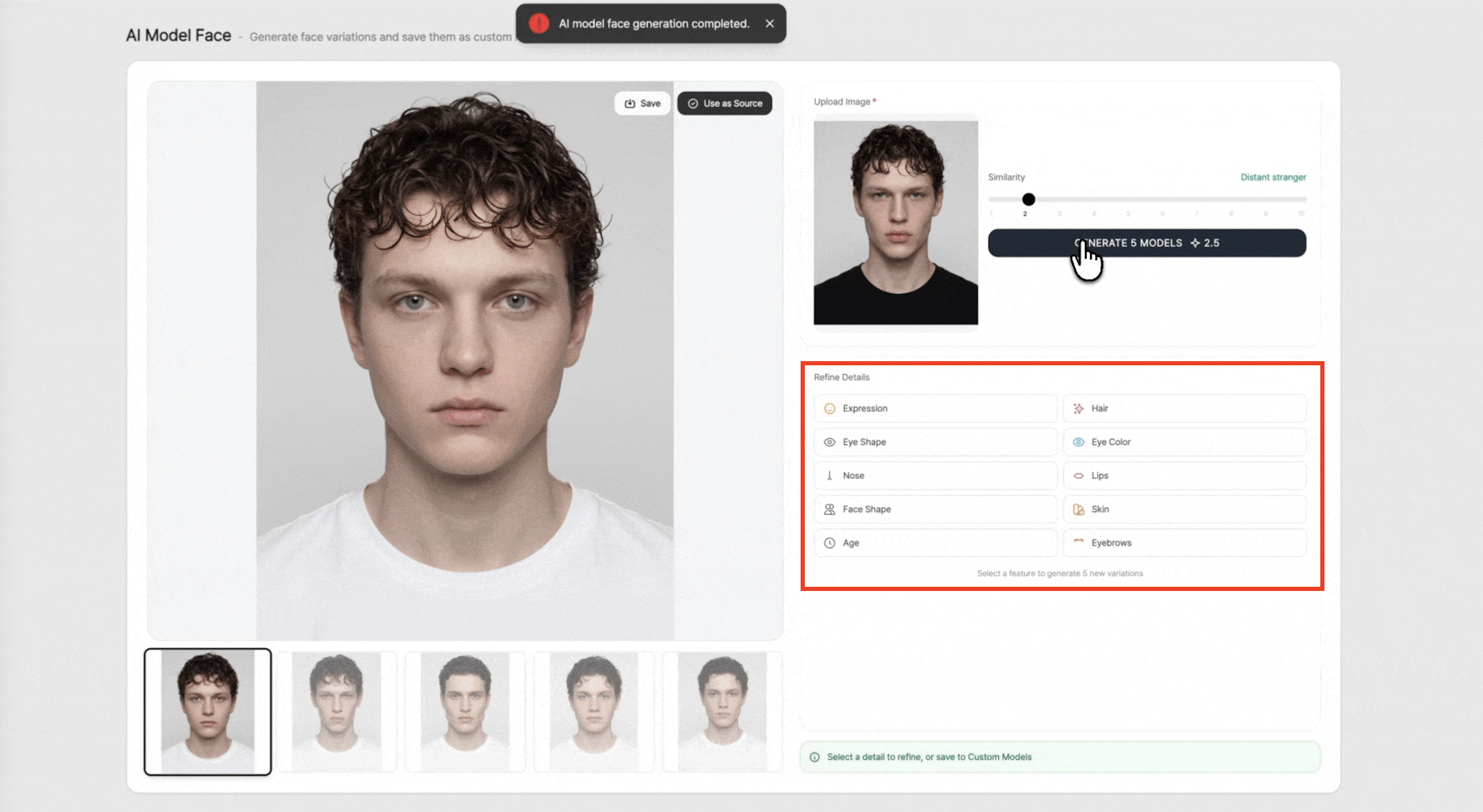
After selecting a generated face option you like, you can refine details such as the eyes, nose, and mouth.Adjusting small details can bring the model face’s impression and mood closer to what you want.
If you like the final face, you can save it as My Model.The saved model face can be reused later for AI model shots, lookbooks, product detail pages, and campaign image creation.
How to use
- Open the AI Model Face feature.
- Upload the face photo you want to use as the reference.
- Adjust how closely the result should resemble the original photo.
- Click Create to generate multiple face options.
- Choose a face you like and refine details such as the eyes, nose, and mouth.
- Save the completed face as My Model.
💡 Things to note
If you use a real person’s face photo, it must be your own photo or an image for which you have permission and consent to use.If you use it for commercial content, advertising materials, or product detail page images, be sure to check portrait rights and the permitted scope of use.
Even after saving an AI model face, be careful not to use it in a way that could mislead people into thinking it is a real model or a specific person.It’s a good idea to review the final image to make sure the brand image, purpose of use, facial naturalness, skin tone, expression, and lighting all connect smoothly.
Conclusion
RealSnap AI Model Face is a useful feature when you want to create and save a model face with the impression your brand wants.You can add a reference face photo, adjust the resemblance level, compare multiple options, refine details, and save it as My Model.
If you want to repeatedly use the same model impression in lookbooks, product detail pages, social media content, or campaign images, it’s a good idea to create a brand-fit model face first with the AI Model Face feature.