RealSnap Upscale lets you increase the resolution and enhance the details of AI model shots more clearly.
It’s useful for work that requires high-quality images, such as product detail pages, lookbooks, and ad creatives.
The result image may look good, but the details can feel a bit lacking
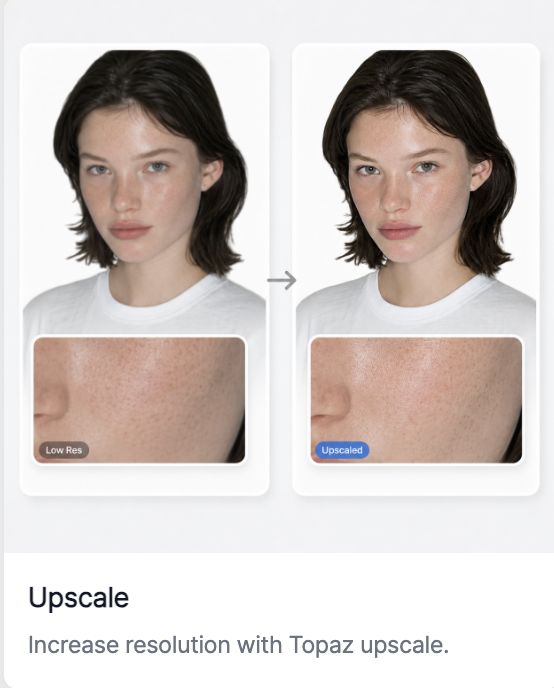
When you create an AI model shot, you may be satisfied with the overall result, but the facial details, clothing texture, or accessory rendering may feel a little blurry.
In this case, you don’t need to recreate the entire image—just apply Upscale to get a sharper result.
You can increase the resolution and detail to create a clearer image
Upscale is a feature that makes images sharper.It’s great to use when fine details—such as facial details, clothing wrinkles, fabric texture, and accessory rendering—need to appear more clearly.
It’s especially well suited for outputs where image quality matters, such as product detail pages, lookbooks, ad banners, and print drafts.
How to use it
- Select the AI model shot you want to edit.
- In the Snap tools, select the Upscale feature.
- Click Create to generate a high-resolution result.
- Check whether the face, hands, and clothing details have become naturally sharper.
- Save or download the final image.
💡 Things to note
After upscaling, you should check not only that the resolution has increased, but also that some details don’t look unnatural.It’s especially best to zoom in and review the face, hands, fabric texture, and accessory edges.
Conclusion
The Upscale feature is useful when you like the result image but want to improve only the image quality and details.Applying it before final use can help you polish the model shot to a higher-quality finish.