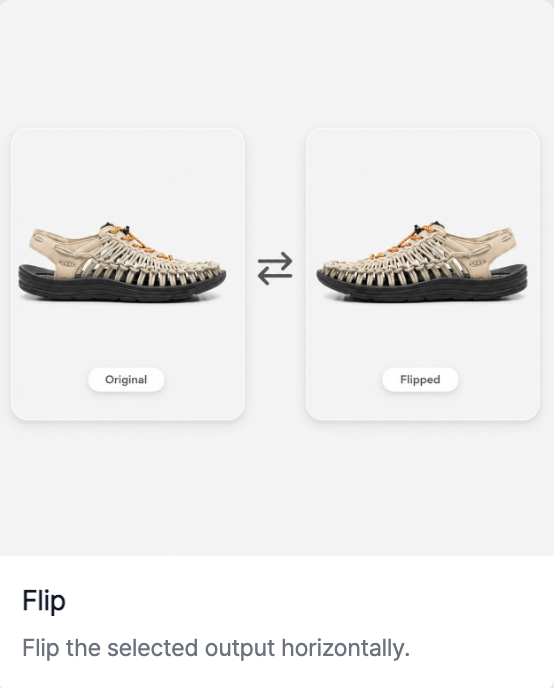
RealSnap Horizontal Flip lets you reverse the model’s direction without creating a new image.
It’s useful when you want to adjust the viewer’s eye flow to fit layouts such as banners, detail pages, or card news.
Sometimes the image direction doesn’t fit the layout
In detail pages or banner designs, the direction the model is facing is quite important.You may need to secure space for text, or a composition where the model faces the opposite direction may feel more natural for the page flow.
In these cases, you can quickly change the composition by applying only Horizontal Flip without recreating the image.
You can clean up the composition by reversing the model’s direction
Horizontal Flip is, as the name suggests, a feature that swaps the left and right sides of an image.It’s helpful when the model’s position or gaze direction doesn’t match the current layout.
For example, if the model is looking to the left but the text needs to go on the left, you can use Horizontal Flip to make the model’s gaze face the opposite direction.
How to use
- Select the AI model cut you want to edit.
- In the Snap tools, select the Horizontal Flip feature.
- Click Create to check the flipped result.
- Check whether the layout and gaze direction fit well.
- Save the final result.
💡 Note
After applying Horizontal Flip, make sure product logos, prints, and text elements do not appear reversed.For products with asymmetrical designs in particular, it’s a good idea to review whether they still look natural after flipping.
Conclusion
The Horizontal Flip feature is useful when you want to quickly change only the model’s direction to fit the layout.Without generating a new image, you can make the eye flow and screen composition feel more natural.