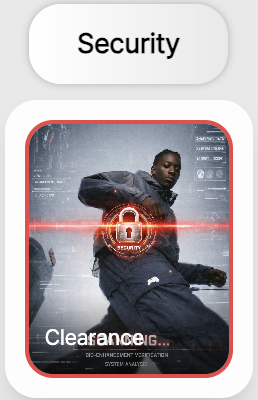
RealSnap Clearance is a feature that checks whether there are any potentially problematic parts in the images you create, and if needed, can regenerate those areas in a safer form.
You can safely review and edit images before posting them or using them on product detail pages, social media, or ad creatives.
Before using a generated image right away, you need to check whether it is safe.
AI-generated images may look good overall, but some areas can be expressed differently than intended.For example, they may include elements that look dangerous, parts that could appear inappropriate, or expressions that do not fit your brand image.
If you post them right away without checking these parts, they could cause issues on product detail pages, social media, or ad creatives.RealSnap Clearance helps you check an image before using it, mark areas that could be problematic, and regenerate only the parts that need it.
1. Run a safety check to identify potentially problematic parts.
In Clearance, you can add the image you want to check, select the area to review, and run a safety check.When the check is complete, it marks parts of the image that may potentially be problematic.
This feature is useful when you want to review an image before publishing it or showing it to customers.For images exposed externally, such as lookbooks, product detail pages, social media content, and ad images, it is a good idea to go through a review process before use.
2. Regenerate only the potentially problematic parts to refine them more safely.
After checking the areas that may potentially be problematic in the results, you can select the area you want to fix.The selected part can be regenerated and changed into a safer, more natural-looking result.
The benefit is that you can edit only the parts that may be problematic, without having to recreate the entire image from scratch.You can keep the model, outfit, background, and mood you already like while refining only the necessary areas to make them safer.
3. Make your pre-publishing review workflow more reliable.
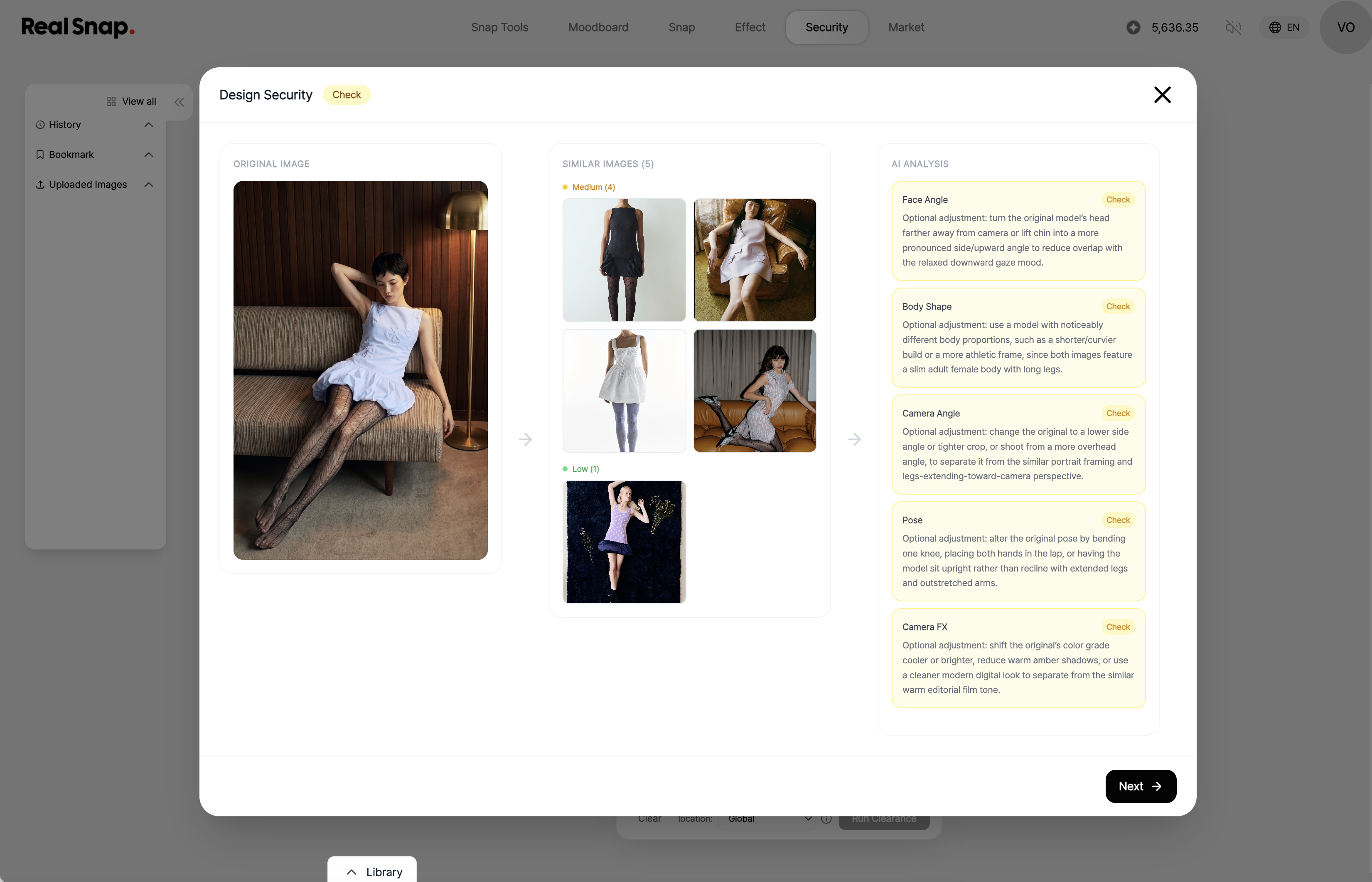
Clearance is not simply a feature for editing images; it is a feature for building a review workflow before using images.Instead of using an image immediately after creating it, you can prepare content more reliably by going through a safety check and partial edits.
It is especially suitable for images with high external exposure, such as official brand channels, product detail pages, ad creatives, and campaign images.By identifying and fixing even small issues in advance, you can reduce brand risk and use more trustworthy images.
How to use
- Open the Clearance menu.
- Select the image you want to check.
- Choose the area to check, then run the safety check.
- When potentially problematic parts are marked, select the area you want to edit.
- Regenerate the selected part and check the safer result.
- Review the final image, then use it on product detail pages, social media, or ad creatives.
💡 Things to note
The Clearance check is a feature that helps you review images before use, and it does not perfectly guarantee that all risk factors will be detected.It is recommended that a person review the final image once more to ensure it matches the intended use, brand standards, and platform policies.
Especially when using images for ad creatives, commercial product detail pages, or external campaign images, you should also review them for inappropriate expressions, possible misunderstandings, and rights-related issues.Even after regenerating the areas marked in the check results, you should review both naturalness and safety.
Conclusion
RealSnap Clearance is a useful feature when you want to check potentially problematic parts before publishing an AI image and regenerate only the necessary areas.When you run a safety check, you can identify areas that may be risk factors and edit those areas into a safer form.
If you have created images that will be exposed externally, such as product detail pages, social media content, ad creatives, or campaign images, it is a good idea to check them first with Clearance and review the final image.