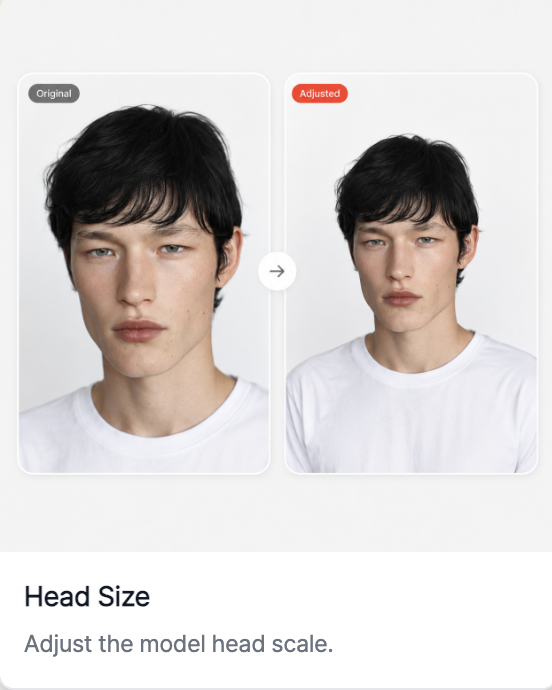
With RealSnap's Head Size Adjustment feature, you can adjust the head size in AI model shots precisely in 5% increments.
When the face-to-body ratio looks awkward, you can keep the overall mood while refining only the model’s appearance to look more natural.
Sometimes the overall image looks fine, but only the face proportions feel awkward
When creating AI model shots, you may like the outfit, background, and pose, but the face may look a little too large or too small, making the overall proportions feel awkward.
In this case, recreating the image from scratch can also change a pose or outfit mood that turned out well.Head Size Adjustment lets you keep the existing result while making only the face-to-body ratio more natural.
You can adjust the head size
With the Head Size Adjustment feature, you can select the size you want and fine-tune the face proportions.After choosing your desired value and pressing Create, you can check the result with a natural face-to-body ratio.
This feature is useful when you want to refine the result to match the model impression your brand wants.For example, you can use it when the face needs to look a little smaller for a more polished feel, or when the face looks too small and the proportions feel unnatural.
How to use
- Select the AI model shot you want to edit.
- In the Snap tools, select the Head Size feature.
- Choose the head size ratio you want.
- Press Create to check the result.
- Save the result you like or use it for your next task.
💡 Things to note
If you use it for sales images, make sure the face-to-body ratio still looks natural after adjusting the head size.If you adjust it too much, the model’s appearance may look more unnatural than real, so it’s a good idea to zoom in and check.
Conclusion
The Head Size Adjustment feature is useful when you like the overall mood of the image but feel the face proportions are slightly off.You can refine the model’s appearance more naturally without recreating the image.