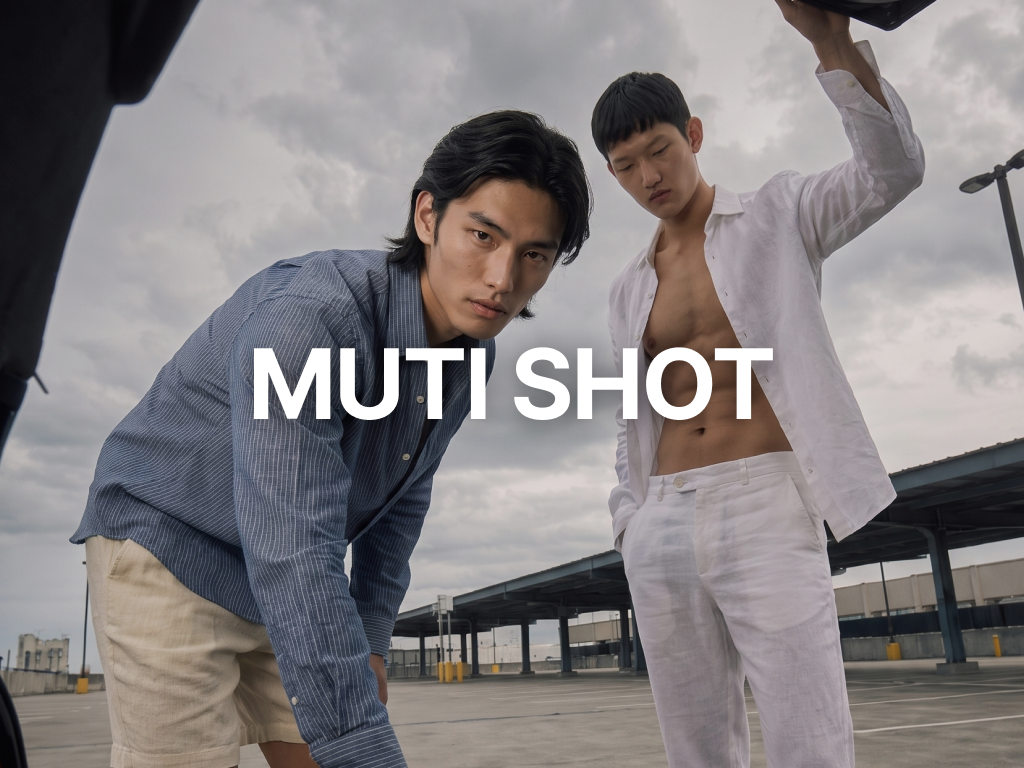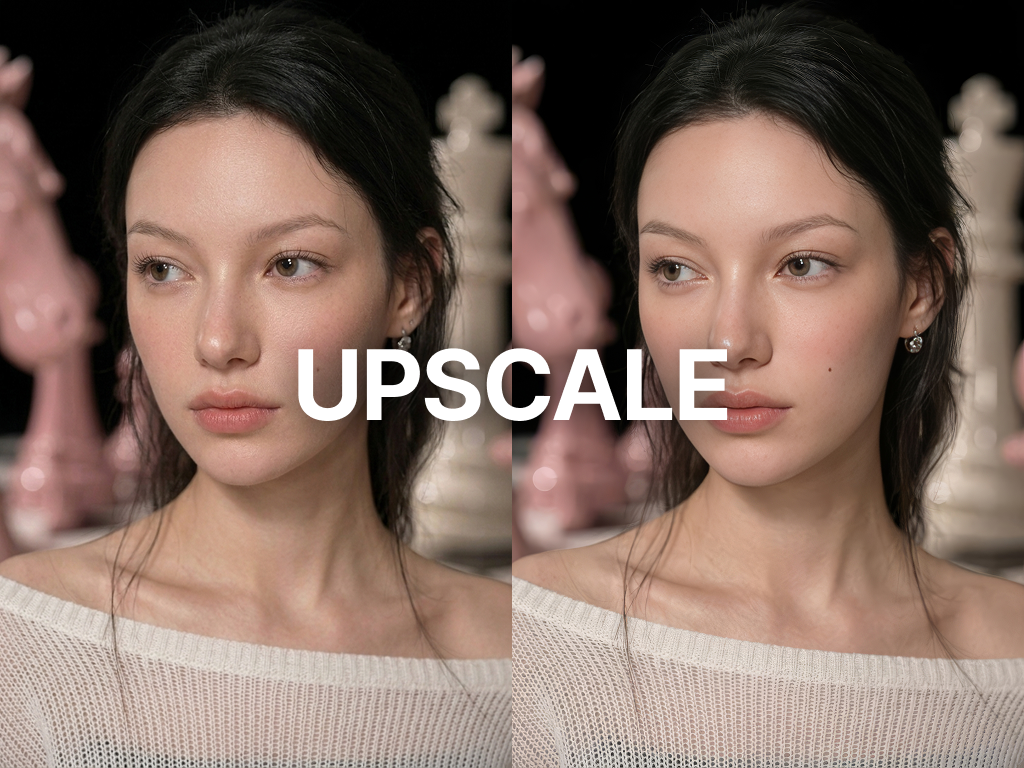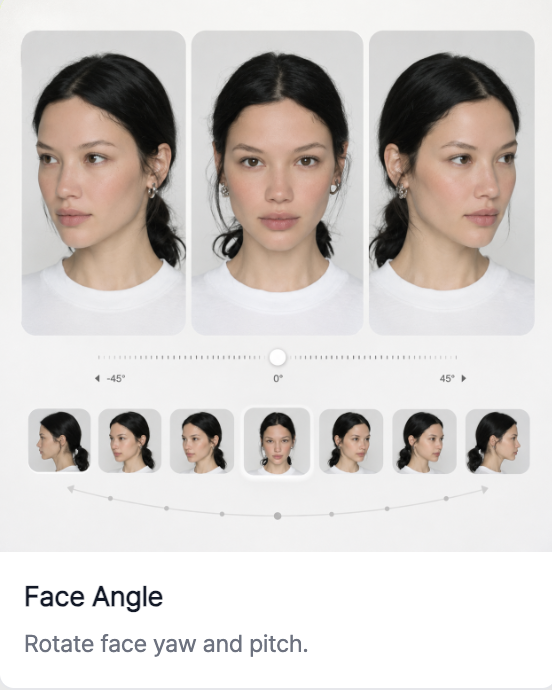
RealSnap Face Angle Adjustment lets you refine the model’s gaze and face direction more naturally.
It’s useful when you want to keep the overall mood of the image while adjusting only the model’s impression and gaze direction.
Even a slight change in face direction can change the impression
In AI model shots, face direction has a big impact on the model’s impression and overall mood.If the model should be facing forward but is slightly turned, or if the gaze direction differs from what the brand wants, the overall image may look fine but still feel awkward.
In these cases, instead of recreating the entire image, you can adjust only the face angle to refine it closer to the mood you want.
You can adjust the face direction and gaze more naturally
With the Face Angle Adjustment feature, you can change the model’s face direction to make the flow of the gaze feel more natural.For example, you can make the impression closer to a front-facing look, or have the model look slightly more to the side to create a calm mood.
This feature is especially useful when you want to create an expression and impression that match your brand mood.It’s great for projects where the model’s gaze direction matters, such as banners, product detail pages, and social media images.
How to use
- Select the AI model shot you want to edit.
- In the Snap tool, select the Face Angle feature.
- Choose the face direction you want.
- Click Generate to check the result.
- Save the result you like or continue editing.
💡 Note
When adjusting the face angle, it’s a good idea to check that the model’s impression hasn’t changed too drastically.Be sure to also check whether the gaze direction fits well with the brand tone and layout composition.
Conclusion
The Face Angle Adjustment feature is useful when you want to keep the overall mood of the image while naturally refining only the model’s impression and gaze direction.