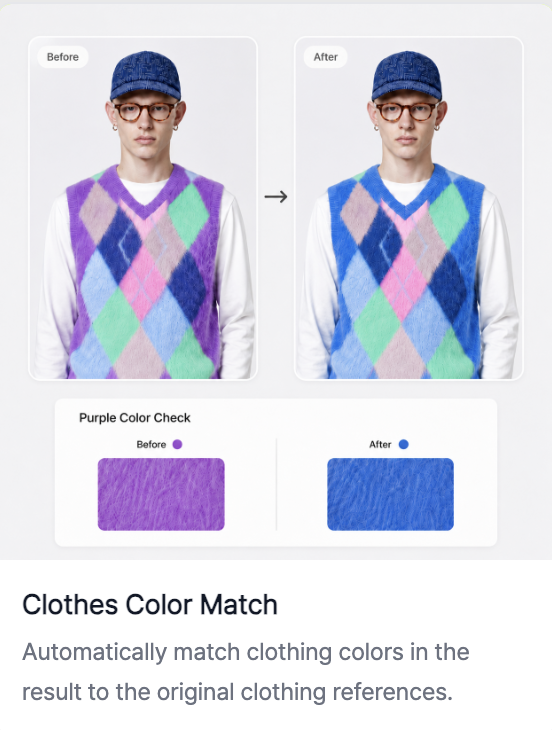
RealSnap Clothes Color Match is a feature that lets you match the clothing color in an AI model shot to the color you want.
Add a reference color image and click Create, and you can change the outfit color to be close to your desired color while keeping the pose and mood of the original model shot.
It’s the same clothing, but creating a new try-on shot for each color option is a hassle
Fashion brands often sell the same product in multiple color options, such as black, ivory, pink, and blue.But shooting or regenerating try-on images separately for every color takes a lot of time and money.
Sometimes you already have a model shot you like and only want to change the clothing color to another color.RealSnap Clothes Color Match helps you adjust only the clothing color to match the color you want while keeping the composition and pose of the existing model shot.
1. You can change only the clothing color in an existing model shot based on a reference image
In Clothes Color Match, you can add an image to reference the color you want.You can use a reference color image such as an actual product color image, color chip, fabric photo, or another outfit photo.
When you add a reference image and click Create, the result changes only the outfit color to be close to that color while keeping the model, pose, background, and shooting mood of the existing model shot.It’s especially useful when you already have a great model shot.Because you can create images for each color option while keeping the same model and pose, it’s great for building consistent try-on shots for product detail pages or lookbooks.
3. You can quickly create product detail pages and social media images for each color option
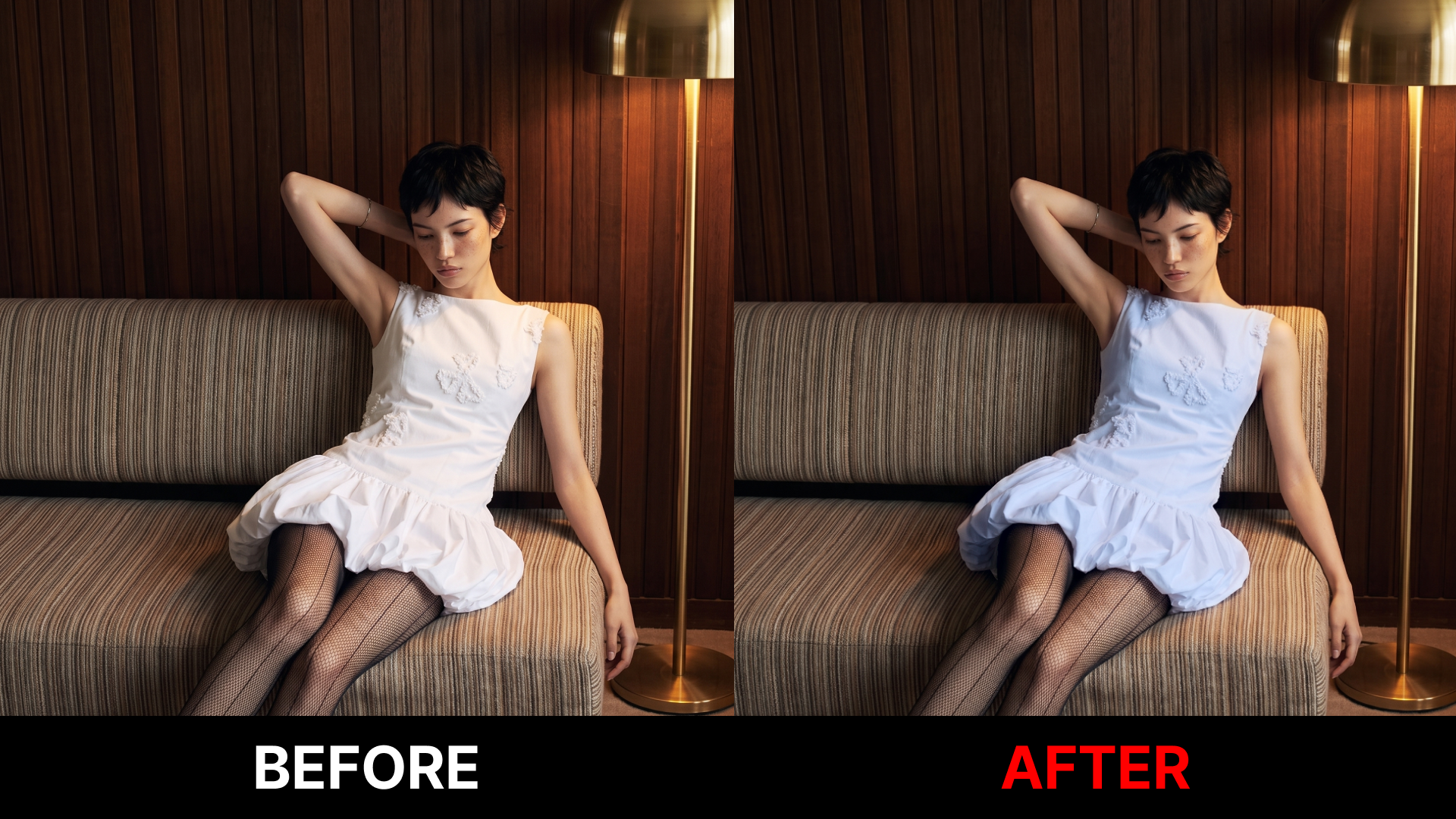
This feature is useful when you need to show multiple color options for the same product.By changing only the color based on one try-on shot, you can quickly compare how each color looks on the model.
On product detail pages, you can organize try-on images by color, and for social media content, you can show the same look in multiple color moods.You can also use it to test the mood of each color in lookbooks or campaign images.
How to use
- Open the Clothes Color Match feature.
- Select the AI model shot whose clothing color you want to change.
- Add a reference color image or color standard image.
- Click Create to generate a result with the clothing color changed.
- Check the result and compare it with the actual product color.
💡 Note
If you use the result for sales images, be sure to check that the result color is not significantly different from the actual product color.Especially for products where color options affect purchase decisions, it’s best to review the result against actual product photos, color chips, and fabric images.
Depending on the color matching result, fabric texture, shadows, logos, and patterns may appear different as well.Before using the final image on product detail pages, lookbooks, social media, or ad creatives, you should zoom in and check it carefully.
Conclusion
RealSnap Clothes Color Match is a useful feature for AI model shots when you want to match only the clothing color to the color you want.You can keep the model, pose, and background you already like while changing only the outfit color, helping you create try-on shots for each color option faster.
If you need to show multiple colors of the same product, or if you want to build color-specific images with a consistent look for product detail pages and social media, try creating color versions with Clothes Color Match first.