RealSnap Partial Draw & Erase is a feature that lets you paint over a desired area in a photo, then draw a new element there or erase an existing one.
Without recreating the entire model shot, you can quickly edit only the parts you need, such as parts of the background, props, or clothing.
Sometimes the overall image is good, but only certain elements are distracting
When creating AI model shots or lookbook images, you may like the overall mood, model, and pose, but feel that only a small part is lacking.For example, there may be an unnecessary object in the background, you may want to add a specific prop, or you may want to erase only an awkward area around the clothing.
If you recreate the image from scratch in this situation, even the well-made face, pose, outfit, and background mood may change together.RealSnap’s Partial Draw & Erase feature helps you select only the area you want to change and draw in or erase the elements you need.
1. You can select the part to edit by painting it yourself
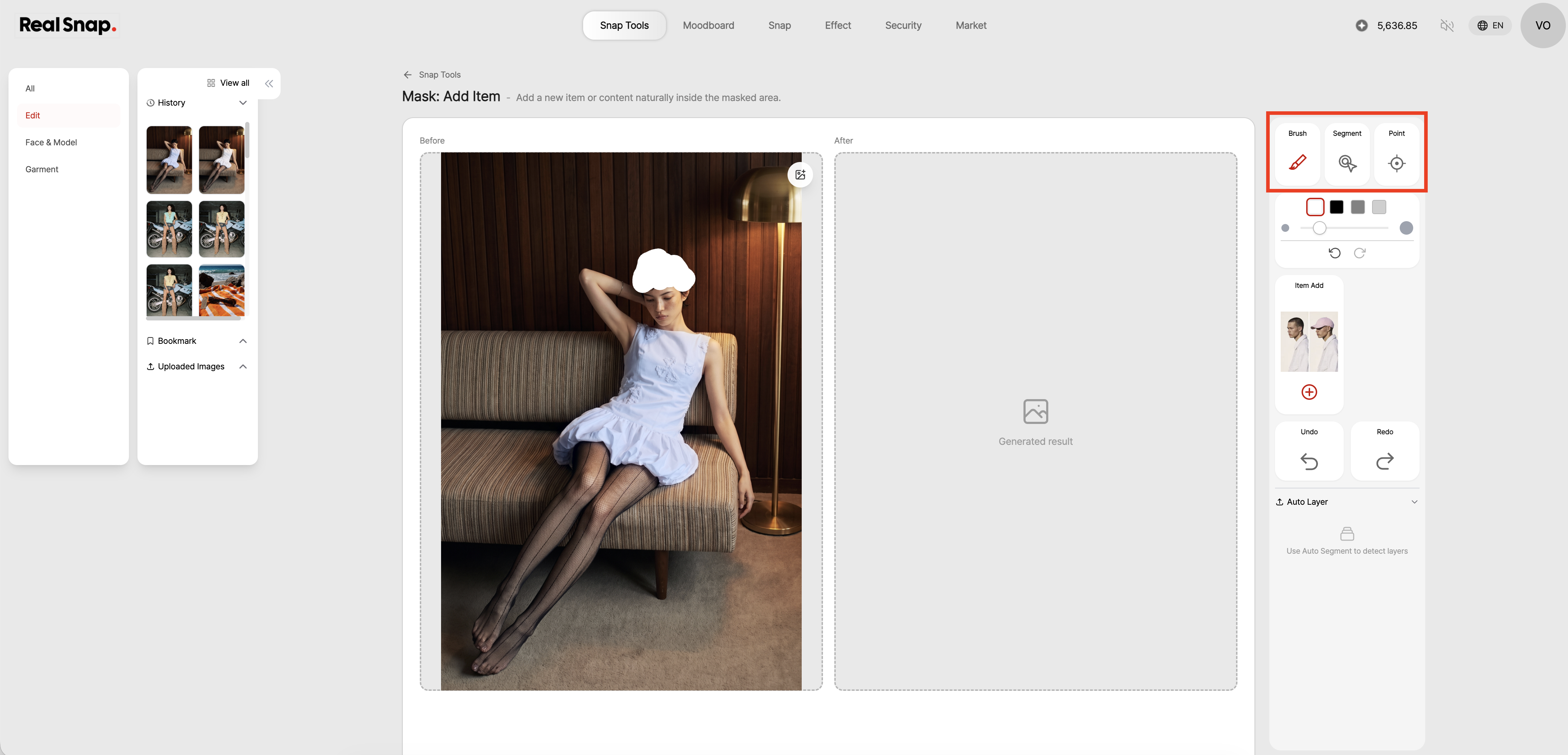
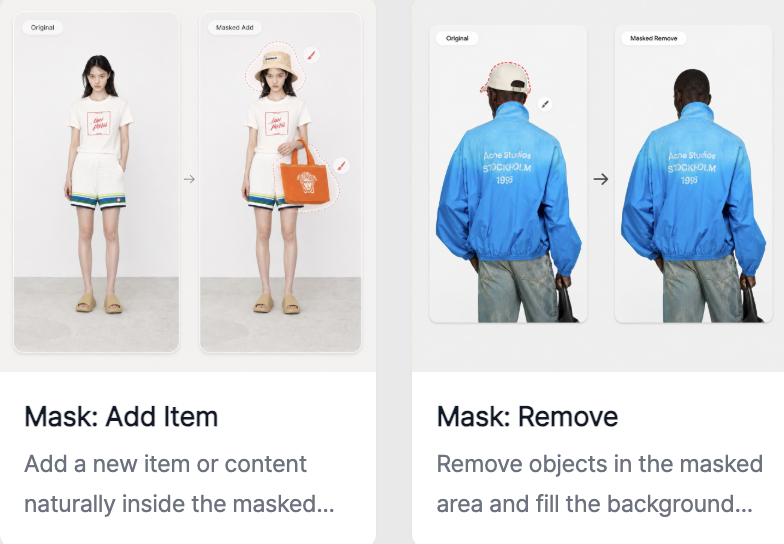
This feature does not change the entire photo; it edits only the part specified by the user.When you paint over the area you want to change on the photo, RealSnap can create a new element or erase an existing one based on that area.
The more accurately you select the part you want to edit, the more natural the result will be.By selecting only the necessary parts, such as part of the background, the area around a prop, or a small area of clothing, you can make edits while preserving the good elements of the original image.
2. You can draw new elements into the selected area
You can draw the object or shape you want into the selected area.For example, you can add a prop to an empty space, fill part of the background more naturally, or add a small element that matches the mood of the image.
This feature is useful when you want to make an image richer.You can use it to add props to lookbook images, enhance the background of campaign images, or add visual accents to social media content.
3. You can erase unnecessary elements to tidy up the mood of the image
You can select and erase parts of the photo that you do not need.
It is useful for cleaning up parts that reduce the completeness of the image, such as small objects in the background, awkward shapes, or elements that distract the eye.
By erasing elements, you can create an image that draws more focus to the model and product.
On product detail pages, it can help make the product more visible, and in lookbook or social media images, it can make the overall mood cleaner.
How to use
- Open the Partial Draw & Erase feature.
- Select the AI model shot or photo you want to edit.
- Paint over the area you want to change on the photo.
- Choose whether to draw in a new element or erase an existing one.
- Tap Create to check the result.
- Select a natural-looking result to save it or use it in your next task.
💡 Things to keep in mind
If you use the image for sales purposes, make sure that newly drawn elements are not mistaken for actual product components or included items.
Especially when adding props, logos, decorations, or patterns, it is best to review whether they make the product information appear different.
When erasing elements, check that the shape of the clothing, product details, and background perspective have not become awkwardly distorted.
Before using the final image on a product detail page, lookbook, social media, or ad creative, zoom in and check both its naturalness and product accuracy.
Conclusion
RealSnap Partial Draw & Erase is a useful feature for AI model shots when you want to redraw or erase only the parts you want.
Because you can edit only the areas you need without recreating the entire image, you can improve the final quality while keeping the mood and composition of a model shot you already like.
If you want to tidy up the background, add props, or erase elements that distract the eye, try using this feature to edit only the parts you need first.