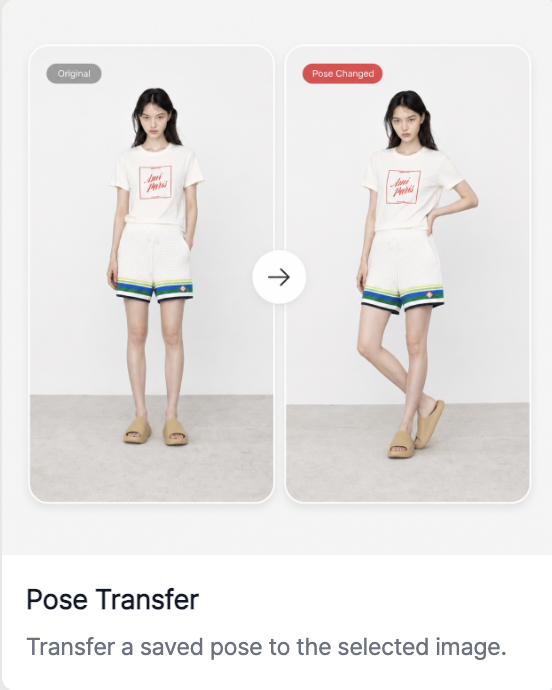
RealSnap Pose Transfer lets you change only the model’s pose while keeping the mood and outfit of the original image.
It’s useful when you want to adjust the composition so the product is shown more clearly, or use a specific styling pose.
The outfit and mood may be good, but the pose might not be quite right
When creating AI model shots, you may like the clothes, background, and overall mood, but find that the model’s pose doesn’t show the product well enough.
For example, the bag may not be clearly visible, the shoes may be hidden, or the pose may not show the fit of the top well.In cases like this, Pose Transfer lets you keep the same image flow while changing only the pose to something more suitable.
Apply the pose you want to make the product stand out more clearly
Pose Transfer is a feature that changes the model’s pose by letting you select a desired pose or apply a reference pose.
You can adjust the pose to match the product’s purpose, such as a pose holding a bag, a full-body pose that shows the shoes clearly, or a pose that highlights the fit of the top.It’s especially useful for work where a composition that clearly showcases the product matters, such as lookbooks, product detail pages, and social media content.
How to use
- Select the AI model shot you want to edit.
- In the Snap tool, select the Pose Transfer feature.
- Choose the pose you want or import a reference pose.
- Click Create to check the result.
- Make sure the pose shows the product more clearly, then save it.
💡 Things to note
Even after changing the pose, make sure the clothing fit, wrinkles, and product shape remain natural.For products that can be hidden depending on the pose, such as bags, shoes, and accessories, it’s best to check them more carefully.
Conclusion
Pose Transfer is useful when the overall image looks good, but you only want to change the model’s pose.You can create another version with the same outfit that shows the product more clearly.