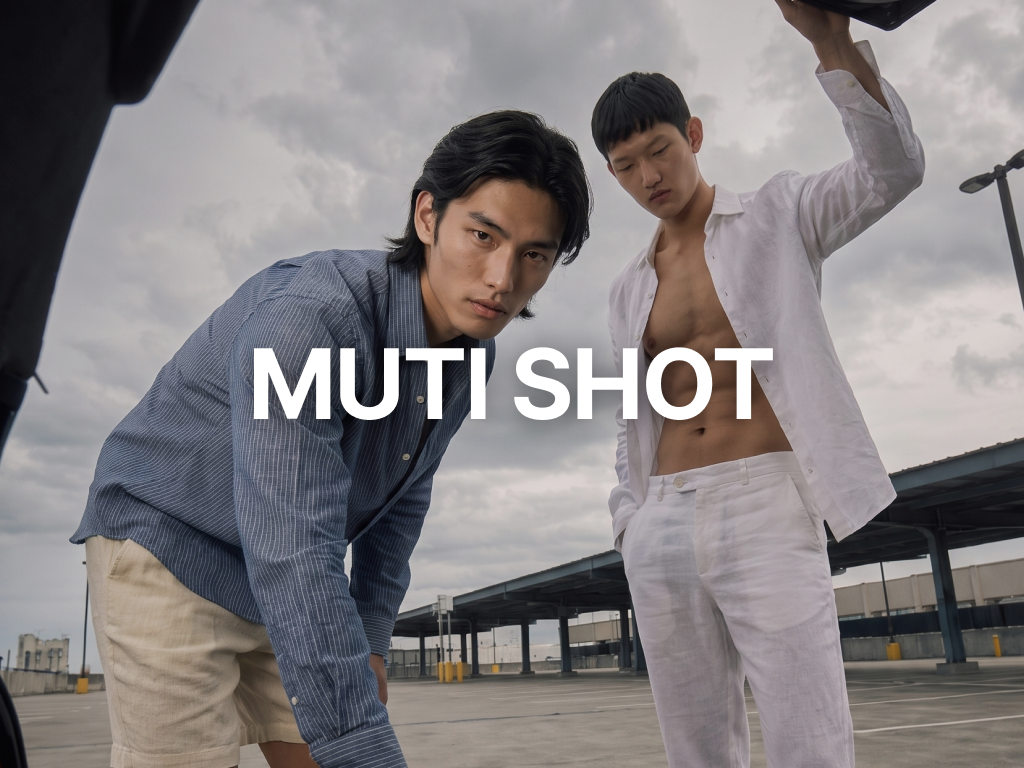
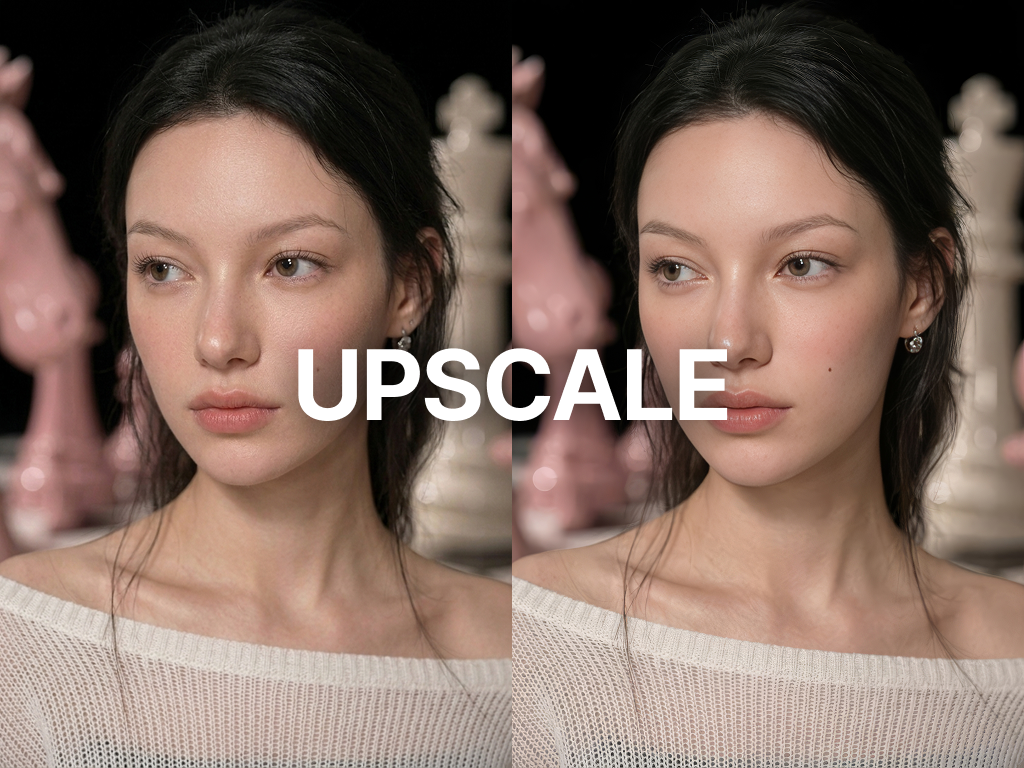
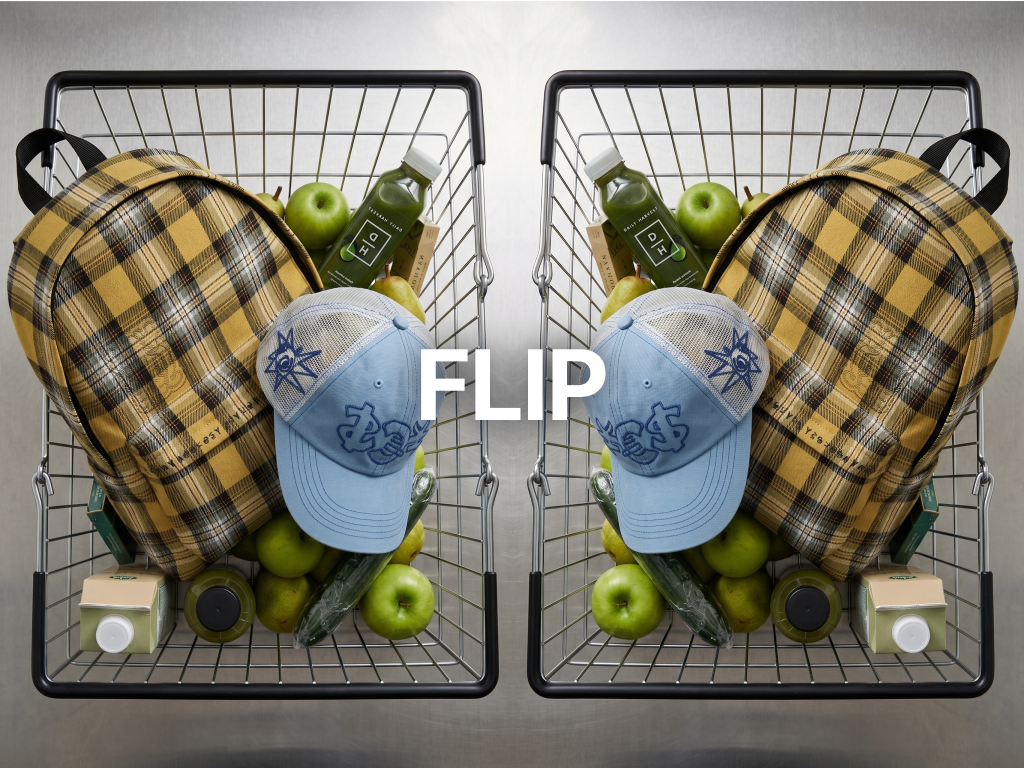
🔑 Shortcut: realsnap.ai/workshop/snap
No studio booking, model casting, or photo crew needed. With just one clothing image, you can instantly create a brand lookbook with the model, mood, and concept you want.
Create one garment with various models and multiple concepts — repeat as quickly and as much as you want.
Menu Description
- Menu | Description
- Moodboard | A space for creating brand reference boards. AI recommends ideas and strategies.
- Mood & Reference | Set the shoot concept (OUTPUT SETTINGS) based on the moodboard and move to Make Snap.
- Snap | The main workspace for generating actual images. Set clothing, model, pose, and mood.
- Effect | Apply additional mood, lighting, and camera effects to generated images.
🎬 Quick Tutorial
- Video tutorials are available at realsnap.ai → Tutorial.
01. Create a Moodboard Canvas
- Like Pinterest, you can create a moodboard by adding any images that fit your campaign.
- Use IDEAS, Trends, and more in the left panel.
Available Features
- New Moodboard : Freely arrange images on a new moodboard creation canvas (Move / Upload / Draw / Text / Undo / Redo / Delete)
- Real Snap AI : AI recommends moodboard ideas in the IDEAS / STRATEGY tabs
- 2026 Trend : Apply the latest trend templates
- Recommended Campaigns : Automatically generate AI campaigns
- Lookbook Ideas : Automatically generate AI lookbook ideas, select models, and set poses
02. Generate Images with the Moodboard Console
- This is the space for creating images to use in Snaps or Drops. They can be model shots, backgrounds, or specific objects.
- In the top console, import the moodboard you created earlier, enter the object you want to create in the prompt, and generate it.
Available Features
- MOODBOARD CONSOLE : Connect moodboards to PROJECT / TREND / IDEA / STRATEGY slots
- OUTPUT SETTINGS : Set the generation model (Realsnap Modax v1), aspect ratio, and number of images
- REFERENCE : Attach additional reference images DIRECTOR'S SUGGESTION : Regenerate AI shoot direction recommendations
- Make Snap button to go to the Snap tab and start generating immediately
03. Set Model and Outfit, Then Generate Images
- You can generate images by selecting a model, pose, and outfit.
- Images similar to the photos added to Mood Reference will be generated. Presets under Mood Reference provide a variety of inspiring photos. Change the detailed elements of a photo to create your own content. This helps produce more precise photos that better match your intended direction.
- You can also directly enter the face and pose you want.
Detailed Feature Description
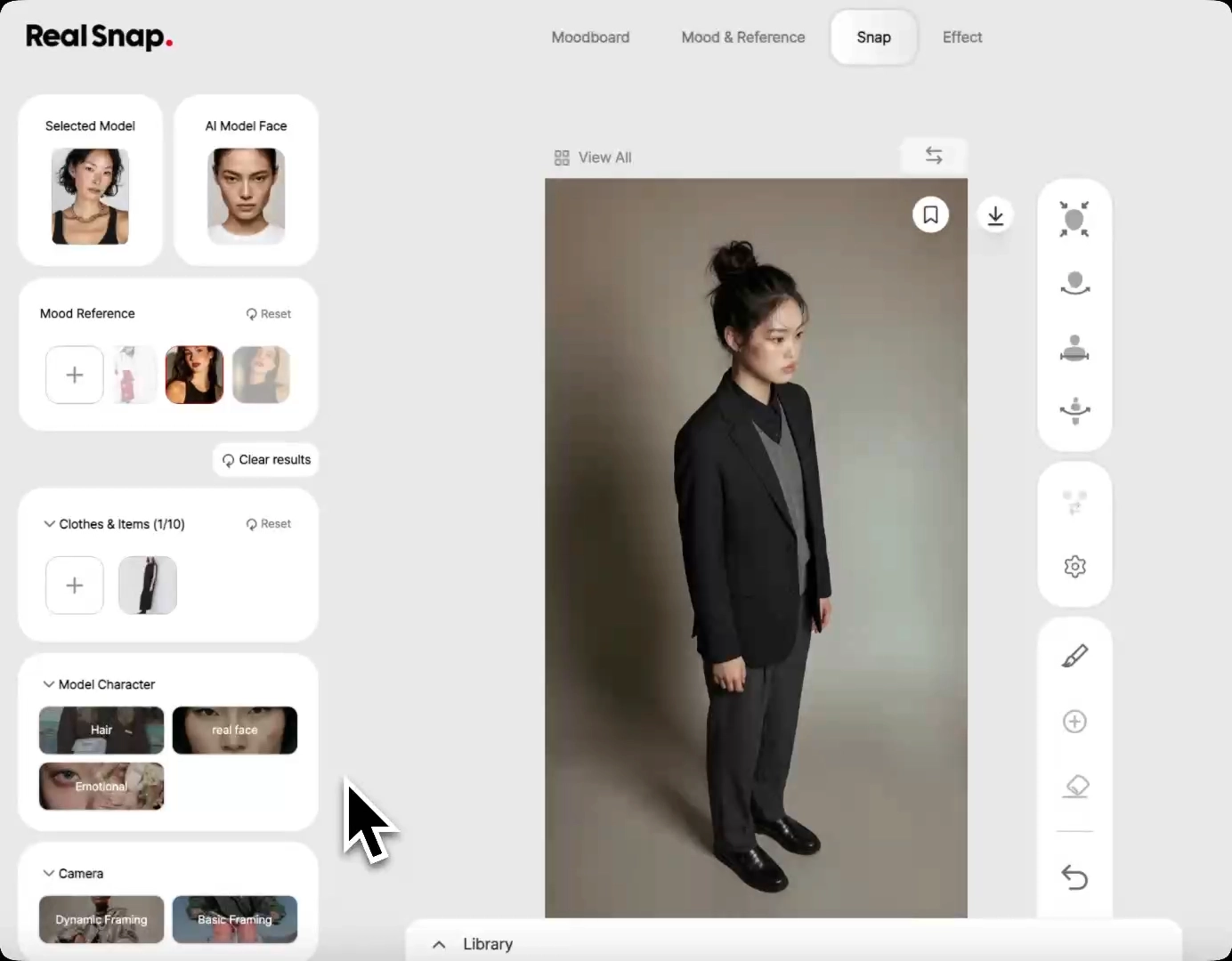
- 1. Clothing upload: left panel
- 2. Model & pose settings: top
- 3. Mood & character settings
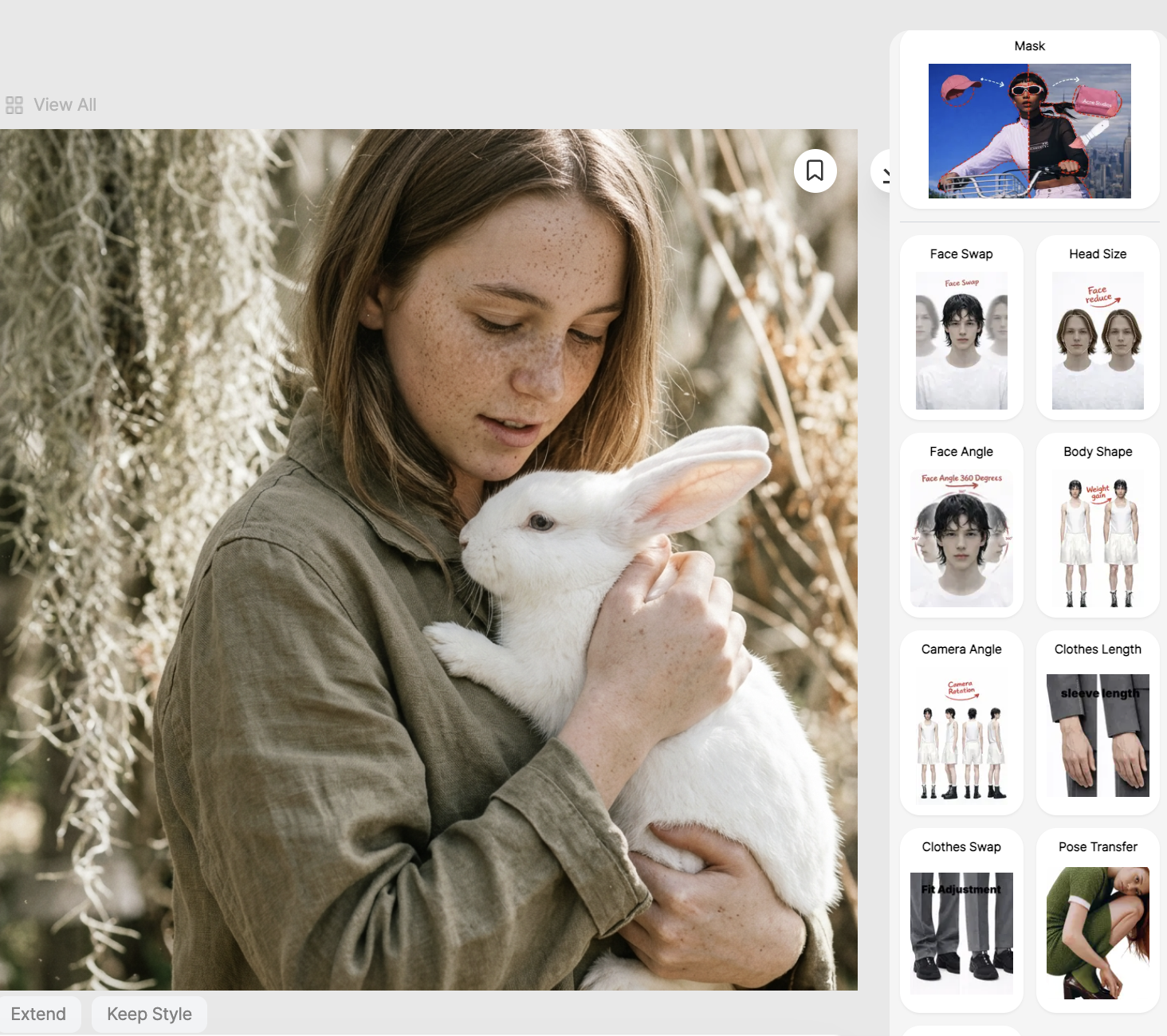
- 4. Photo post-editing
- Mask : Select and edit only specific areas.
- Detail change : Retouch the model’s face once more (same face), or adjust sleeve/pants length, etc.
04. Snap > Shoot Location Cuts
- If you want a natural background, you can generate a background based on real images from Google Maps.
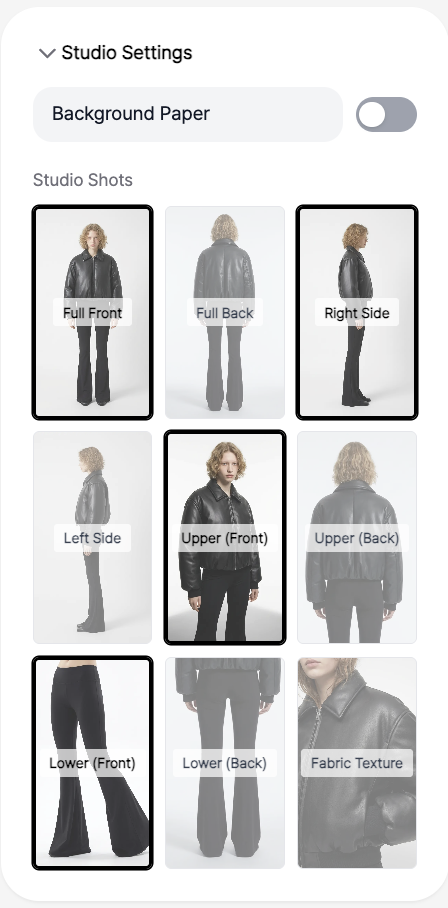
05. Snap > Shoot Studio Cuts
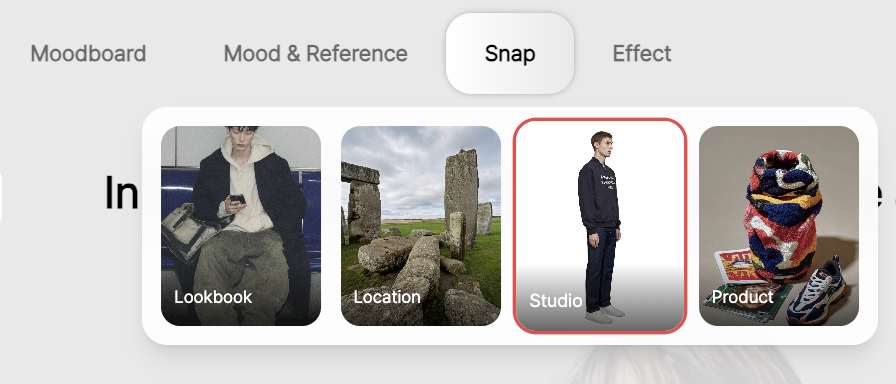
- Select Snap > Studio to create a static image that looks like it was shot in a studio.
06. Edit Shoot Results
- In the right panel of the generated result, you can make detailed adjustments. Mask - Select a specific area with the brush to reapply or regenerate items (bag, bracelet, etc.); model changes such as face replacement, face size adjustment, and body shape changes; clothing changes such as adjusting sleeve/pants hem length or replacing with specific clothing; model positional changes such as pose replacement and left-right mirroring.
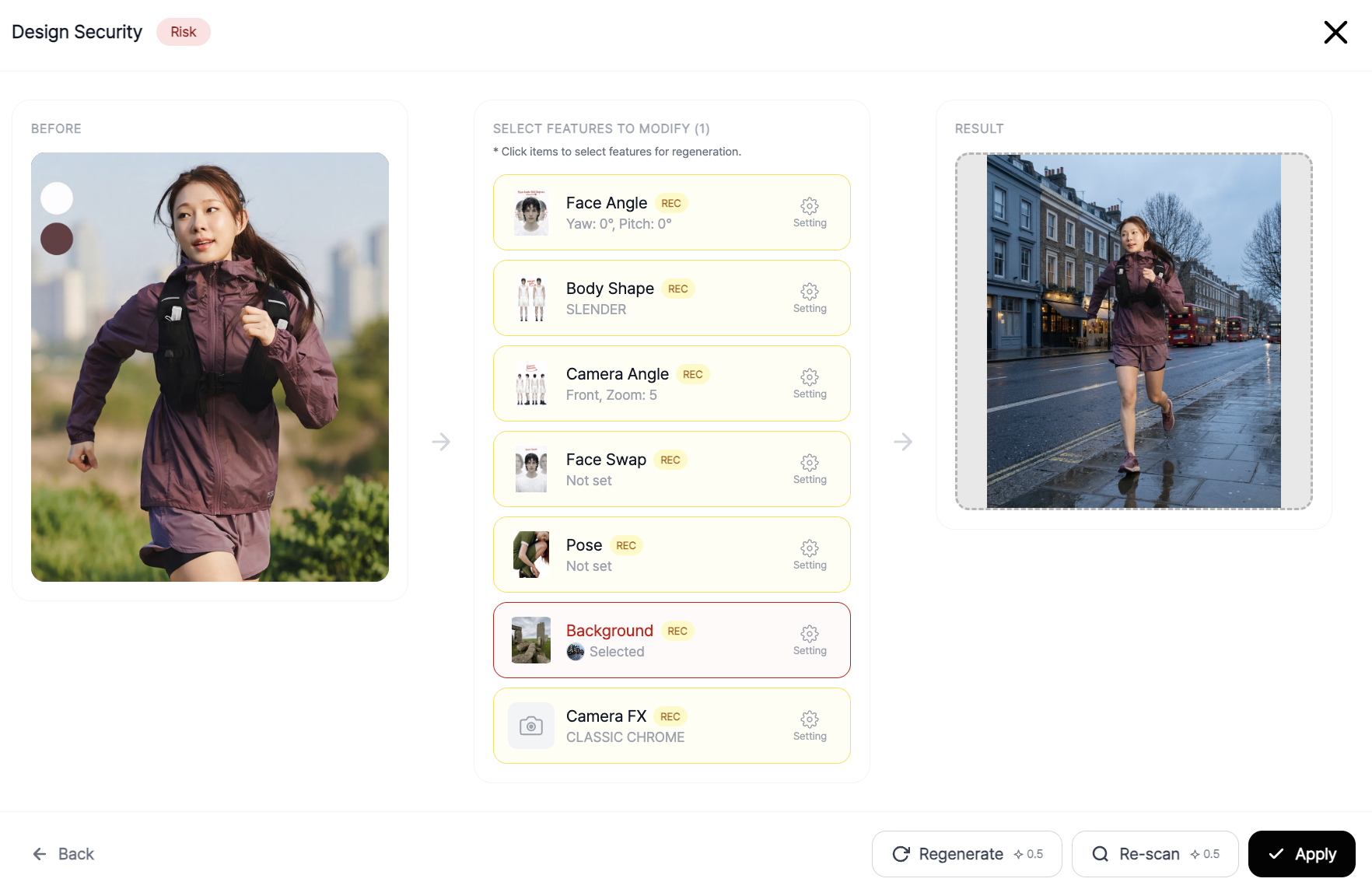
07. Similarity Monitoring
- Monitor whether the generated results are similar to other brands’ creatives.
- You can block similar elements by changing desired elements in the photo (background, face, pose, etc.).
With REALSNAP, you can do the following.
- Create Instagrammable snaps
- Create styling shots for product detail pages
- Create creative promotional images
- Create trustworthy images that look like they were shot in a studio
Updated on - 26.03.25