Can I adjust the height and proportions of an AI model shot without recreating it?
SNAP|Updated Aug 3, 2026
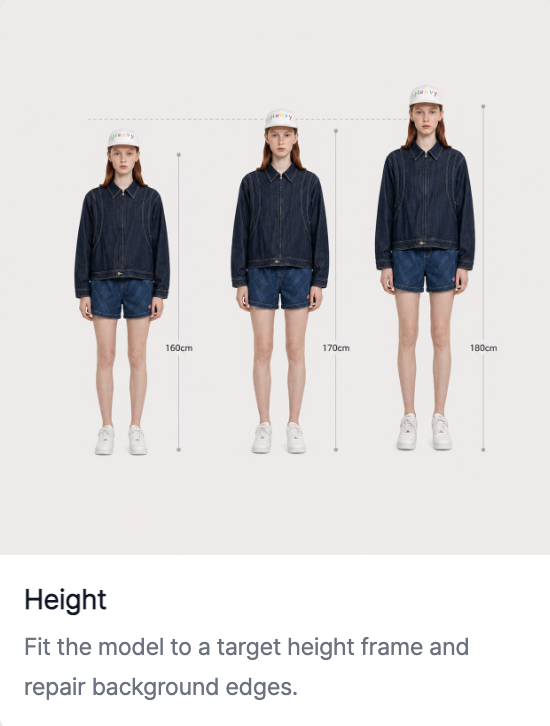
RealSnap Height is a feature that lets you make the model in an AI model shot taller or shorter as desired.
Select the body area, choose the desired height (cm), then check the result in the preview and apply it to make the model’s proportions and outfit fit look more natural.
Sometimes you like the model shot, but the overall proportions look awkward
When creating AI model shots, you may like the outfit, pose, and background, but the model’s height or overall proportions can look awkward.For example, the length of a dress may look unclear, the fit of pants may look too short, or the silhouette of outerwear may not match the feeling your brand wants.
If you recreate the image from scratch in these cases, the face, pose, and styling mood that turned out well may change too.RealSnap
Height
helps you adjust only the model’s height and proportions while keeping the existing image.
1. You can make the model taller or shorter as desired
With the Height feature, you can adjust the model’s height in the direction you want.You can make the model look taller, or slightly shorter, to naturally balance the overall proportions of the image.
This feature is useful when you want to refine both the model’s body proportions and the fit of the clothing.It’s especially helpful for images where the overall silhouette matters, such as full-body model shots, lookbook images, and product detail page try-on shots.
2. You can select the body area to set the height adjustment range
Before adjusting the height, select the body area to be corrected.Because the model’s proportions are adjusted based on the body area, selecting the correct area is important.
Images where the whole body is clearly visible are good for checking the height adjustment results.The more the full body is shown without being cut off, the more naturally the height change appears, and the easier it is to check the clothing length and silhouette.
3. You can select the desired height (cm) and check it in the preview
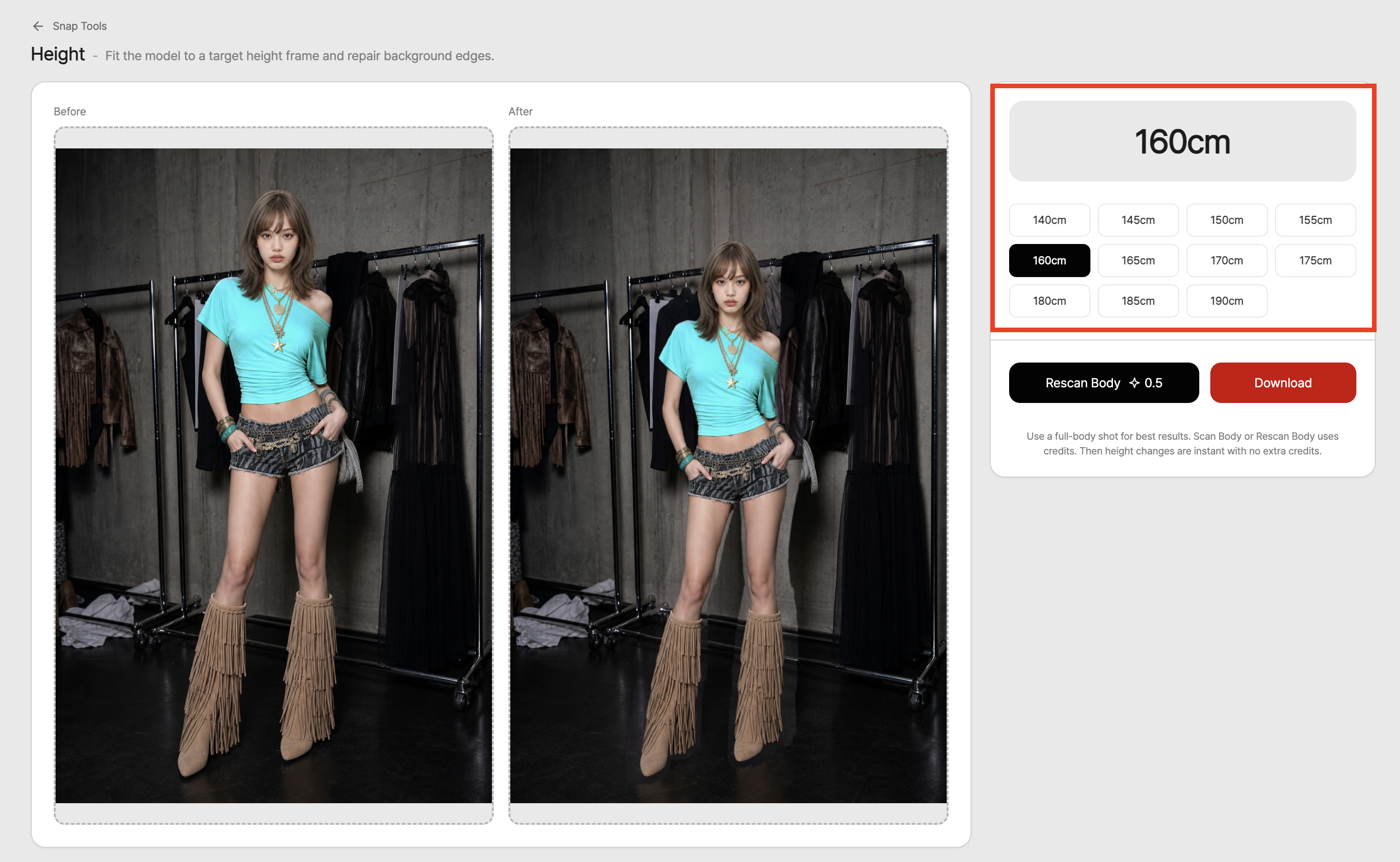
After selecting the body area, choose the desired height (cm).You can use the preview to see how the model’s proportions and clothing silhouette change based on the selected height value.
It’s a good idea to check the preview to make sure the model doesn’t look too tall or too short.If the clothing length, waist position, leg proportions, and overall silhouette look natural, you can apply it.
How to use
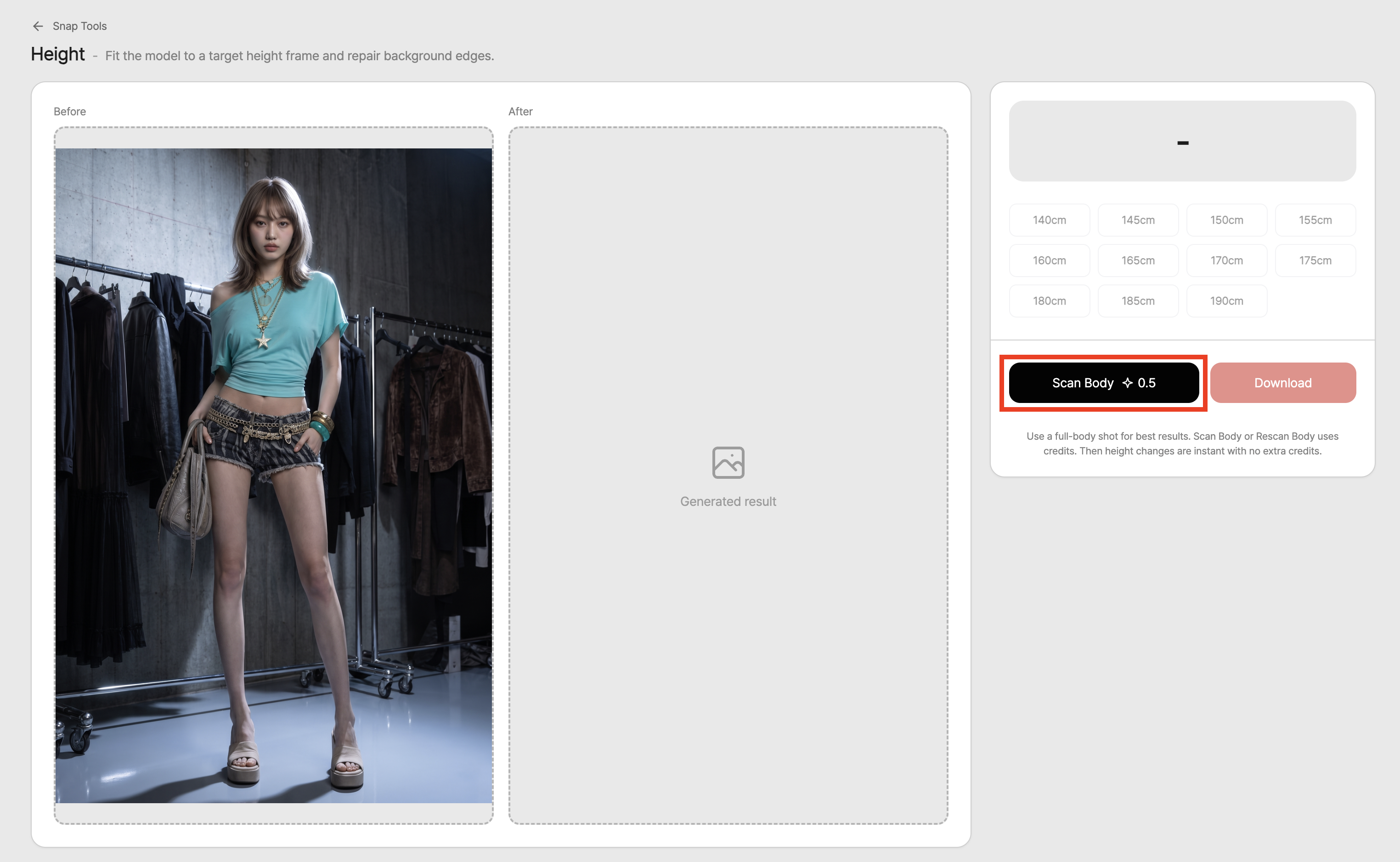
Open the Height feature.
Select the AI model shot whose height you want to adjust.
Select the model’s body area.
Choose the desired height (cm).
Check the result in the preview.
Select and apply the result that looks natural.
💡 Things to note
If you use the image for sales purposes, make sure the actual product’s length, fit, and silhouette are still represented naturally after height adjustment.For products where length is important, such as pants, dresses, skirts, and long coats, it’s best to review them by comparing with the original product.
If you increase or decrease the height too much, the arms, legs, waist position, or clothing wrinkles may look awkward.Before using the final image on product detail pages, lookbooks, social media, or ad creatives, zoom in and check the overall proportions and product representation.
Conclusion
RealSnap Height is a useful feature for AI model shots when only the model’s height or overall proportions feel off.It lets you adjust the height and silhouette while keeping the face, pose, outfit, and background you already like, reducing the need to recreate the image from scratch.
If you want to make the product fit and model proportions look more natural in full-body lookbook images, product detail page try-on shots, or campaign model shots, try adjusting them with the Height feature first.