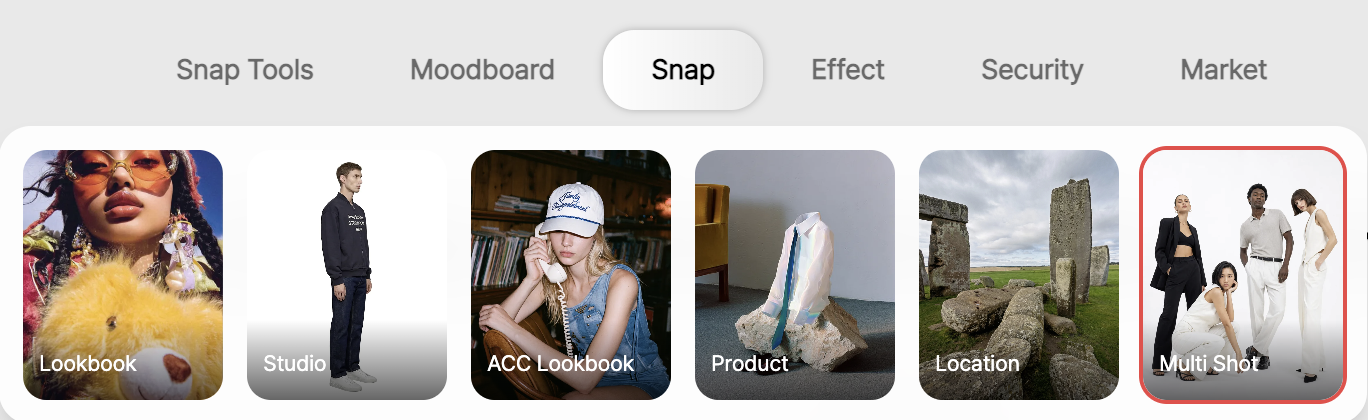
With RealSnap Multi Shot feature, you can create AI model shots where multiple models appear together in a single image.
For each model, you can set the model, pose, and items separately to build a group, and use a mood reference to align the overall shoot atmosphere and style direction.
It’s useful when you want to create lookbook shots, campaign shots, or styling shots featuring multiple people together.
Sometimes you need a shot with multiple models together
When creating lookbook or campaign images, there are times when, rather than a shot with just one model, a scene featuring multiple models together is more useful.
For example, you may want to show a brand collection in multiple outfits at once, create a natural staged shot that feels like being with friends, or make a campaign image that shows several styles in one frame.
In these cases, you can use Multi Shot to create an AI model shot with multiple models arranged together in a single shot.
1. You can set the overall image mood first with a mood reference
In the Mood Reference area at the top left, you can select a mood preset or reference image for the kind of image you want to create.
As before, this feature serves as the baseline for defining the overall tone and style, shoot aesthetic, and brand mood.
For example, if you have a desired direction such as a calm lookbook feel, a trendy street mood, or a polished campaign shot, it’s best to set the mood reference first.
The more models appear together in an image, the more important the overall mood becomes, so setting the mood reference first helps keep the results aligned more consistently.
2. You can compose multiple models in one shot with Multimodel Groups
In the Multimodel Groups area of the left panel, you can create multiple model groups to be included in a single image.
Multi Shot is not simply a feature for adding several models; it is a way to compose one scene while managing each model as a separate group.
It’s especially useful when you need a scene featuring multiple people together, such as a lookbook, couple shot, friend shot, or collection styling shot.
1) Model
You can select the model itself for each group.Because each model changes the facial impression, body shape, and overall atmosphere, you can configure different models to suit the scene.
2) Pose
You can set the pose individually for each model.Whether it’s a standing pose, a seated pose, or a natural campaign pose, this helps define what role each model plays within the scene.
3) Clothes & Items
You can also add clothing and items separately for each model.For example, one model can focus on outerwear, another on bags, and another can show a different style of outfit.
Because you can configure each model separately in this way, you’re not just adding multiple people—you can create an image that shows different styles and products together within one scene.
How to use
- Select the desired mood or preset in Mood Reference.
- In Multimodel Groups
- Create a model group.Model for each group.
- Set the Pose for each group.
- Add Clothes & Items for each group.
- If needed, add multiple groups to compose several models within one scene.
💡 Things to note
The more models appear together in an image, the more important a consistent mood and style between models becomes.If the models, poses, and items are set in directions that are too different from one another, the scene may look unnatural.
If you plan to use the image for sales, it’s a good idea to check that the products worn by each model do not differ significantly from their actual shape, color, and fit.Especially when showing multiple products at the same time, you should also review whether each item is clearly visible.
Setting the mood reference first and then configuring the model groups generally produces more stable overall results.In shots featuring multiple people, the mood of the entire scene is especially important.
Conclusion
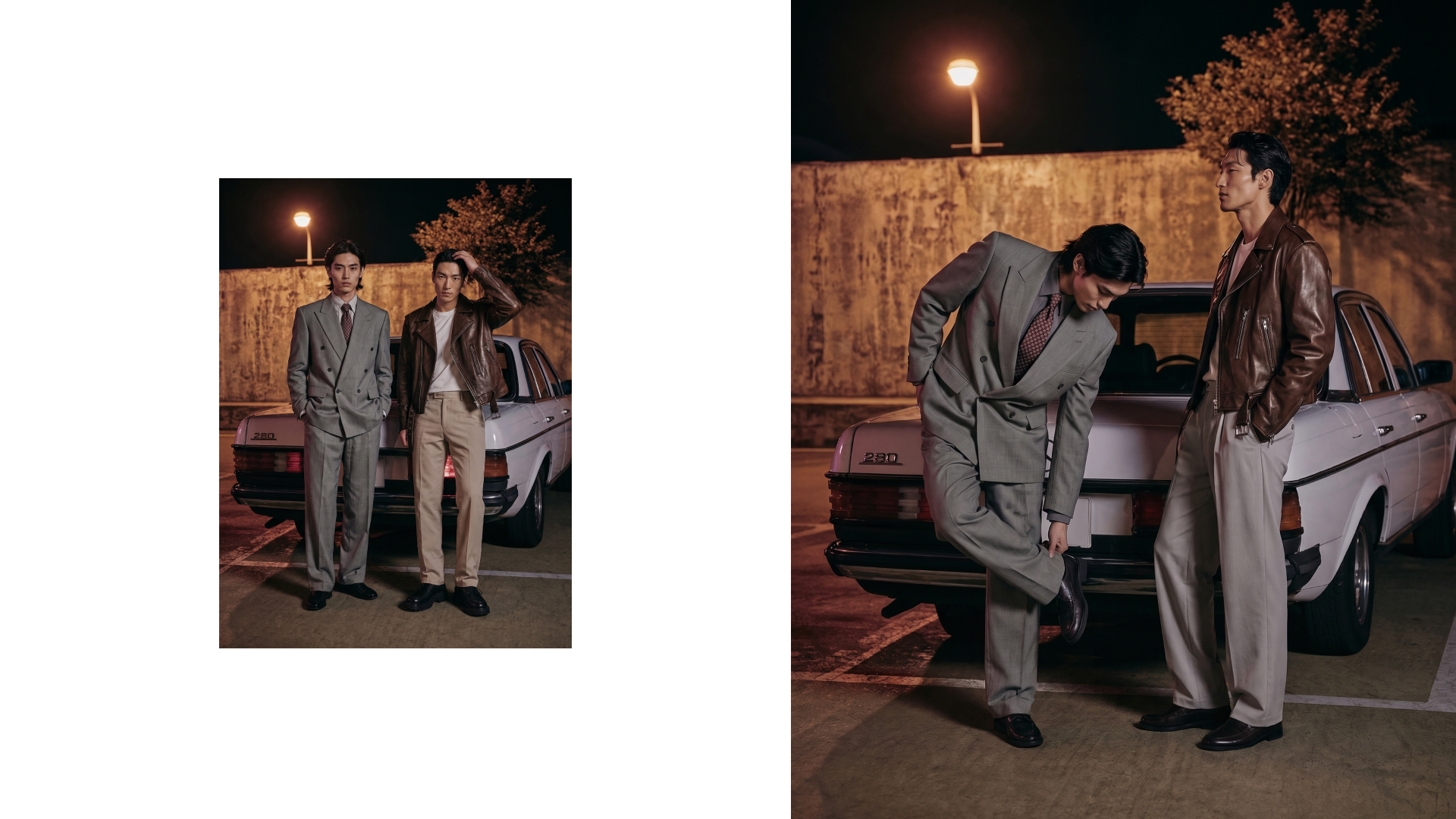
RealSnap Multi Shot is a useful feature when you want to create AI model shots with multiple models appearing together in a single image.
By setting the overall shoot atmosphere with a mood reference and configuring each model’s model, pose, and items separately in Multimodel Groups, you can create richer visuals such as lookbooks, campaigns, and group styling shots.
If you need editorial-style images or product styling shots featuring multiple models together, Multi Shot is a great place to start.