Can I keep the outfit I like exactly as is and only change the model’s face?
SNAP|Updated Aug 3, 2026
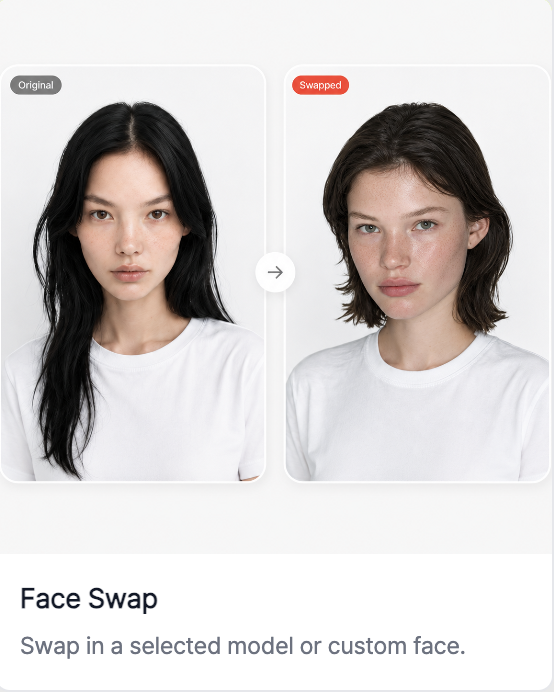
RealSnap Face Swap is a feature that lets you change only the model’s face in an AI model shot to a different face while keeping the existing outfit, background, and pose.
You can use it when you want to adjust only the facial impression without recreating the entire image.
Sometimes the outfit and background look great, but the model’s face feels off
When creating AI model shots, you may like the outfit, pose, background, and overall mood, but find that only the model’s face doesn’t match your brand image.For example, the facial impression may look too strong, the model may appear to be a different age than you wanted, or the model’s face may not fit the lookbook mood.
In these cases, recreating the image from scratch may also change the outfit, background, and pose that turned out well.RealSnap Face Swap helps you keep the strong elements of the existing image while changing only the model’s face in the direction you want.
1. You can change only the face while keeping the existing outfit and background
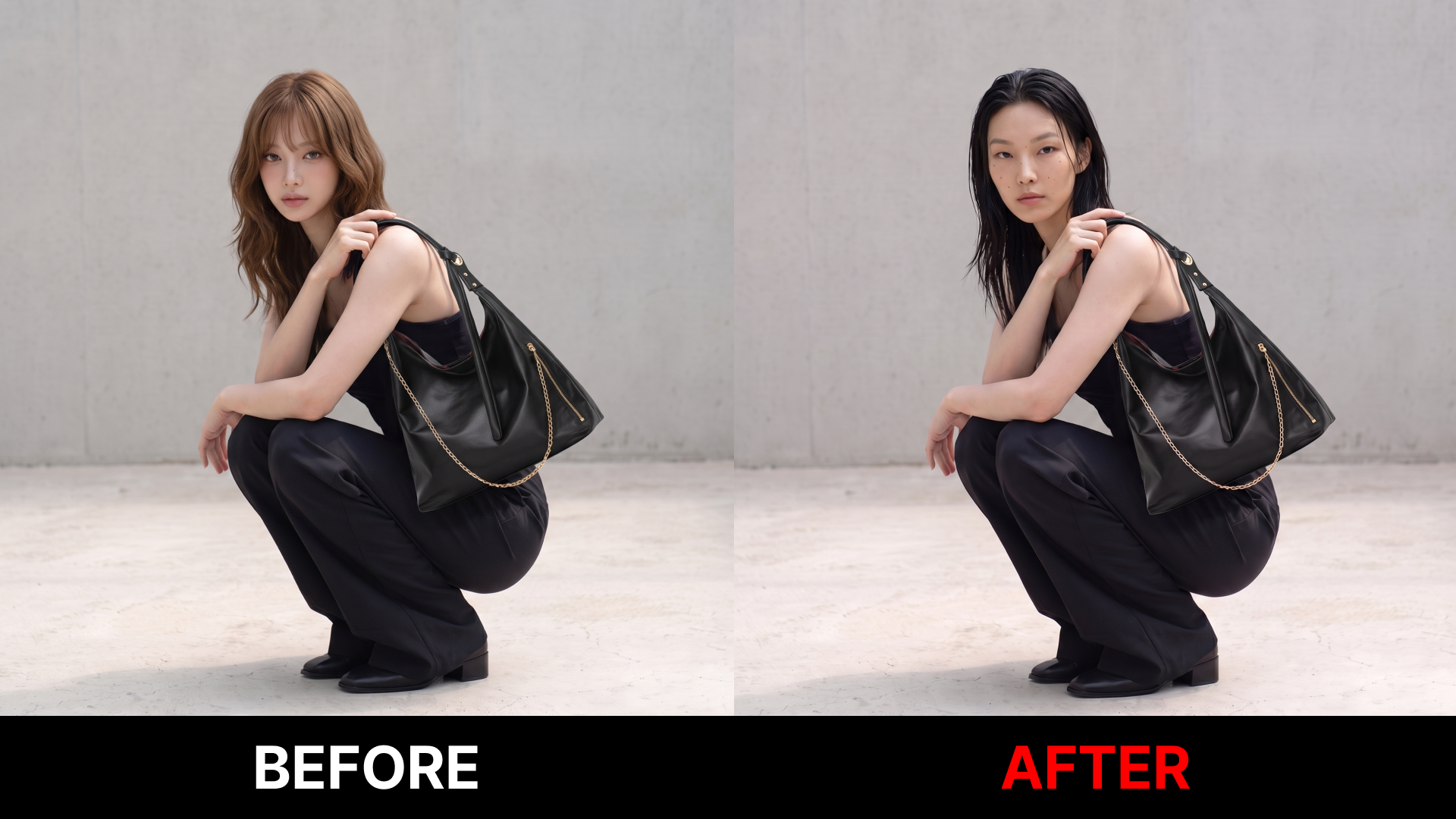
The Face Swap feature does not recreate the entire image.You can keep the outfit, background, pose, and composition from the existing model shot and change only the face to the one you select.
This feature is useful when you like the outfit result but only want to change the mood of the model’s face.You can test multiple face versions on the same product image to find a model image that better fits your brand.
2. You can change the model’s mood by selecting the face you want
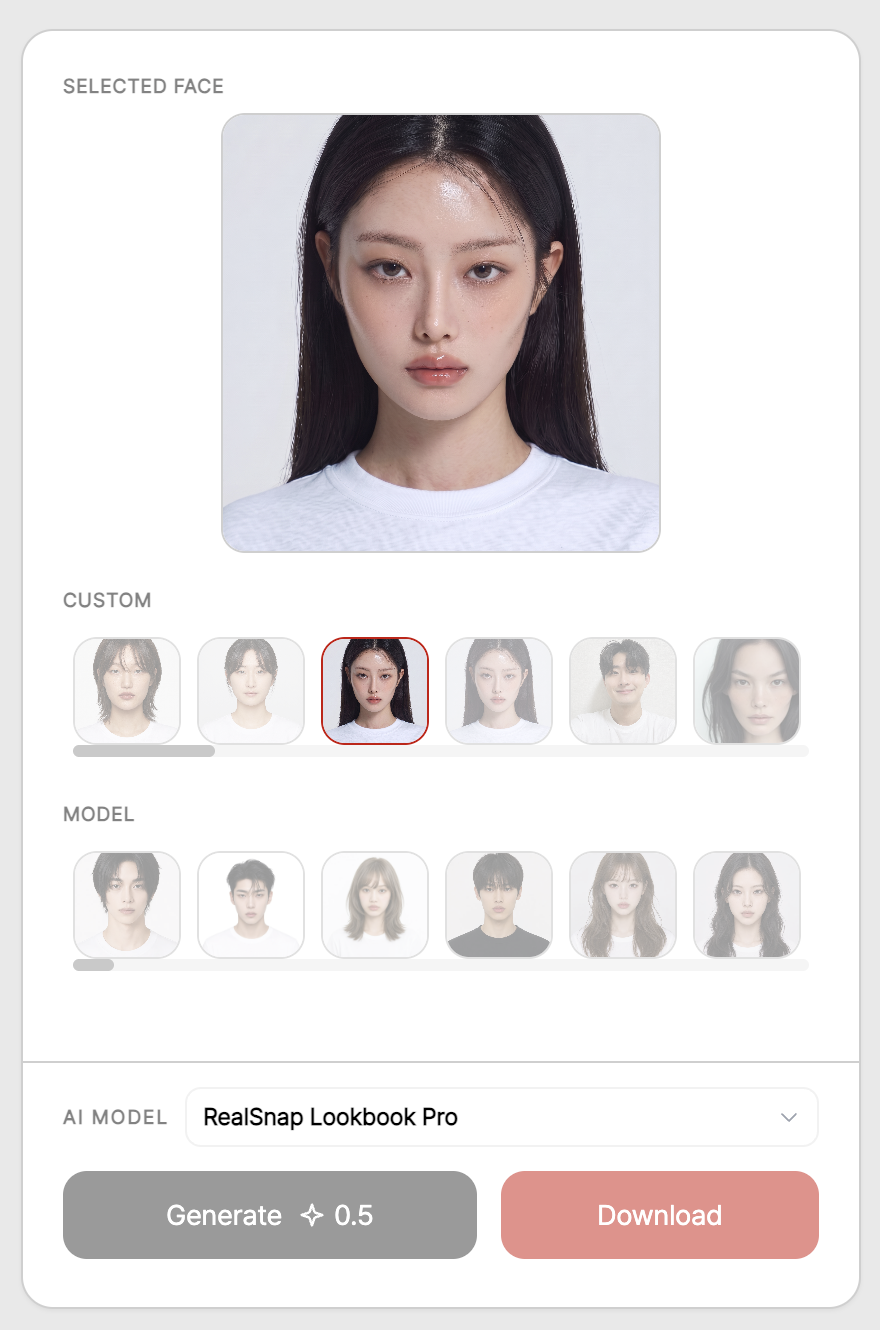
In Face Swap, you can choose the face you want to apply and then create the result.Depending on the face you select, the impression, age range, mood, and brand feel of the model shot can change.
For example, even with the same clothes, applying a calm-looking face can make the image feel like a minimal lookbook, while applying a trendier face can give it a feel that suits social media or campaign imagery.It’s a good idea to compare multiple faces based on the model mood your brand wants.
3. You can compare multiple model versions and choose the image that fits your brand
With Face Swap, you can create multiple model face versions using the same outfit.Because the outfit and background are maintained, it’s easier to compare only the facial mood and decide which result better matches your brand image.
For product detail pages, you can choose a face that makes the product look natural, and for lookbooks, you can select a model impression that matches your brand mood.For social media content or campaign images, you can test model shots with a mood that your target customers can relate to more.
How to use
Open the Face Swap feature.
Select the AI model shot whose face you want to change.
Choose the face you want to apply.
Click Create to check the result with the swapped face.
Select the result you like and use it for product detail pages, lookbooks, or social media content.
💡Things to note
If you use the face of a real person, you must use an image for which you have usage rights or consent from the person.When using it for commercial content, ad creatives, or product detail page images, be sure to check portrait rights and the scope of usage.
After swapping the face, check that the face direction, skin tone, neckline, hairline, and lighting tone connect naturally.It’s best to review the final image to ensure it matches your brand image and product mood before using it.
Conclusion
RealSnap Face Swap is a useful feature for AI model shots when you like the outfit, background, and pose but only want to change the model’s face.Because you can swap only the face without recreating the image from scratch, you can quickly compare multiple model moods using the same outfit.
If you want to find a model impression that better fits your brand for lookbook images, product detail page model shots, social media content, or campaign shoots, try using the Face Swap feature.