Can I adjust only the colors of clothing, backgrounds, and props?
SNAP|Updated Jul 29, 2026
RealSnap Color Correction is a feature that lets you adjust the colors and tones of only the areas you choose, such as clothing, backgrounds, or props, rather than the entire photo.
You can keep the face, pose, and composition that already look good while editing only the areas where the color feels off.
I like the image, but only certain colors feel off
When creating AI fashion images, you may like the overall result but feel that the color in a specific area is not quite right.For example, the clothing color may look different from the actual product, the background tone may not match the brand mood, or a prop color may stand out too much.
In these cases, recreating the entire photo can also change the face, pose, outfit fit, and composition that already looked good.RealSnap Color Correction lets you select only the areas you need and adjust their colors, so you can keep the elements you already like while refining only the parts you want.
1. You can adjust the colors of only the areas you choose
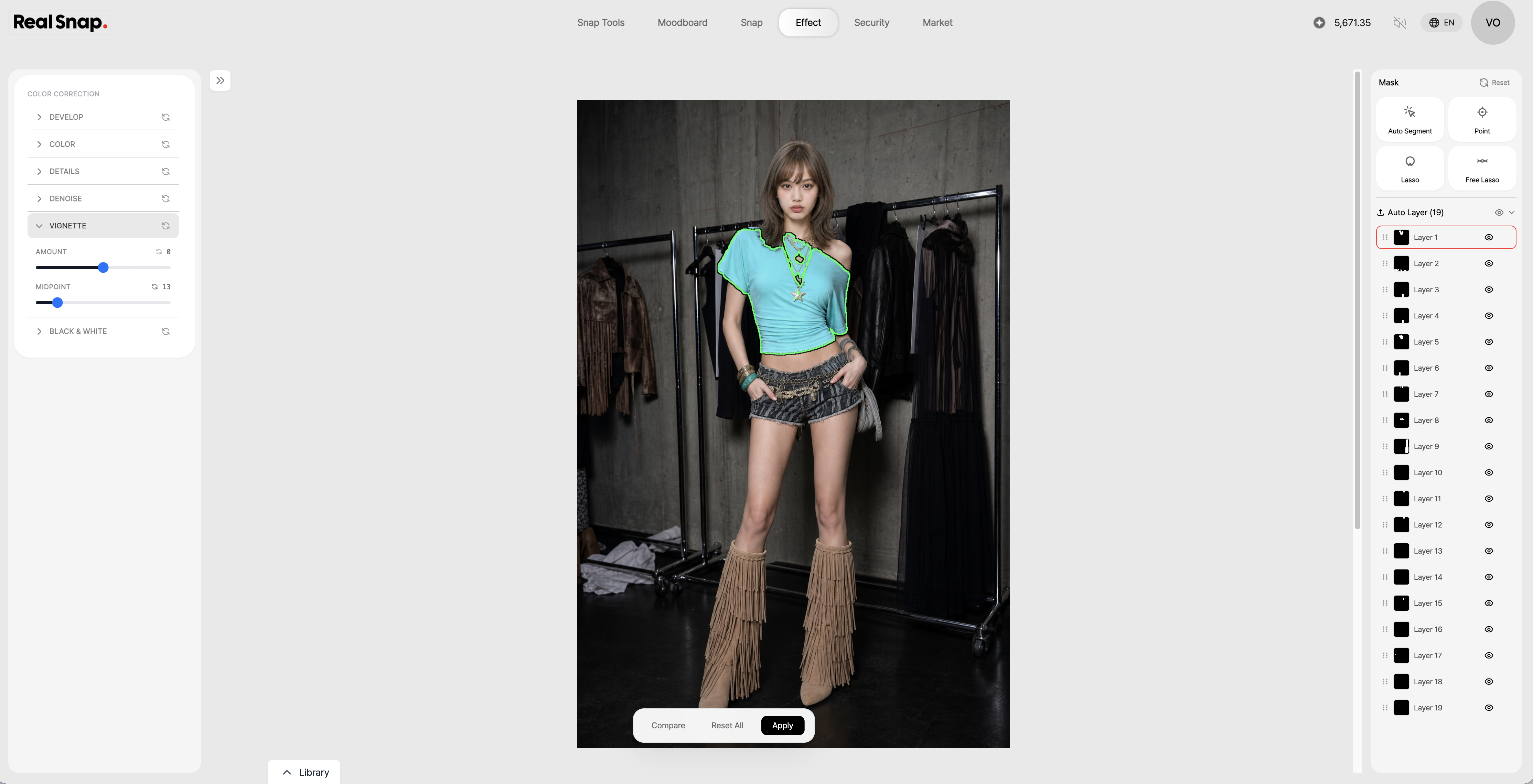
With Color Correction, you can select only the parts you want to edit instead of the entire photo.Specify the areas where you want to change the color or adjust the tone, such as clothing, backgrounds, bags, shoes, or props, and correct them to your desired color style.
The best part of this feature is that you do not need to regenerate the entire image.You can quickly edit only the areas where the color feels off while keeping the model’s face, pose, outfit fit, and background composition that already look good.
2. You can refine clothing, background, and prop colors to match your brand tone
Color Correction is not just for changing product colors.You can also use it to make the background tone calmer, adjust prop colors to match your brand colors, or make clothing colors more vivid.
On product detail pages, it is important for the actual product color to appear accurately, while in lookbooks or social media content, the overall tone and manner of the image matters.With Color Correction, you can keep the important elements of the image while adjusting only the necessary colors to fit your brand mood.
3. You can check the result by comparing before and after
Even a small difference in color can greatly change the impression of a product and the mood of an image.After color correction, it is a good idea to compare the original and the result to make sure the color changed naturally.
Especially for sales images, you should check that the color does not look too different from the actual product.When using the image for lookbooks or social media content, also check that the skin tone, background, and clothing colors have not changed unnaturally.
How to use
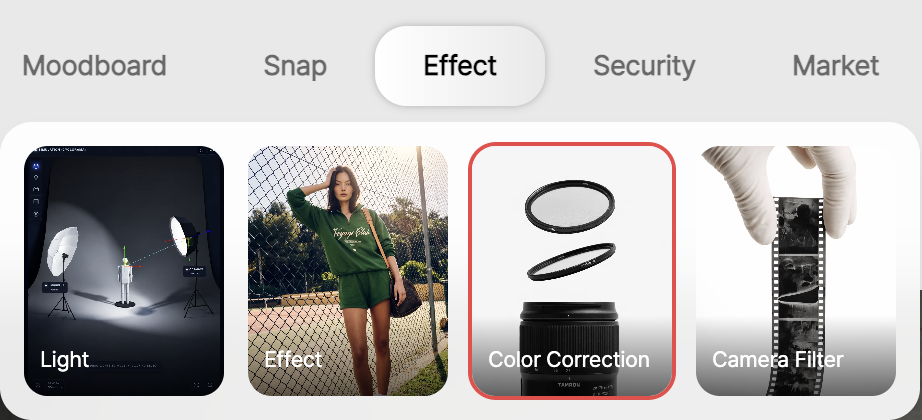
Open the Color Correction feature.
Select the image you want to work on.
Select the clothing, background, or prop area whose color you want to change.
Adjust it to the color style or tone you want.
Compare before and after, then check the result.
💡Things to note
When using the image for sales purposes, you must make sure there is no difference from the actual product color.For products where color affects purchase decisions, such as clothing, shoes, and bags, it is best to review them by comparing with the original product.
Applying color correction too strongly can make fabric texture, shadows, skin tone, or background tone look unnatural.Before using the final image on product detail pages, in lookbooks, on social media, or in ad creatives, check both naturalness and product accuracy.
Conclusion
RealSnap Color Correction is a useful feature for AI fashion images when you want to edit only the colors of a specific area without recreating the entire photo.You can select and adjust only the necessary parts, such as clothing, backgrounds, or props, so you can improve the image quality while keeping the face, pose, and composition that already look good.
If you want to match product colors more accurately on detail pages or organize the brand tone of lookbook and social media images, try refining only the necessary areas first with Color Correction.