Can I apply the colors of a photo I like to an AI lookbook?
SNAP|Updated Aug 3, 2026
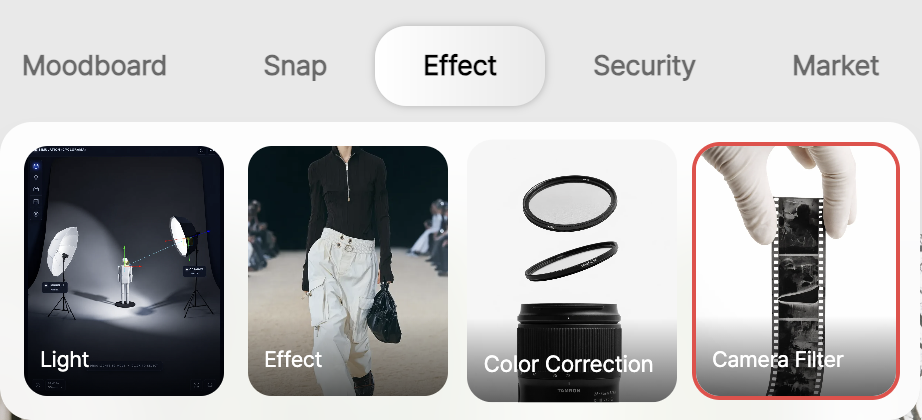
RealSnap Camera Filter is a feature that lets you upload a reference photo and apply its colors and mood to your image.
Use it when you want the tone of your lookbook, product detail pages, or social media content to closely match a reference you like.
I know the colors I want, but it’s hard to explain them in words
When creating fashion images, you may have a desired mood like “warm film tones,” “a calm mood,” or “a vivid campaign feel,” but find it hard to describe the colors accurately in words.Especially when your brand has a reference photo in mind, you may want to match the colors and mood of that photo.
However, with basic editing alone, it can be difficult to closely match the reference’s overall tone, feel of light, and color balance.
RealSnap Camera Filter helps match the mood of your photo based on a reference image, so you can bring it closer to the tone and manner your brand wants.
1. You can apply the colors and mood of a reference photo
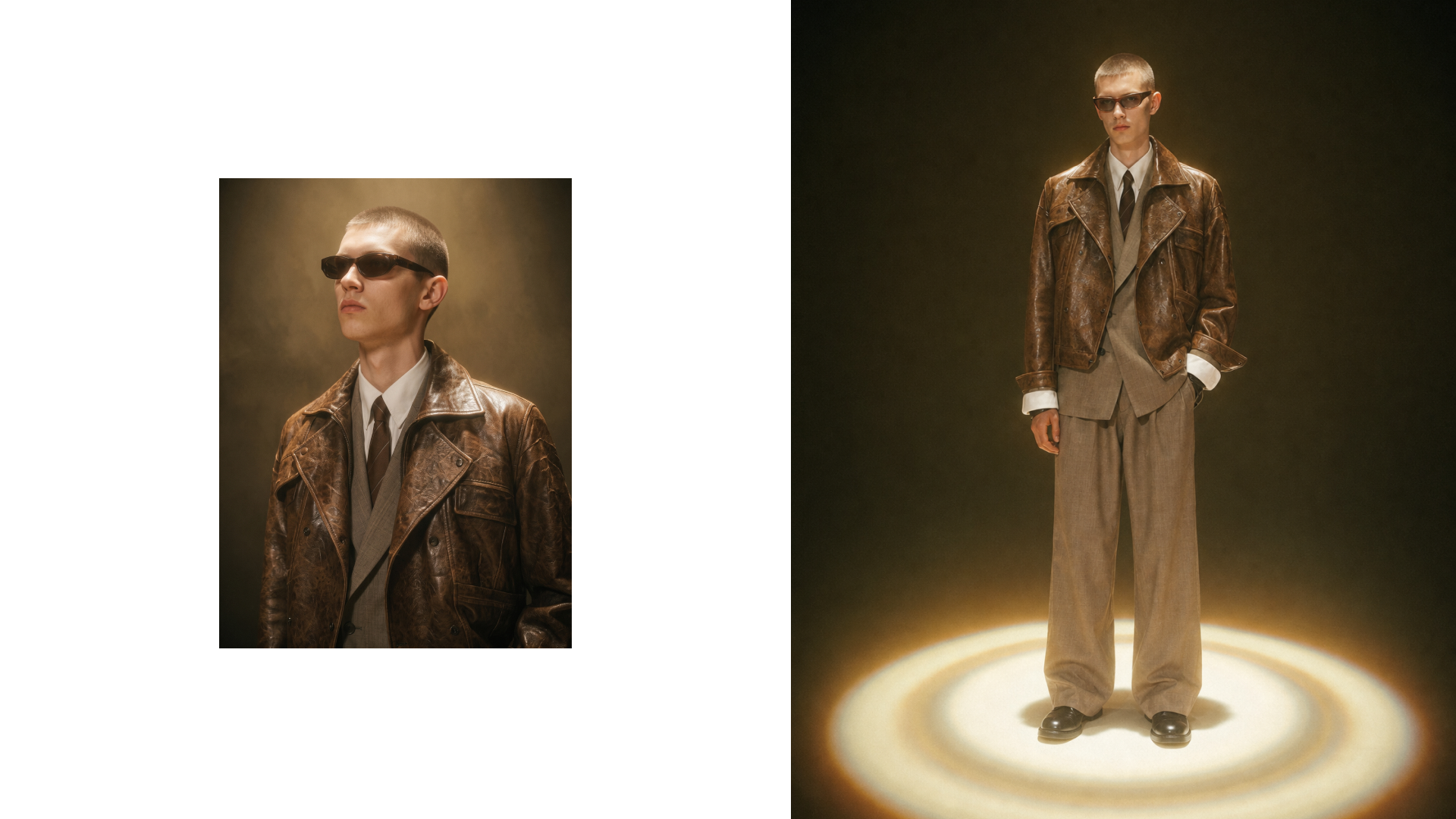
With Camera Filter, you can upload a reference photo you like and apply its colors and mood to your image.You can create a result image based on the reference you want, such as warm sunlight, a calm studio tone, or a stylish film mood.
This feature is especially useful when it’s hard to explain colors. If you have an image that shows “this kind of feel,” you can align the result more easily without having to describe it at length.
2. You can more easily match your brand tone across lookbook and social media images
Camera Filter isn’t just a feature for making a single photo look prettier.You can use it to align the mood across multiple pieces of content based on the tone and manner your brand wants.
For example, lookbook images should make the entire collection look consistent in tone, and social media images should carry the brand mood throughout the feed.
Using Camera Filter, you can make the colors of your lookbook, product detail pages, and social media content more consistent based on the mood of a reference photo.
3. You can choose the filter you want by comparing the original and the result
After applying Camera Filter, compare the original image with the result image to check whether the mood has changed naturally.Even if the reference photo’s colors are applied, if the product colors or skin tones change too much, it may not be suitable as an image for actual use.
For lookbook or social media images, a stylish mood is important, but for product detail page images, accurate product color and material expression matter more.
It’s best to compare the results based on your intended use and choose the filter result that looks most natural.
How to use
Open the Camera Filter feature.
Select the image you want to work on.
Upload a reference photo with the colors you want to follow.
Apply Camera Filter to generate the result.
Compare the original and the result, then choose the image you like.
💡Note
If you use the image for sales purposes, after applying Camera Filter, check that the actual product color and material texture have not changed significantly.In particular, for images used on product detail pages, it’s best to review them by comparing them with the original product colors.
If the reference photo’s colors are strong, skin tones, background tones, and clothing colors may all change significantly.For the final image, check whether it looks natural for its intended use, such as a lookbook, social media, or ad creative.
Conclusion
RealSnap Camera Filter is a useful feature for fashion brands when they want to apply the colors and mood of a reference photo they like to their own images.
It’s helpful when it’s hard to describe the mood you want in words, or when you want to match the tone of your lookbook and social media content to your brand standards.
If you have an image you want to reference, such as warm film tones, a calm studio mood, or a vivid campaign tone, try using Camera Filter first to align the color direction.