Can I load an AI model shot I created, edit it right away, and save it?
SNAP|Updated Jul 30, 2026
In RealSnap Snap Tools, you can use a variety of features such as image editing, face and model retouching, and clothing-related edits.
First, check what tools are available, load the photo you want to work on, and then save the finished result as a PNG or JPEG file.
I’m not sure where to start when I want to edit an image I created
After creating an AI model shot, you may want to edit only certain elements again, such as the face, pose, outfit, direction, or image quality.But when there are many features, it can be confusing to know which tool to use, which photo to load, or where to save the result.
Snap Tools help you continue this kind of work all in one place.Just check the list of tools first, load an existing image or an uploaded photo, apply the edits you want, and save the result.
1. You can first check what tools are available
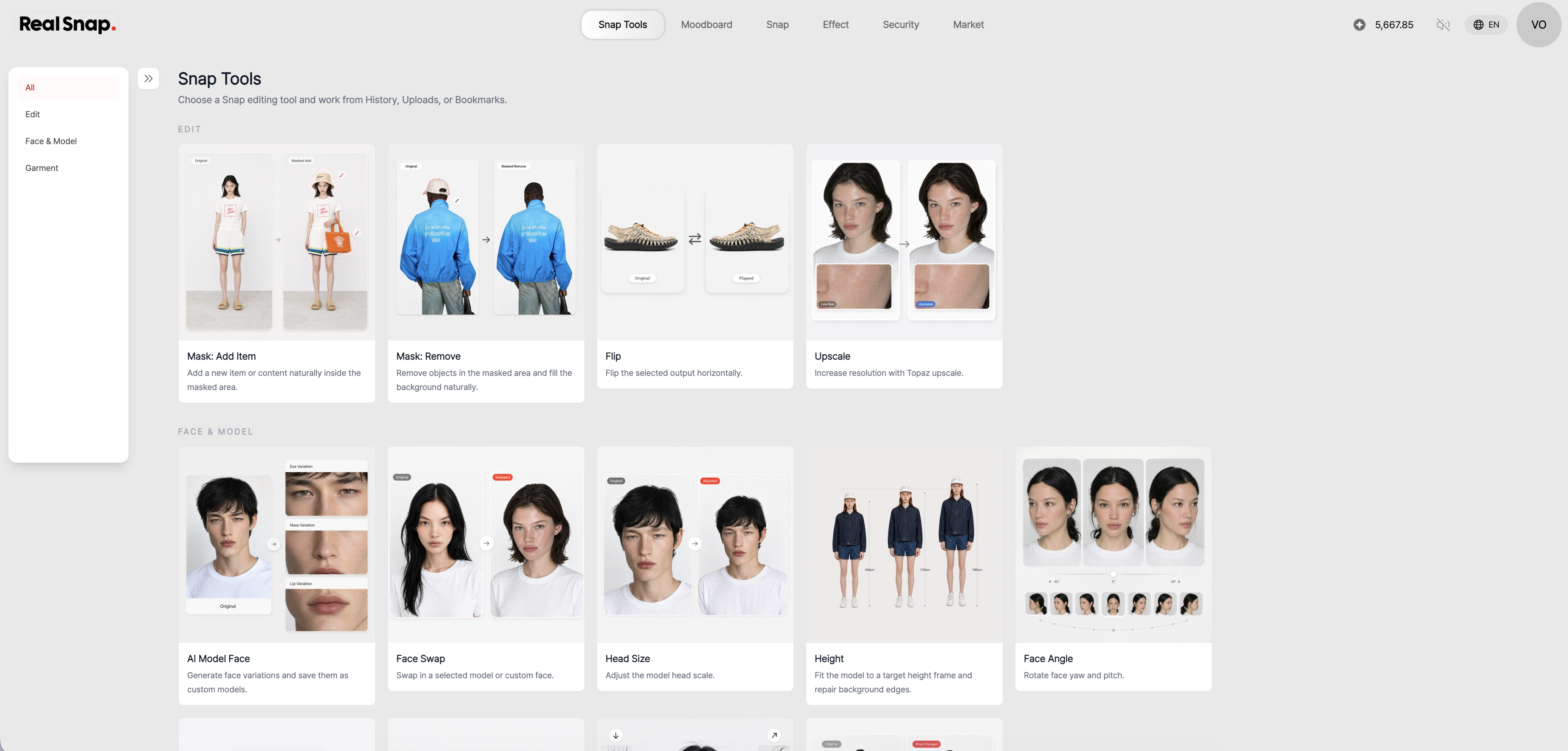
In Snap Tools, you can view the available features in card form.You can find the tools you need based on your purpose, such as image editing, face and model retouching, or clothing-related edits.
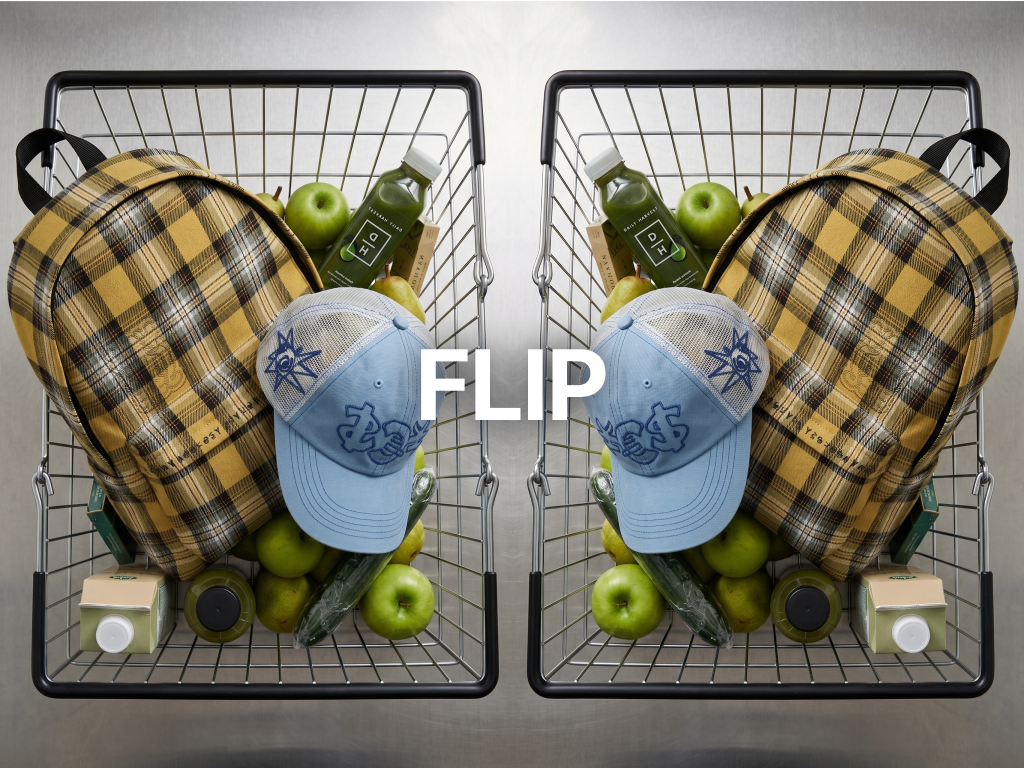
If you’re using it for the first time, it’s a good idea to browse the tool list first rather than starting to edit right away.Once you see what features are available, you can more quickly find the tasks you need, such as face swapping, pose editing, outfit length adjustment, horizontal flipping, or upscaling.
2. You can load the photo you want to work on and start editing right away
In Snap Tools, you can load and work on an existing image without creating a new image again.Simply choose the image you want from images you created before, favorited images, or photos you uploaded.
If you already have a model shot you like, you can bring that image in and edit only the parts you need.This lets you keep the outfit, background, and pose that came out well while continuing to refine only the parts you’re not satisfied with.
3. You can check the completed result and save it as a file
After applying an editing tool, you can check the generated results.If there are multiple result candidates, browse left and right and choose the image that looks the most natural and that you like best.
You can save the final image according to your work purpose.You can download it in PNG or JPEG format for use in product detail pages, lookbooks, social media content, or ad creatives.
How to use
Open the Snap Tools menu.
Check the editing features you need in the tool list.
Select the photo you want to work on from images you created before, favorites, or uploaded photos.
Apply the tool you want and check the result.
Save the result you like as a PNG or JPEG.
💡 Things to note
If you plan to use the image for sales purposes, make sure the actual product’s color, fit, shape, and material texture are still maintained naturally after editing.
Face and model retouching or clothing-related edits can affect the overall impression of the image and how the product is represented, so it’s best to zoom in and review the final result.
Before downloading, choose the file format that fits your intended use.
If you plan to use it for web product detail pages or social media content, it’s also a good idea to check whether the image quality, file size, and background rendering are appropriate.
Conclusion
Snap Tools are a useful feature when you want to load AI model shots created in RealSnap or photos uploaded by users again, edit only the necessary parts, and save them.
By first checking what tools are available, selecting the image you want to work on, and applying the edits you want, you can continue your image creation workflow more efficiently.
If you need to refine lookbook images, product detail page model shots, or social media content you’ve already created, or save them as final files, it’s a good idea to start in Snap Tools.