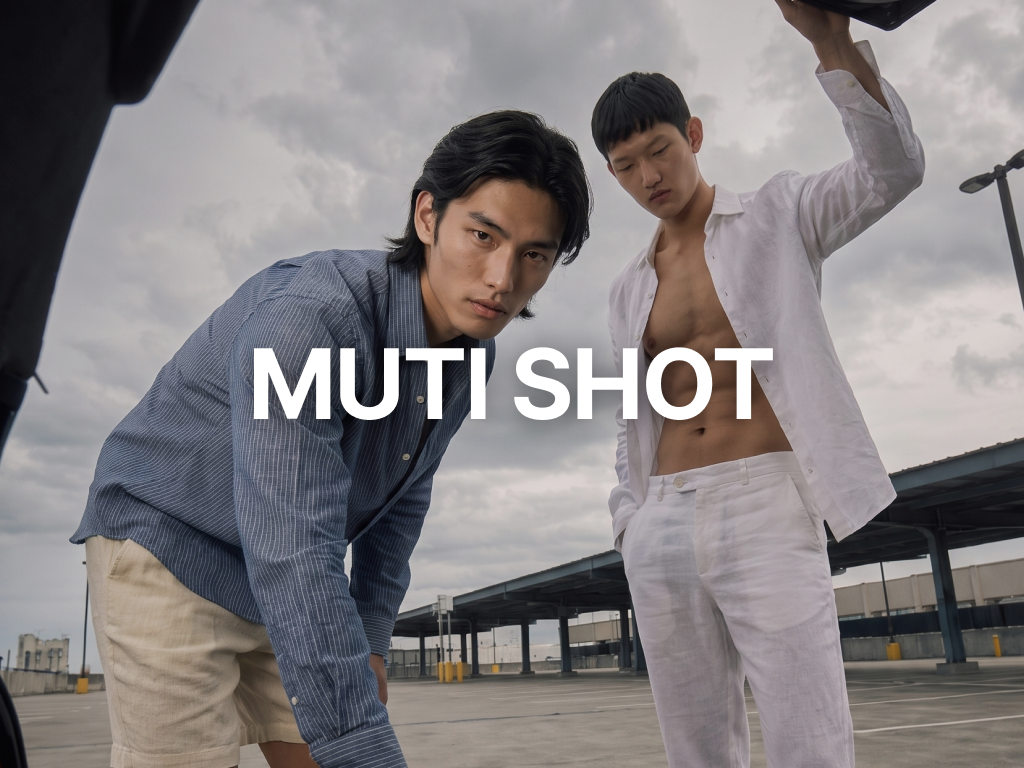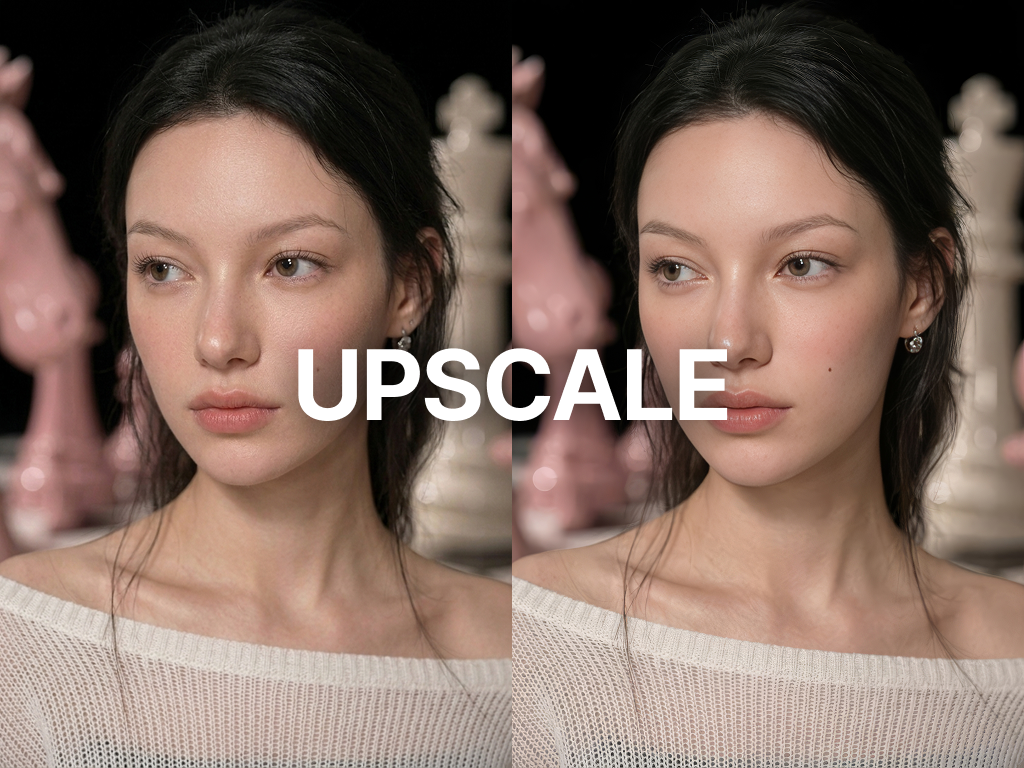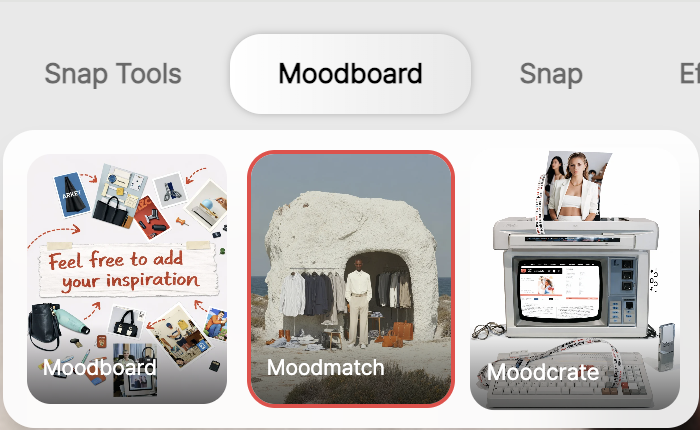
RealSnap Mood Match is a feature that lets you choose a category and enter your desired mood as text or settings to create AI fashion images.
Before creating lookbooks, campaigns, or social media content, you can quickly test the shoot mood and visual direction.
The challenge of having a desired shoot mood but not being able to preview it as an image right away
When fashion brands prepare a lookbook or campaign, they first need to decide what kind of mood the images should have.But if the idea is only described in words, like “natural light feel,” “luxurious mood,” or “everyday vibe,” it’s hard to immediately see what the final result will look like.
Mood Match is a feature that lets you describe the mood you want in text or select categories and settings to generate AI images. Before a shoot or content production, brands can quickly visualize the direction they want.
1. Choose a category to set the image direction first
In Mood Match, you can first select the category of the image you want to create.Choosing a category that matches your purpose, such as lookbook, campaign, daily, or social media content, makes it easier to set the image’s basic direction.
Even if it’s hard to write a long description from the start, choosing a category first helps you organize the mood more easily.
It’s useful when creating images tailored to the intended use of the brand’s desired output.
2. Describe the mood you want in text to create AI images
After choosing a category, you can enter the mood you want in text.For example, it helps to include the location, colors, style, and shoot mood, such as “a minimalist women’s daily look editorial shot in a white studio with natural light.”
Rather than simply writing “pretty” or “luxurious,” describing the background, tone, and style of image you want makes the result direction clearer.
Before creating images, you can set the model to use, reference method, number of images to generate, and image ratio.
Vertical images are good for product detail pages or lookbooks, while horizontal images are suitable for campaign banners or website images. Adjust the settings according to your purpose, then generate the images.
3. Adjust settings to make the resulting images more specific
In Mood Match, you can adjust not only the text input but also settings such as the model, generation method, number of images, and ratio.Vertical images are good for product detail pages or lookbooks, while horizontal images may be more suitable for campaign banners or website images.
Even with the same mood, the resulting images can vary depending on the settings, so you can test multiple directions based on your purpose. Results you like can later be used as a reference for creating lookbooks, campaigns, and social media content.
You can create campaign-style images where multiple images are connected under one concept.
It’s useful when you need images with a consistent mood, such as for a new product launch, seasonal collection, or brand promotion.
How to use
- Open the Mood Match menu.
- Select the image category you want to create.
- Adjust the settings and enter the mood you want in text.
- Click Create to generate AI images.
- Review the results and select the images you like.
Conclusion
Mood Match is a useful feature for fashion brands when they want to create AI images in their desired mood first before shooting or producing content. When you need to quickly decide the image direction for a lookbook, campaign, or social media content, you can test multiple visuals with just a category and text input.
If your brand mood is set but the actual image direction is still unclear, try creating AI fashion images with Mood Match first.