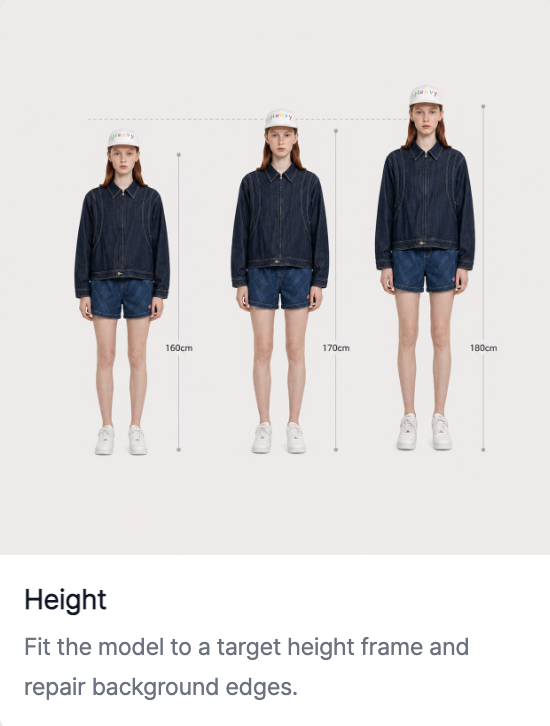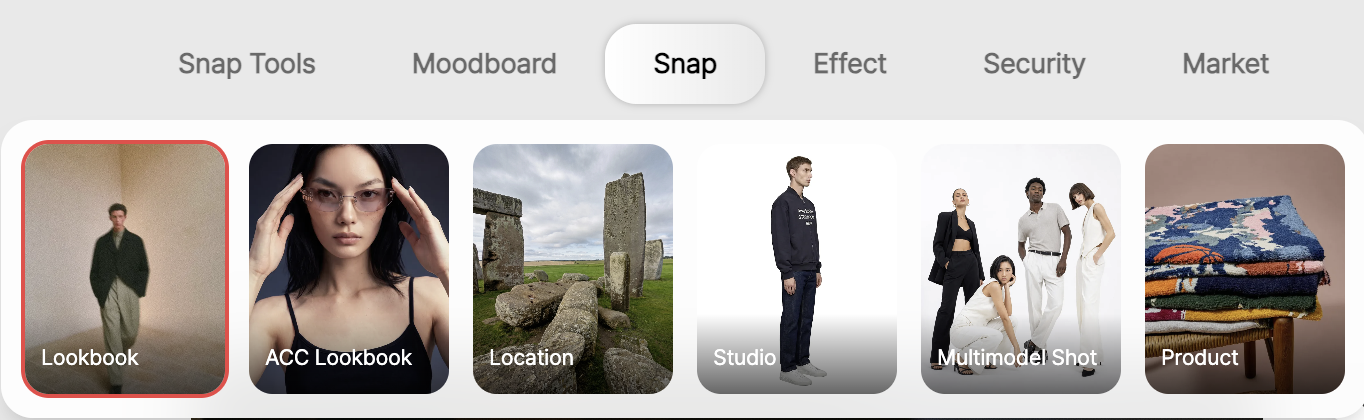
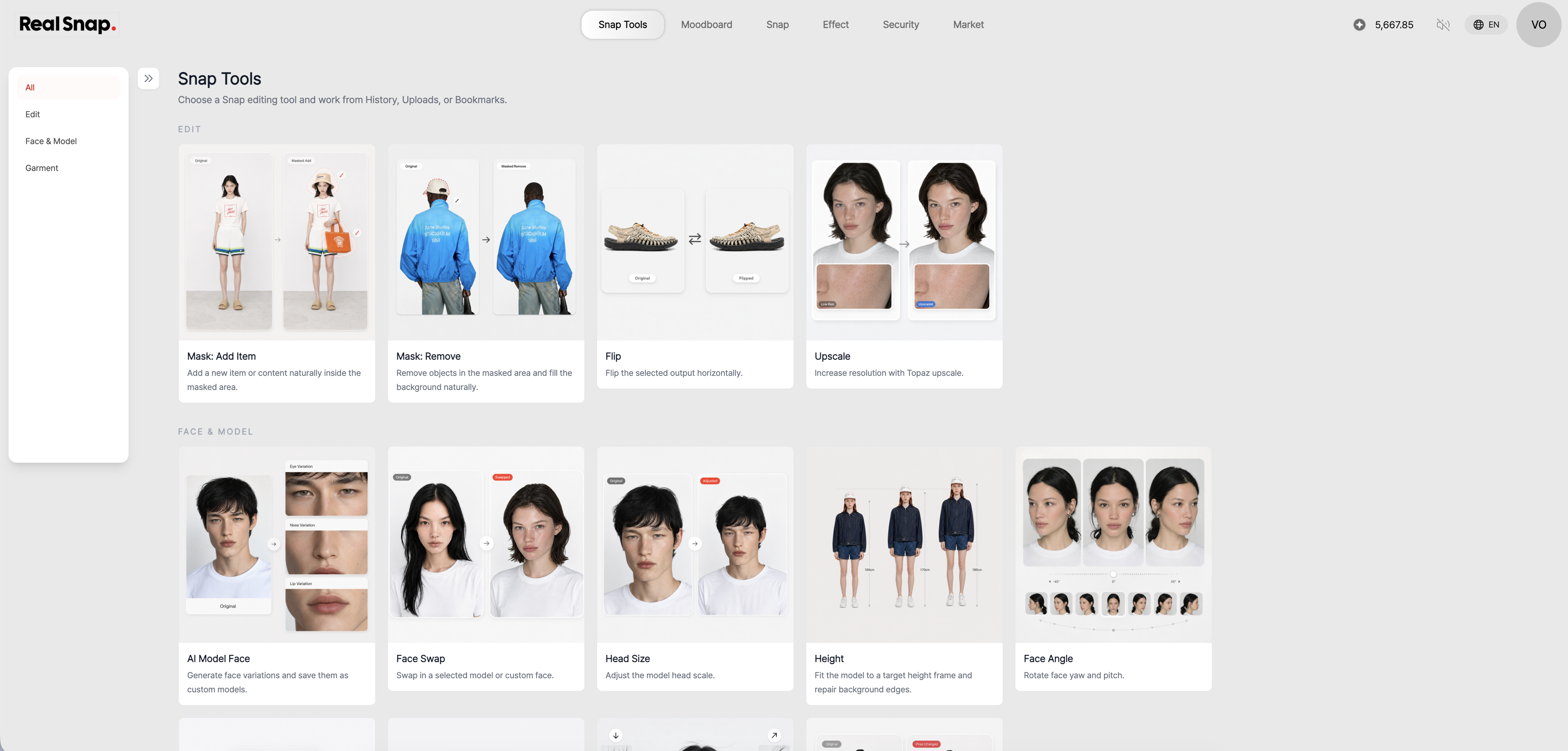
RealSnap Snap Tools let you partially edit the head size, face angle, body shape, clothing length, pose, left-right direction, and image quality of AI model shots you’ve already created.
When you like the image but only a few small details feel off, you can refine the result by choosing only the options you need instead of creating it again from scratch.
Sometimes the overall image is good, but small details feel a little off
When creating AI model shots, you may like the overall mood, outfit, and background, but find that some elements look awkward.For example, the head may look a bit large, the face direction may feel awkward, or the body shape and clothing fit may not match the feel your brand wants.
If you recreate the image from scratch in these cases, the pose, background, and outfit mood that came out well may also change.
Snap Tools help you edit only the details you need while keeping the existing result.
1. Adjust head size and face angle to refine the model’s impression
- Adjust head size

In model shots, the face has a big impact on the image’s first impression.When the head looks too large or too small compared with the overall proportions, you can naturally adjust it with the Head Size option.
- Adjust face angle
If the face should be facing forward but is turned slightly awkwardly, or if the gaze direction doesn’t match the brand mood, you can adjust the Face Angle.Use this when you want to keep the mood of the image while making only the model’s impression and gaze look more natural.
2. Adjust body shape and clothing length to make the product fit look more natural
- Adjust body shape
In fashion images, the model’s body shape and clothing length are important for showing the product fit.Body Shape option lets you adjust the overall proportions to match the model silhouette your brand wants.
- Adjust clothing length
Clothing Length option is useful for refining products where length is important, such as tops, bottoms, dresses, and outerwear.For example, you can adjust only the necessary parts when a dress length feels ambiguous, outerwear sleeves look awkward, or bottom length doesn’t match the product image.
3. Apply the posture you want with pose transfer
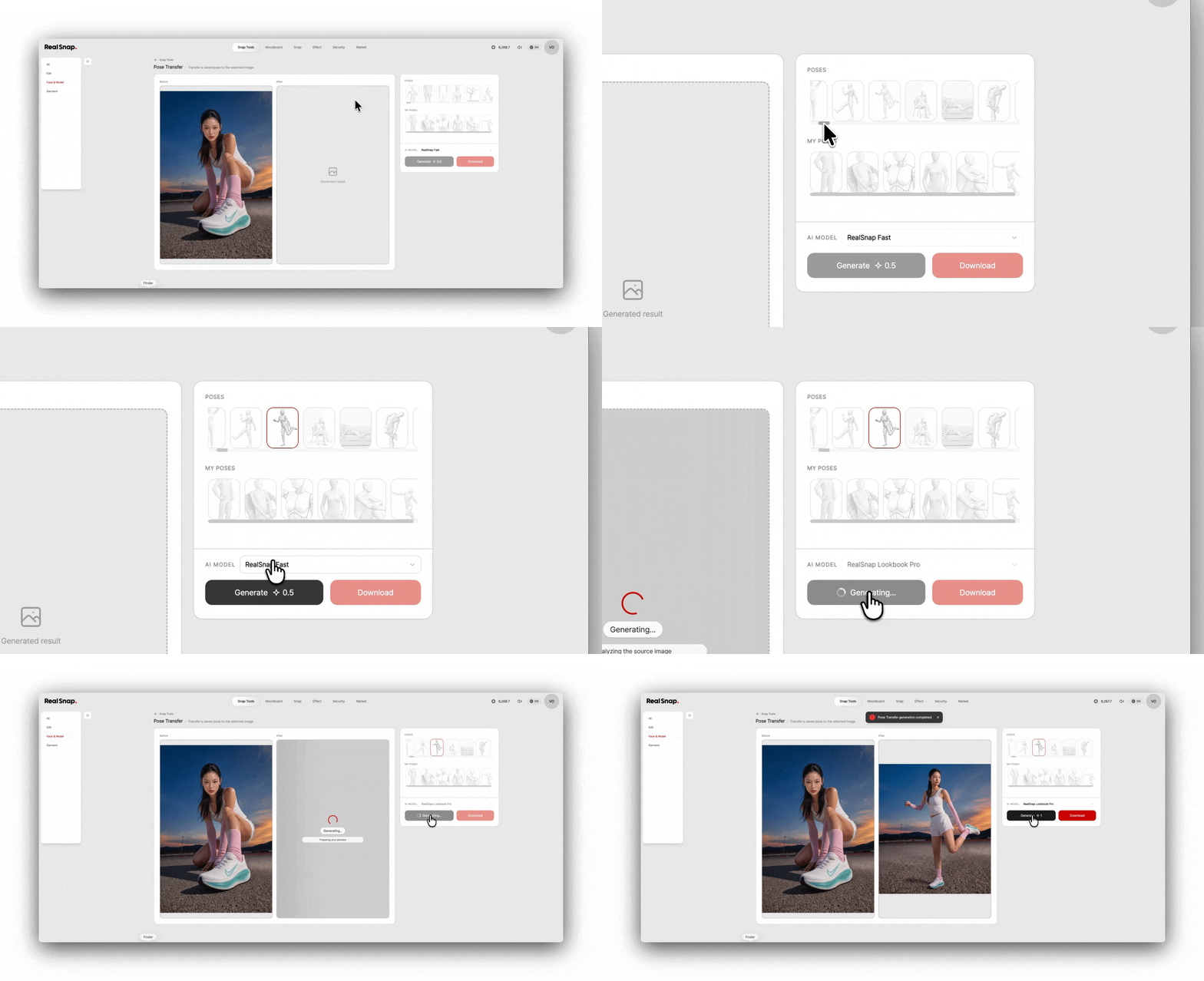
If you like the mood of the image but the model’s posture feels lacking, you can use Pose Transfer.You can change the model’s posture by selecting the pose you want or applying a reference pose.
This feature is useful when you want to change the composition so the product is shown better.You can adjust the posture to fit the product, such as a pose holding a bag, a full-body pose that shows shoes, or a pose that clearly shows the fit of a top.
4. Change the image direction with horizontal flip
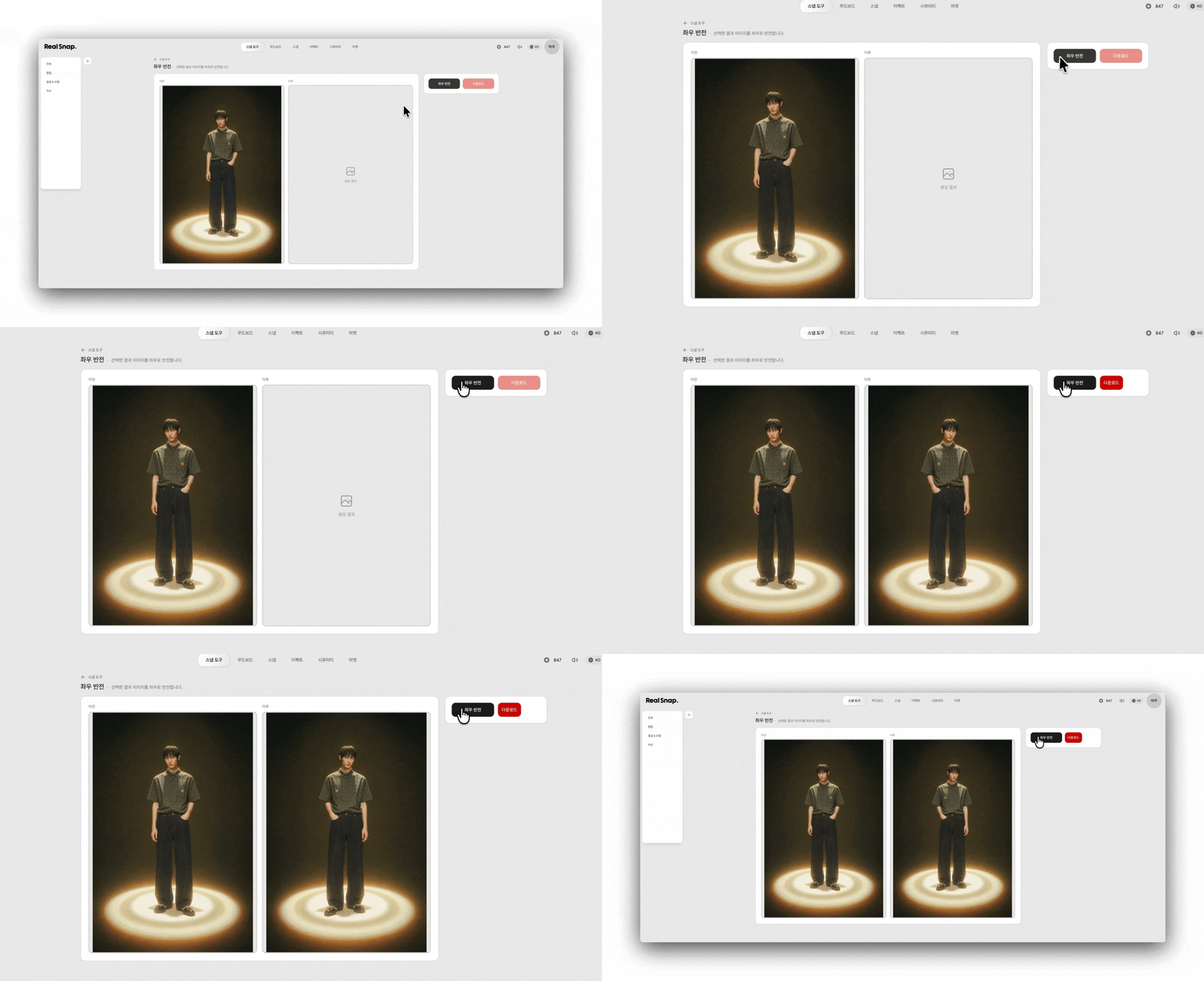
In product detail pages or banner images, the direction the model is facing can be important.If you want to secure space for text or change the model’s direction to match the page layout, you can use Horizontal Flip.
Horizontal Flip is a feature that lets you quickly change the screen composition without creating a new image.Use it when the model’s position or gaze direction doesn’t fit the layout.
5. Improve image quality with upscale
If you like the result image but feel the resolution or detail is lacking, you can use Upscale.Upscale makes images sharper, making it useful for work that requires high quality, such as product detail pages, lookbooks, and ad creatives.
It is especially useful when faces, clothing details, fabric textures, and accessory expressions need to appear clearer.Applying upscale before using the image as a final asset can help you create a more polished result.
How to use
- Select the AI model shot you want to edit.
- Choose the tool you need from head size, face angle, body shape, clothing length, pose transfer, horizontal flip, and upscale.
- Set the options you want and click Create.
- Review the generated result.
- Select the result you like and save it or use it for your next task.
💡 Things to keep in mind
If you use the image for sales purposes, make sure the actual product’s shape, color, fit, and material texture remain natural after editing.In particular, changing the body shape, clothing length, or pose can make the product silhouette look different, so it’s best to review it by comparing it with the original product.
When adjusting the face angle or head size, check that the model’s impression has not changed too much.Even after upscaling, it’s best to zoom in and check that the face, hands, and clothing details don’t look awkward.
Conclusion
Snap Tools are useful when you want to edit only small details in AI model shots without creating them again from scratch.You can adjust head size, face angle, body shape, clothing length, pose, left-right direction, and image quality as needed, helping you make results you already like even more polished.
If you’ve created lookbook images, product detail page model shots, social media content, or ad creatives but only some details feel off, try selecting the options you need in Snap Tools to edit them.